

User Authentication
This guide provides clear and simple instructions for the user registration, login, and password recovery processes on the DatAscend platform. Follow the steps below to complete each process successfully.
User Registration
Section titled “User Registration”Registration allows new users to create an account on the system.
How to access the registration form
Section titled “How to access the registration form”-
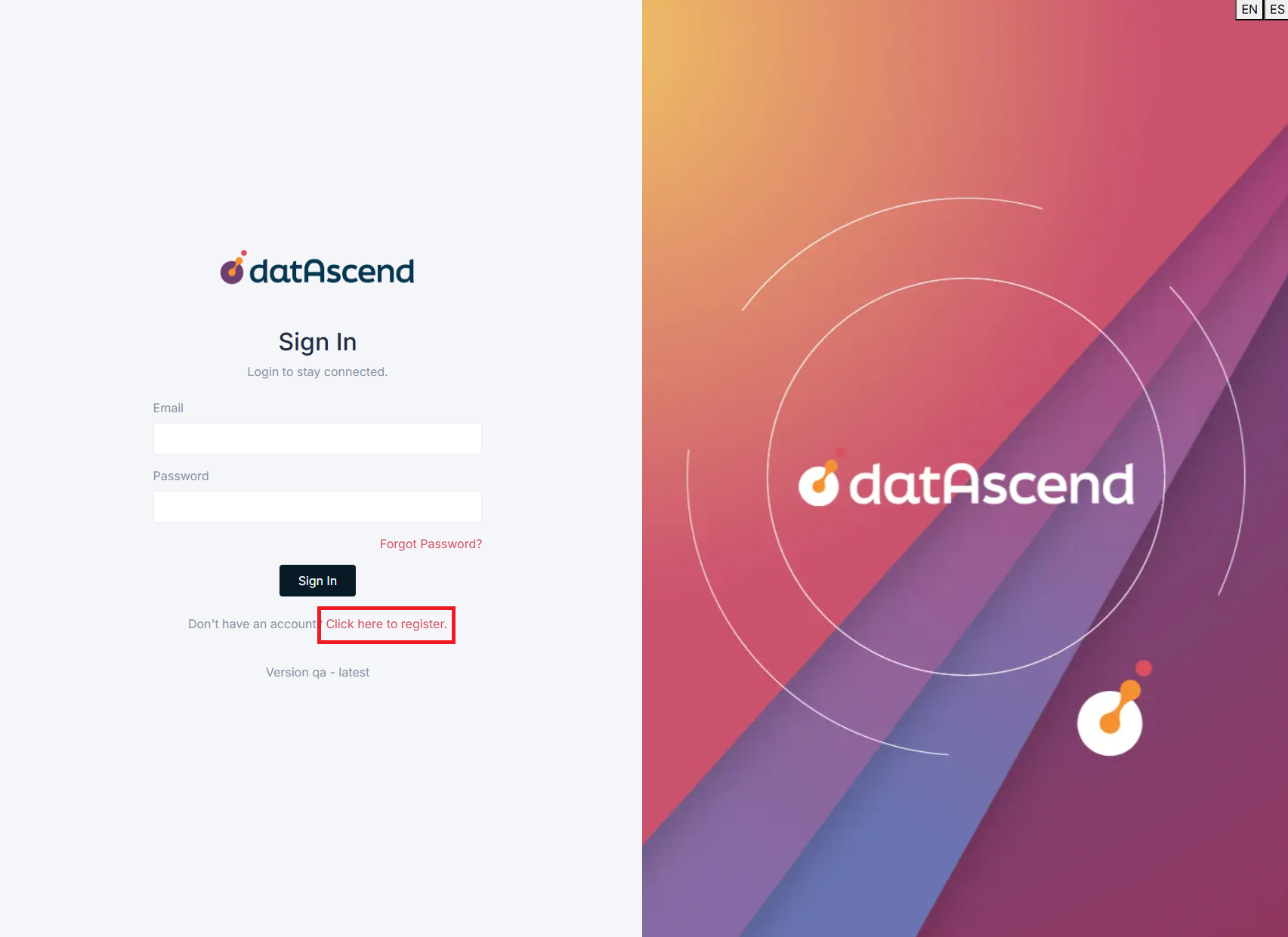
Open your web browser and navigate to the DatAscend login page.
-
Click on the “Click here to register” link located below the login form.
Steps to register
Section titled “Steps to register”-
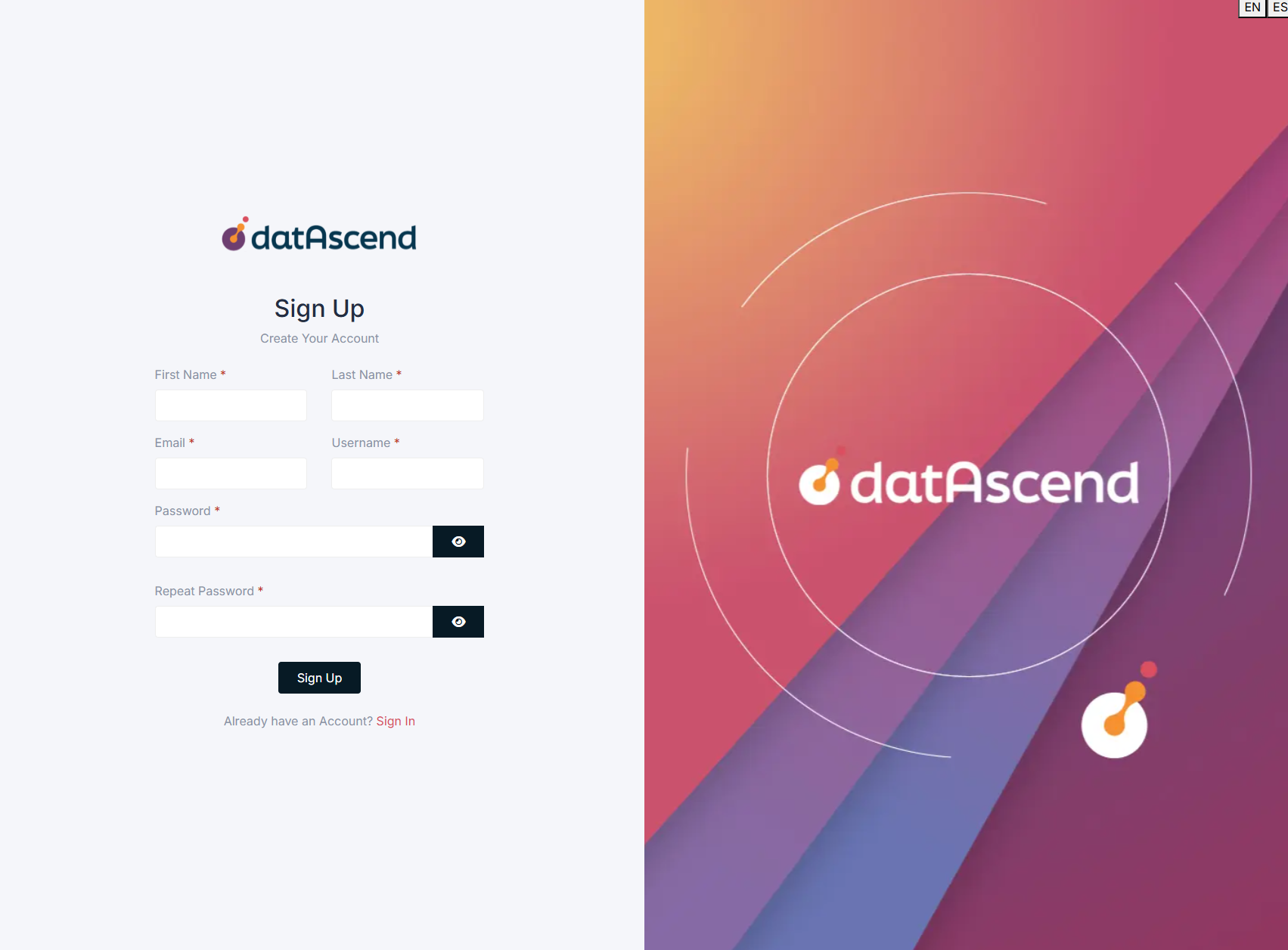
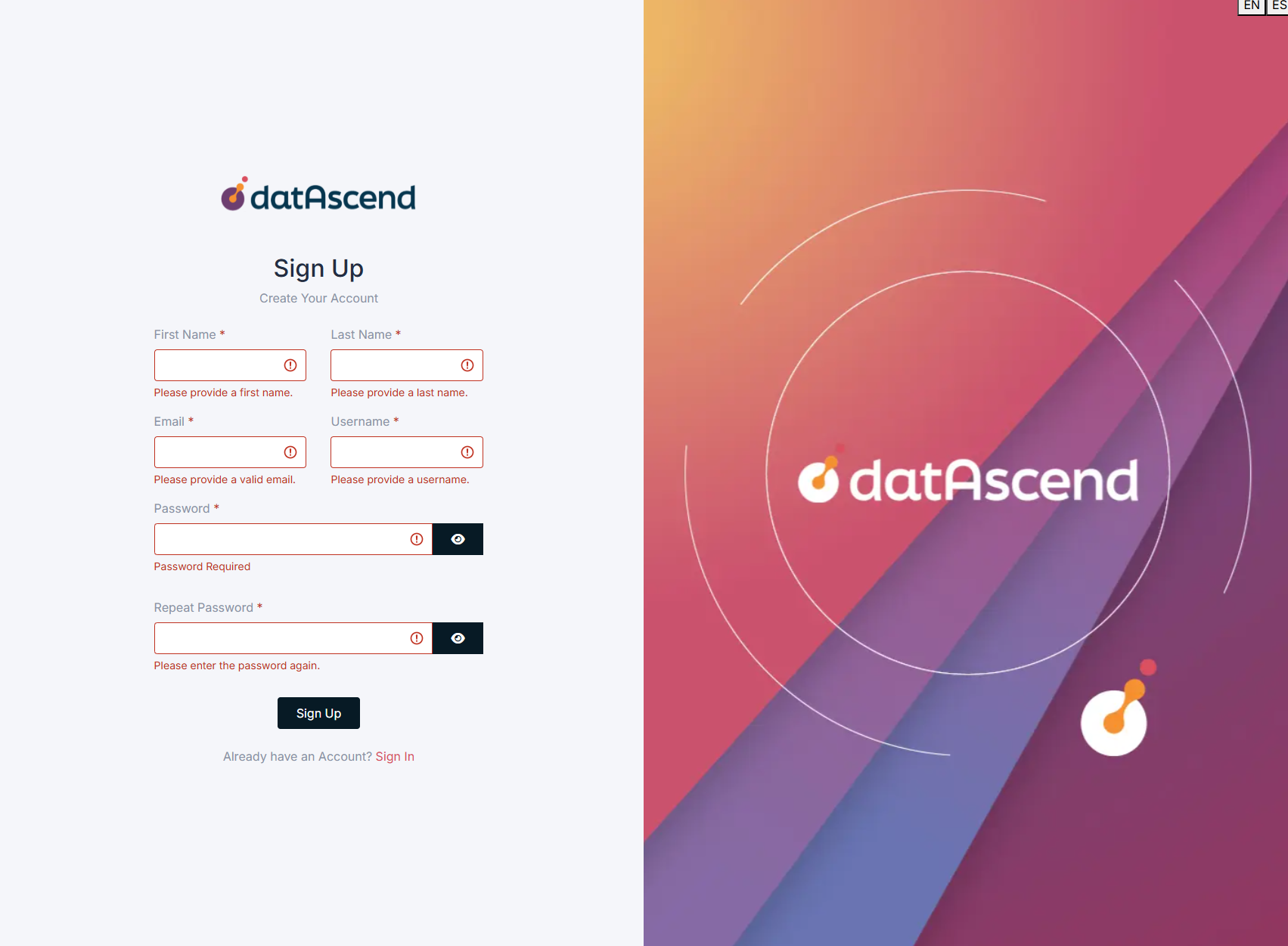
Fill out the registration form with the following information:
- First Name: Enter your first name.
- Last Name: Enter your last name.
- Email: Provide a valid email address.
- Username: Choose a unique username for your account.
- Password: Create a secure password (minimum 8 characters, including letters, numbers, and symbols).
- Repeat Password: Repeat the password to verify.
-
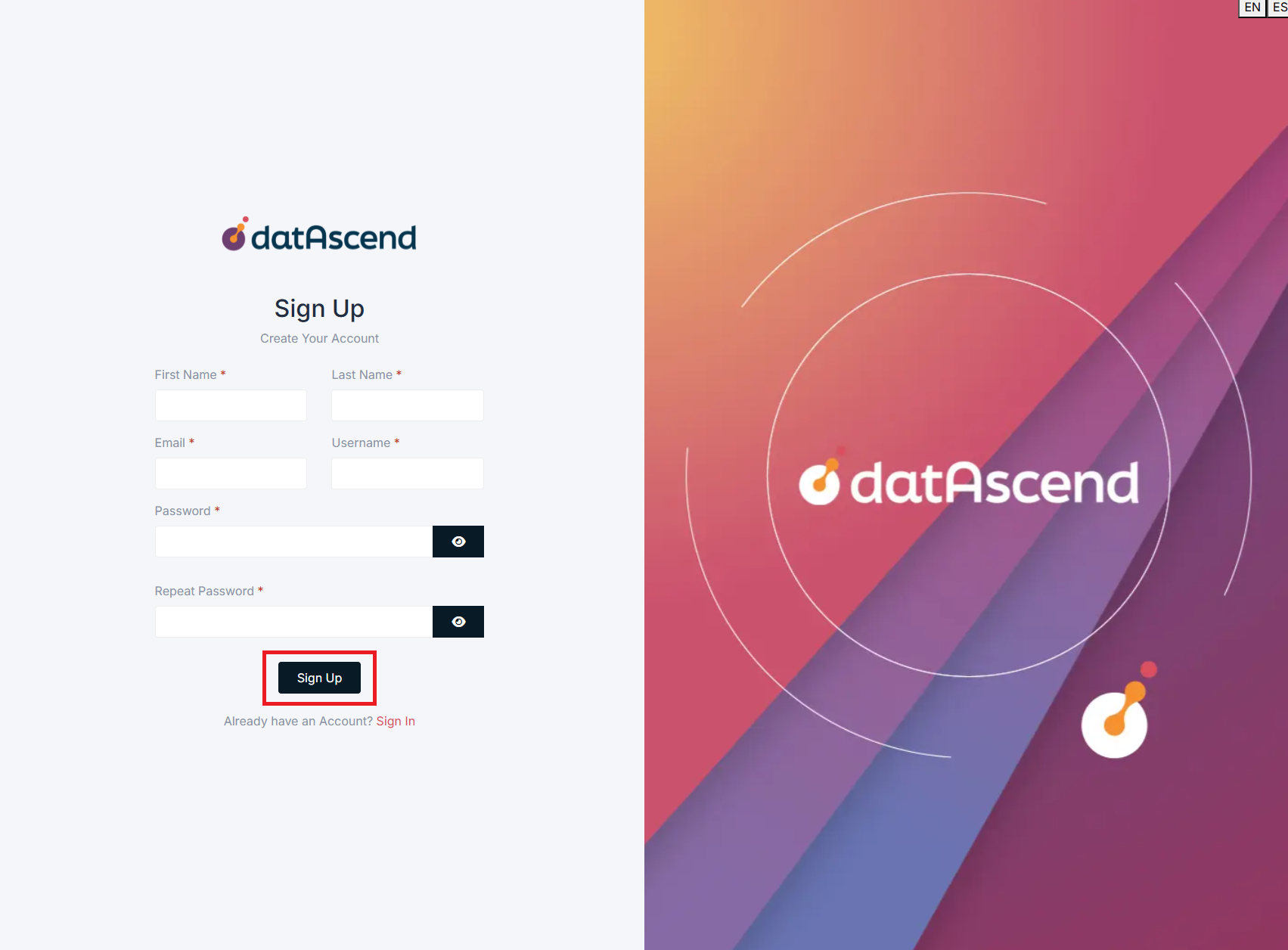
Click the “Sign Up” button to submit the form.
-
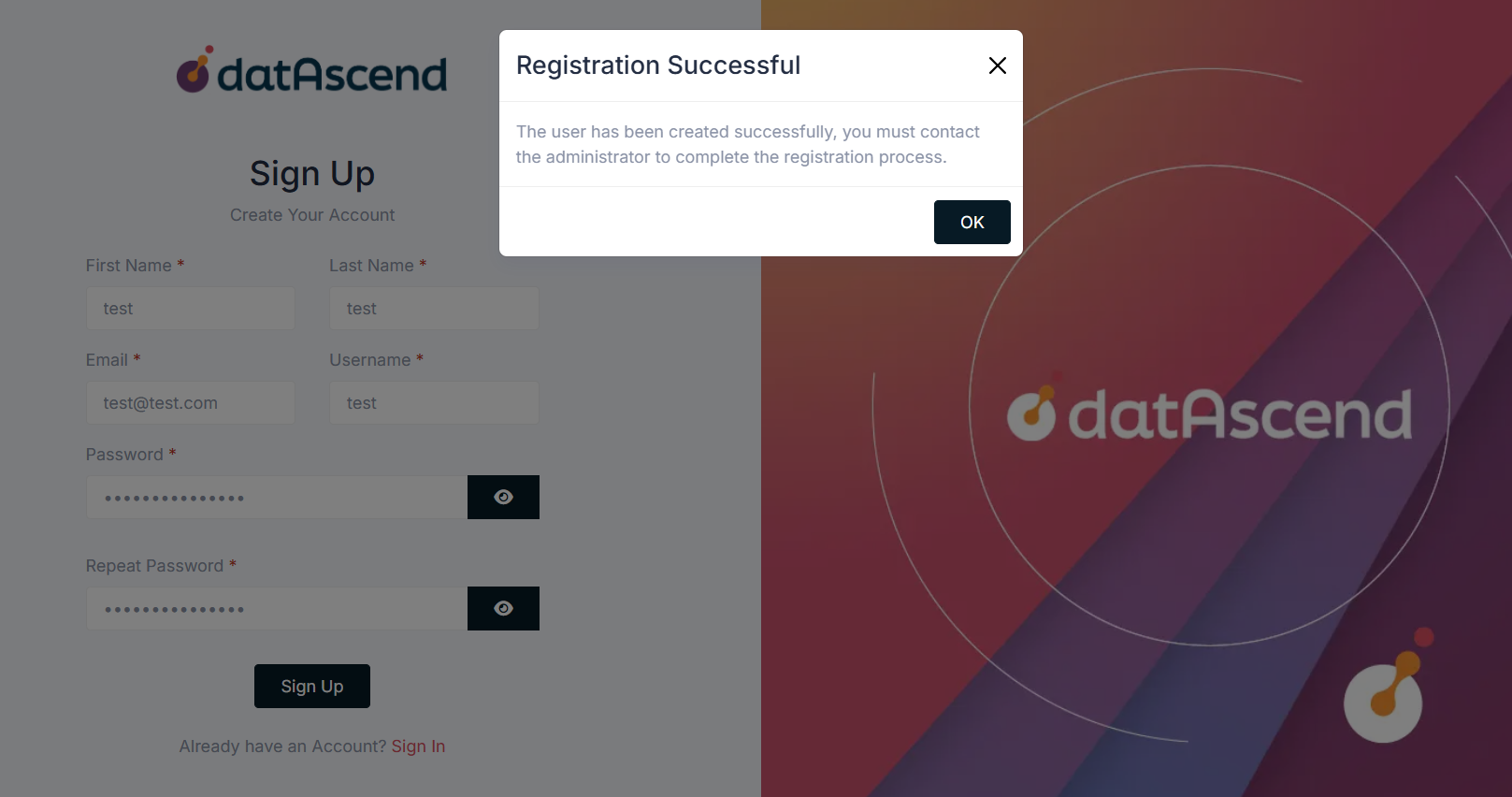
Once registered, contact the administrator to complete the registration process. The administrator will grant access permissions by assigning you to a user role.
Common error handling
Section titled “Common error handling”-
Missing required fields: If you forget to fill in a required field, an error message will appear. Complete all fields marked with an asterisk (*).
-
Email already registered: If the email is already in use, you will see a message to choose another email.
-
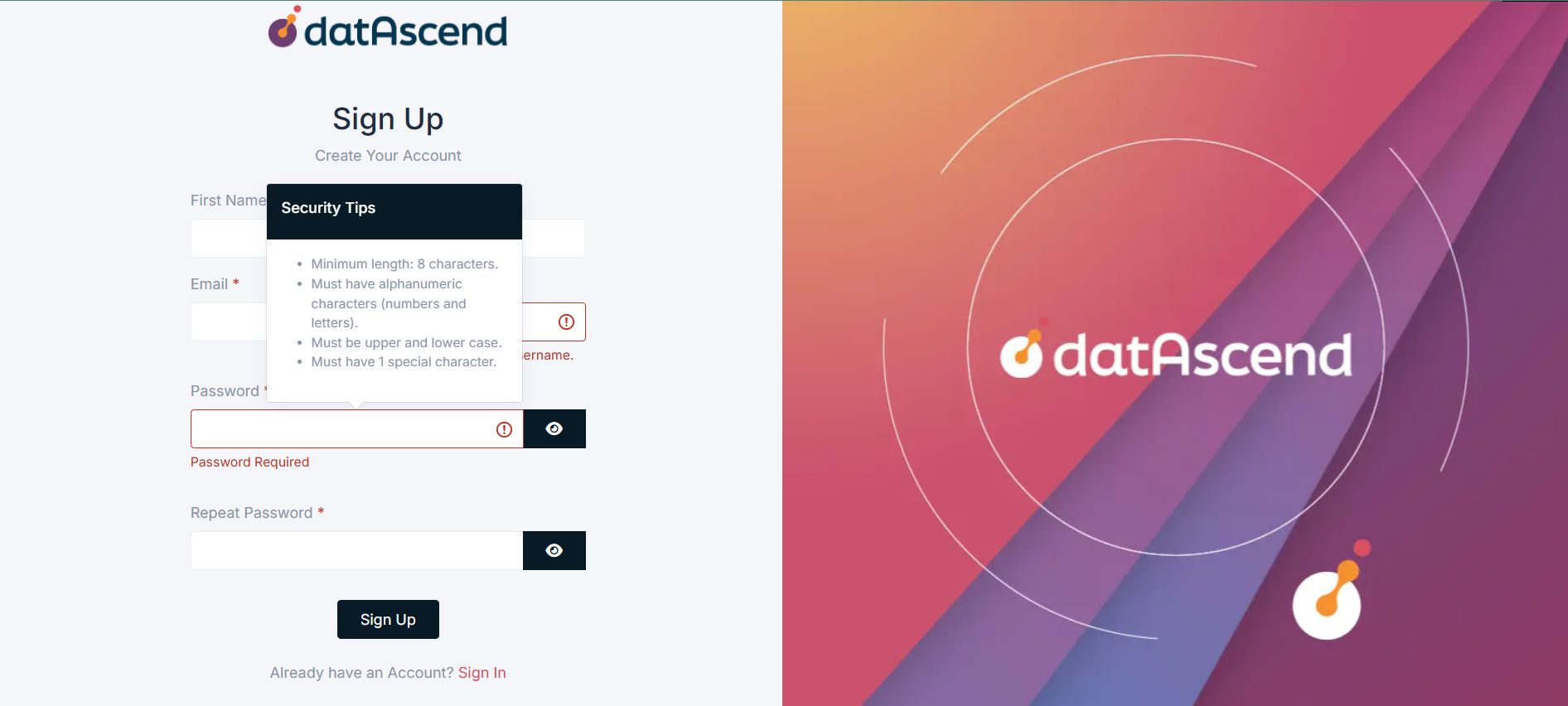
Weak password: Ensure the password meets the following security requirements:
- Minimum length: 8 characters.
- Must contain alphanumeric characters (numbers and letters).
- Must include uppercase and lowercase letters.
- Must have at least 1 special character.
User Login
Section titled “User Login”Login allows existing users to access their account.
How to access the login form
Section titled “How to access the login form”-
Open your web browser and navigate to the DatAscend login page.
-
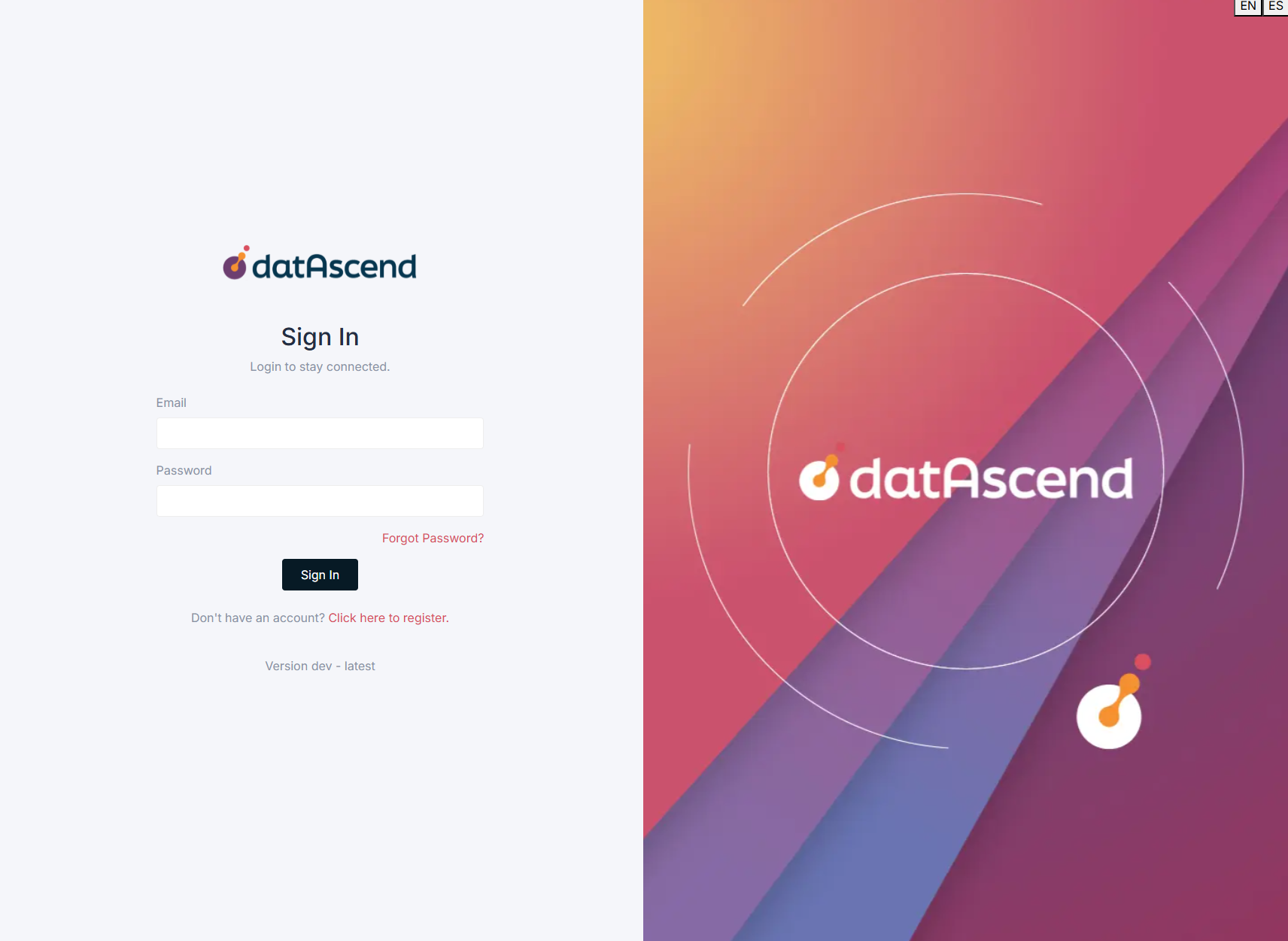
The login form will be displayed by default.
Steps to log in
Section titled “Steps to log in”-
Enter your email in the corresponding field.
-
Enter your password.
-
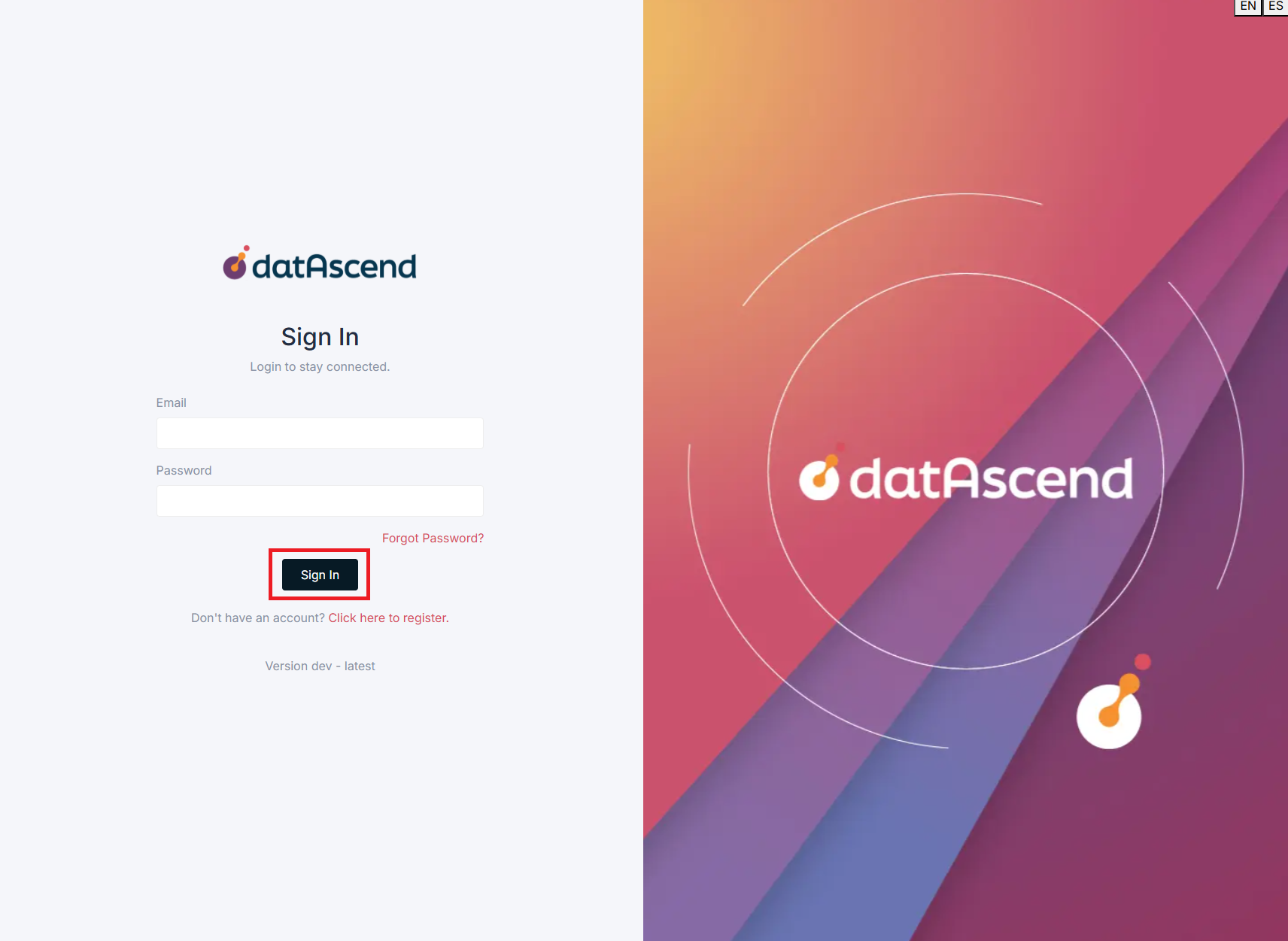
Click the “Sign In” button.
-
If the credentials are correct, you will be redirected to the main dashboard.
Common error handling
Section titled “Common error handling”-
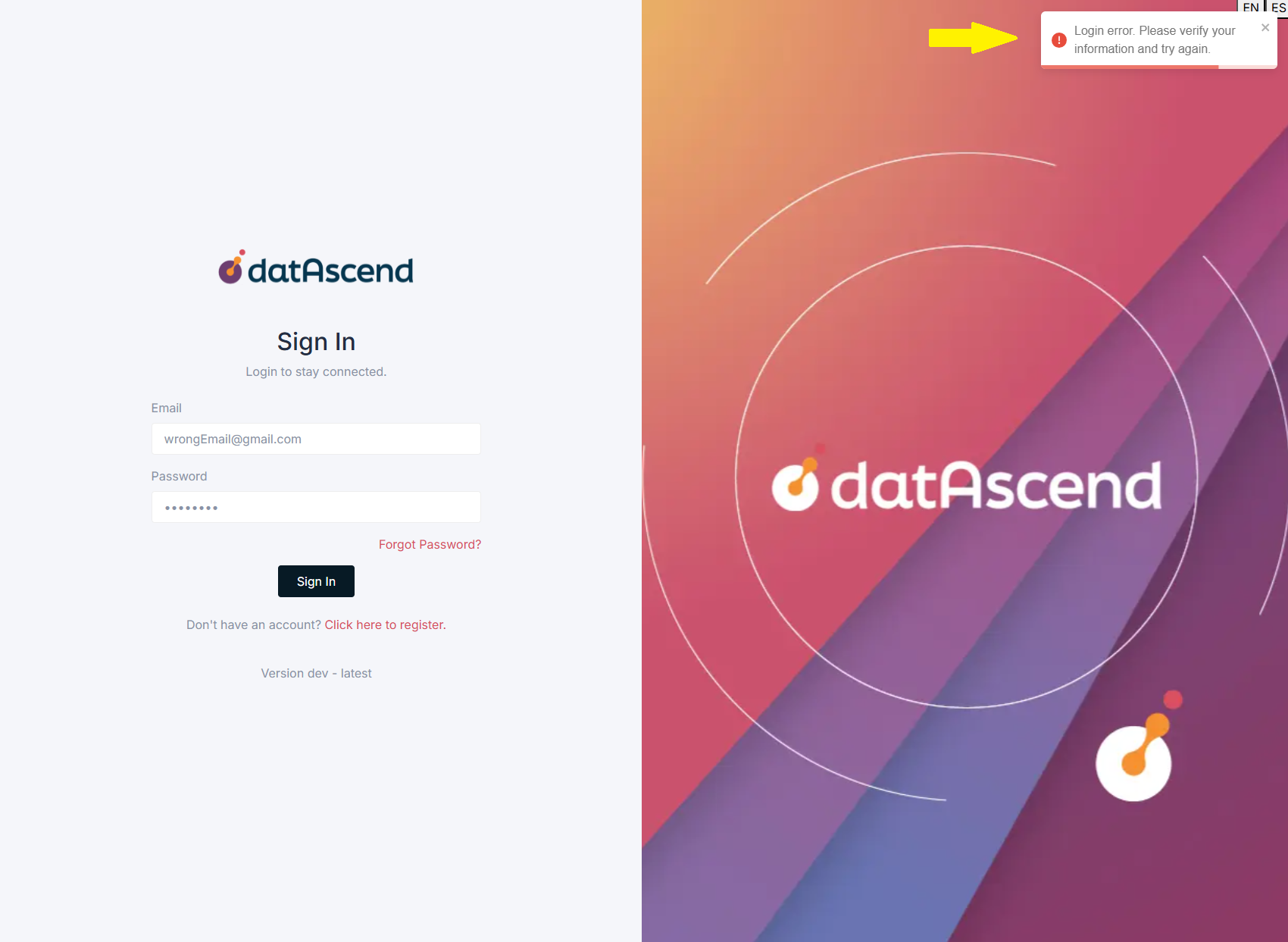
Incorrect credentials: If the email or password is wrong, an error message will appear. Check and try again.
-
Unverified account: If you haven’t verified your email, follow the verification link sent during registration.
Password Recovery
Section titled “Password Recovery”If you forget your password, you can reset it by following these steps.
How to access the recovery form
Section titled “How to access the recovery form”-
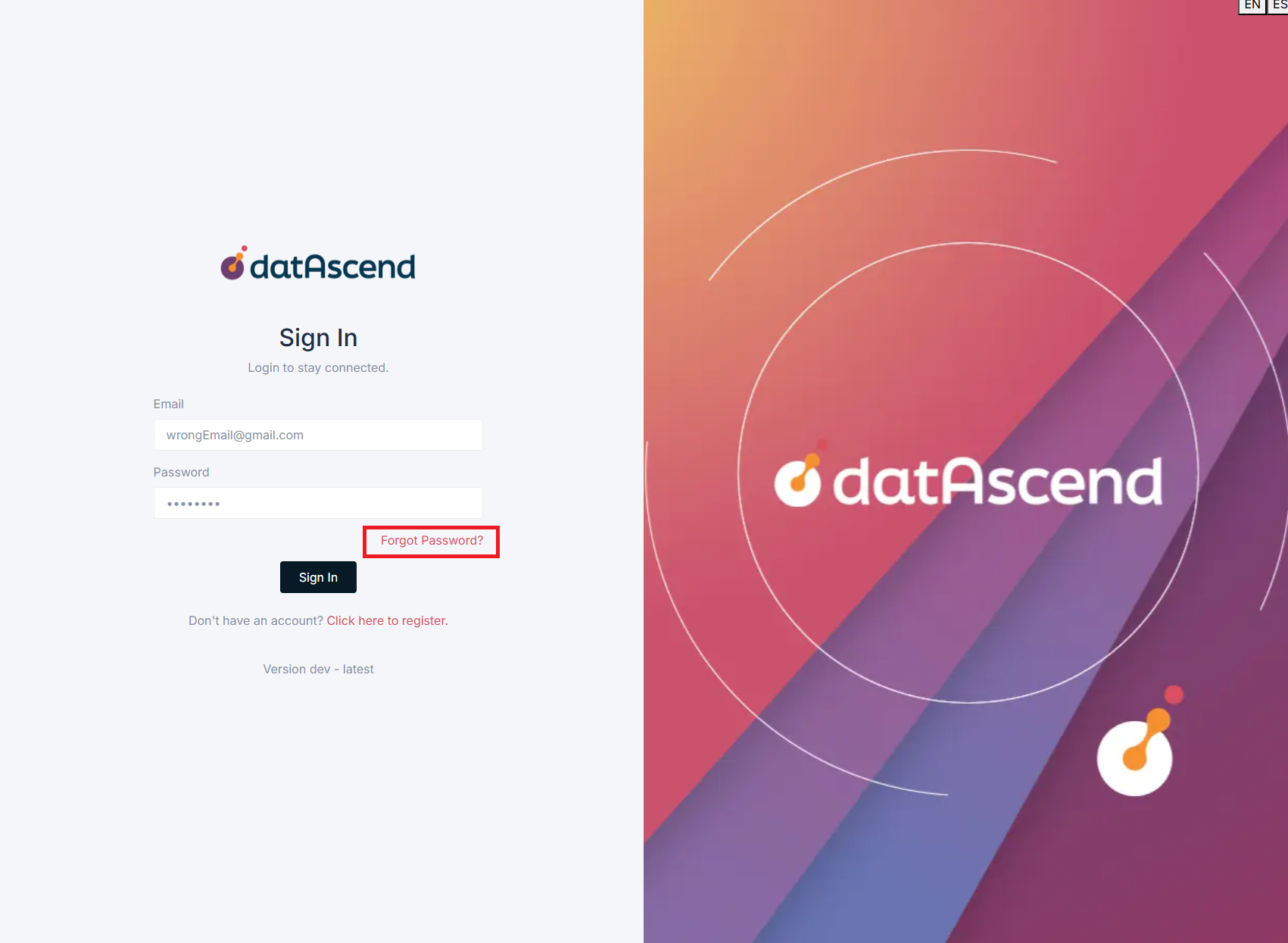
On the login page, click the “Forgot Password?” link.
Steps to reset password
Section titled “Steps to reset password”-
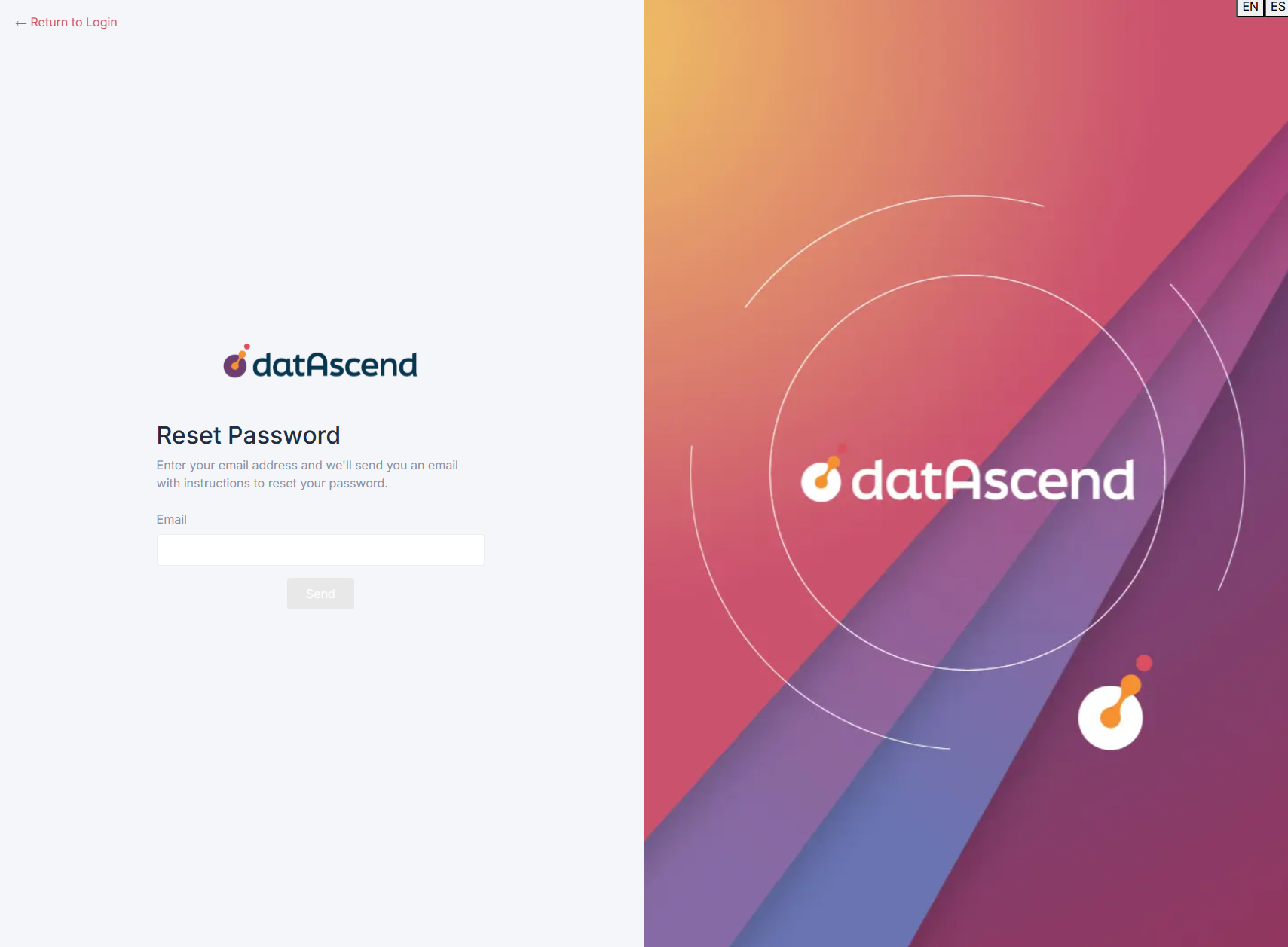
Enter your email address associated with the account.
-
Click the “Send” button.
-
Check your email and click the provided link.
-
Create a new secure password in the form that opens.
-
Confirm the new password and click “Reset Password”.
-
Log in with the new password.
Common error handling
Section titled “Common error handling”- Email not found: If the email is not registered, a message will appear. Verify the address and try again.
- Expired link: Reset links expire after a time. Request a new link if necessary.
- Password doesn’t meet requirements: Ensure the new password is secure.