

Users
The Users Module allows administrators to manage user accounts within the system. Each user account can have specific roles and permissions assigned to them, enabling controlled access to various features and data. Also each user can have its own profile information, dashboard via roles, and personalized settings.
How to access to the Users module
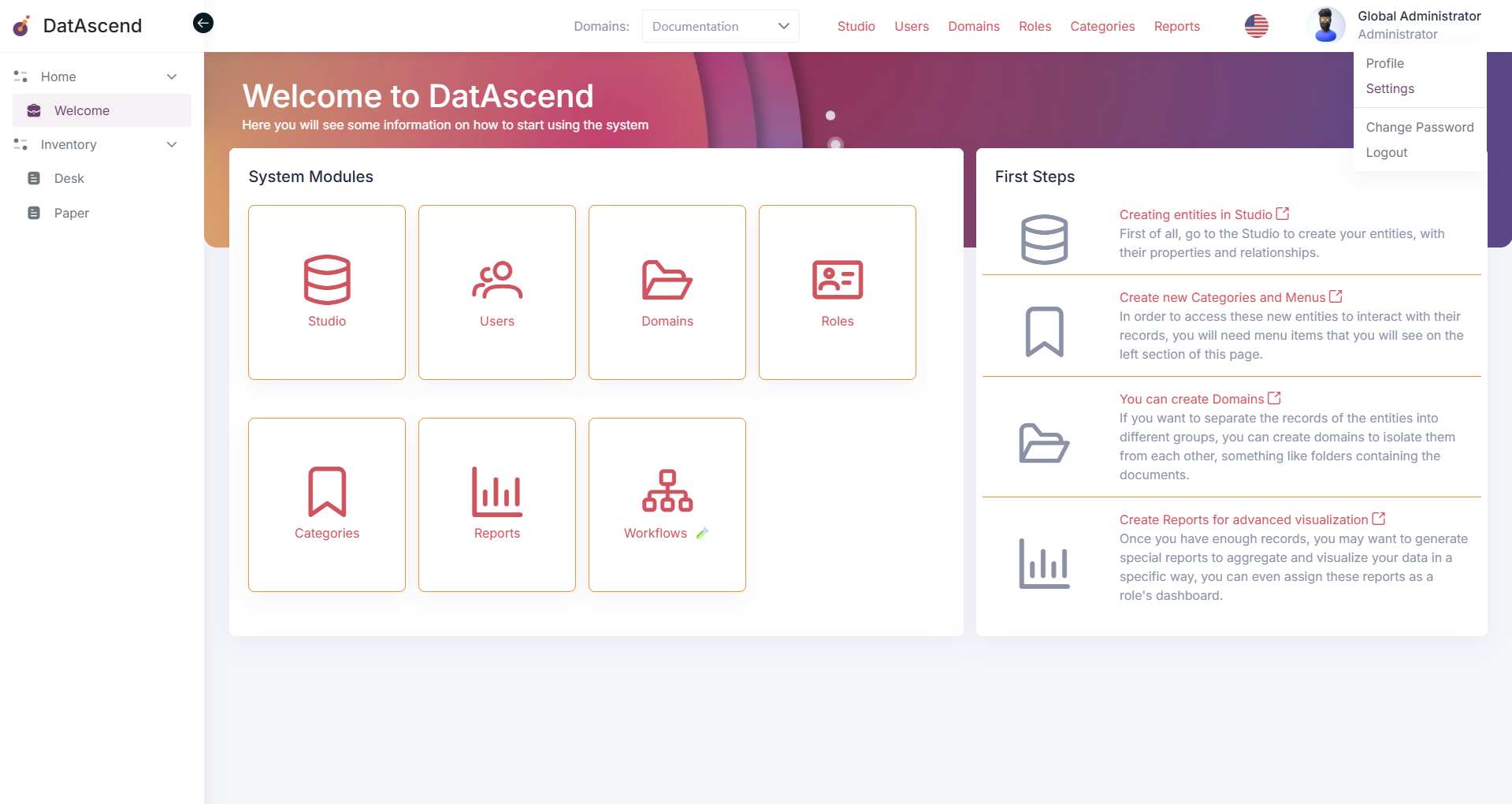
Section titled “How to access to the Users module”To access the Users module, you can use the global navigation or the settings panel. First, go to the settings page by clicking on the profile top right corner and selecting “Settings”.
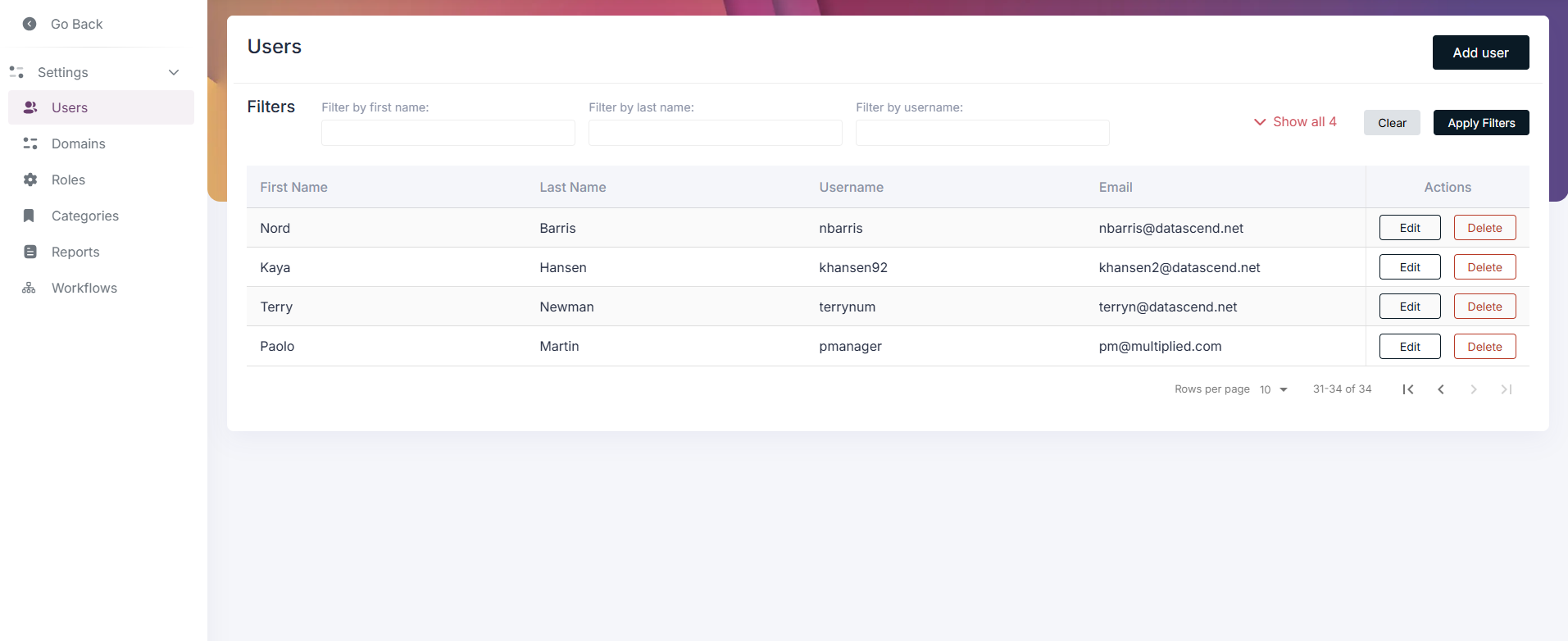
Then, in the settings panel, you will find the “Users” option in the sidebar.
-
Using the filter input at the top can help you to find the user that you are looking for.
How to create a new User in the module
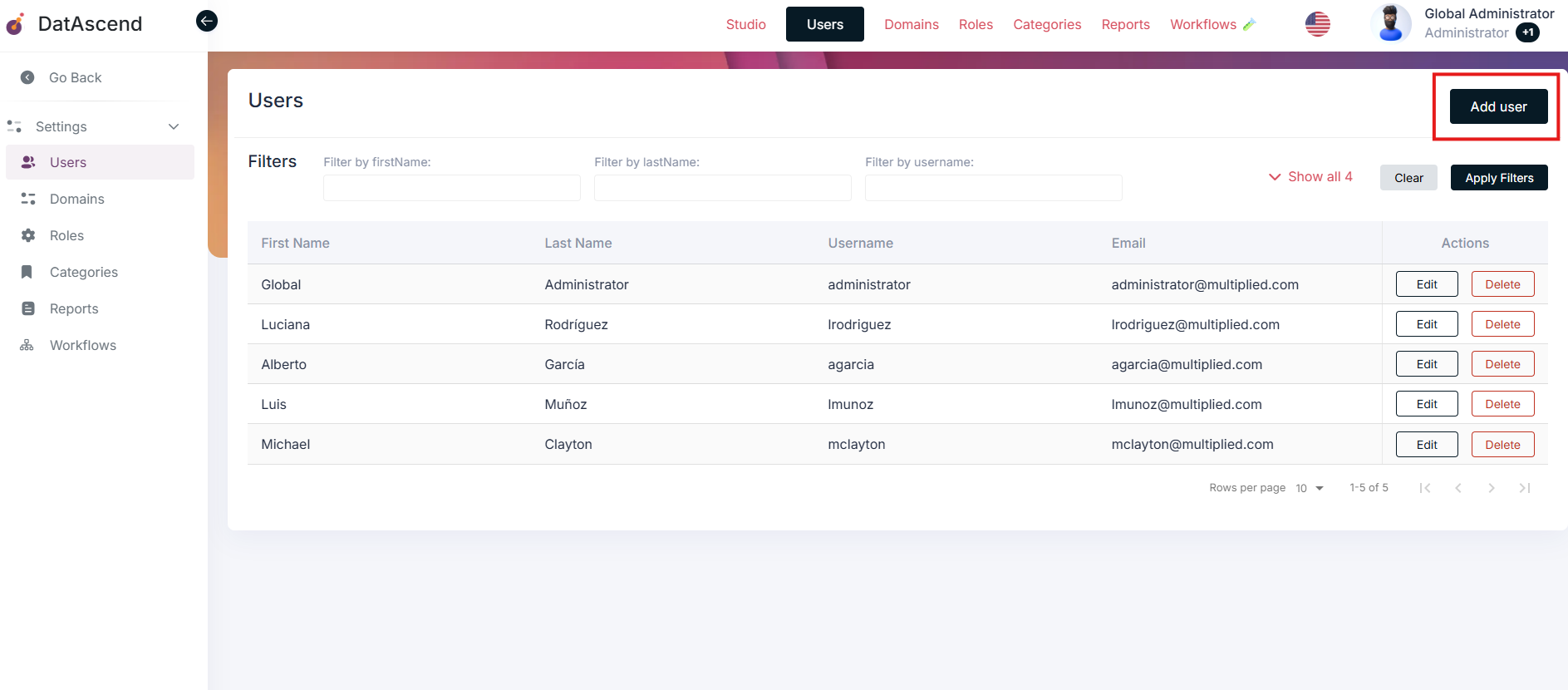
Section titled “How to create a new User in the module”To create a new User, click on the “Add user” button located at the top right corner of the page.
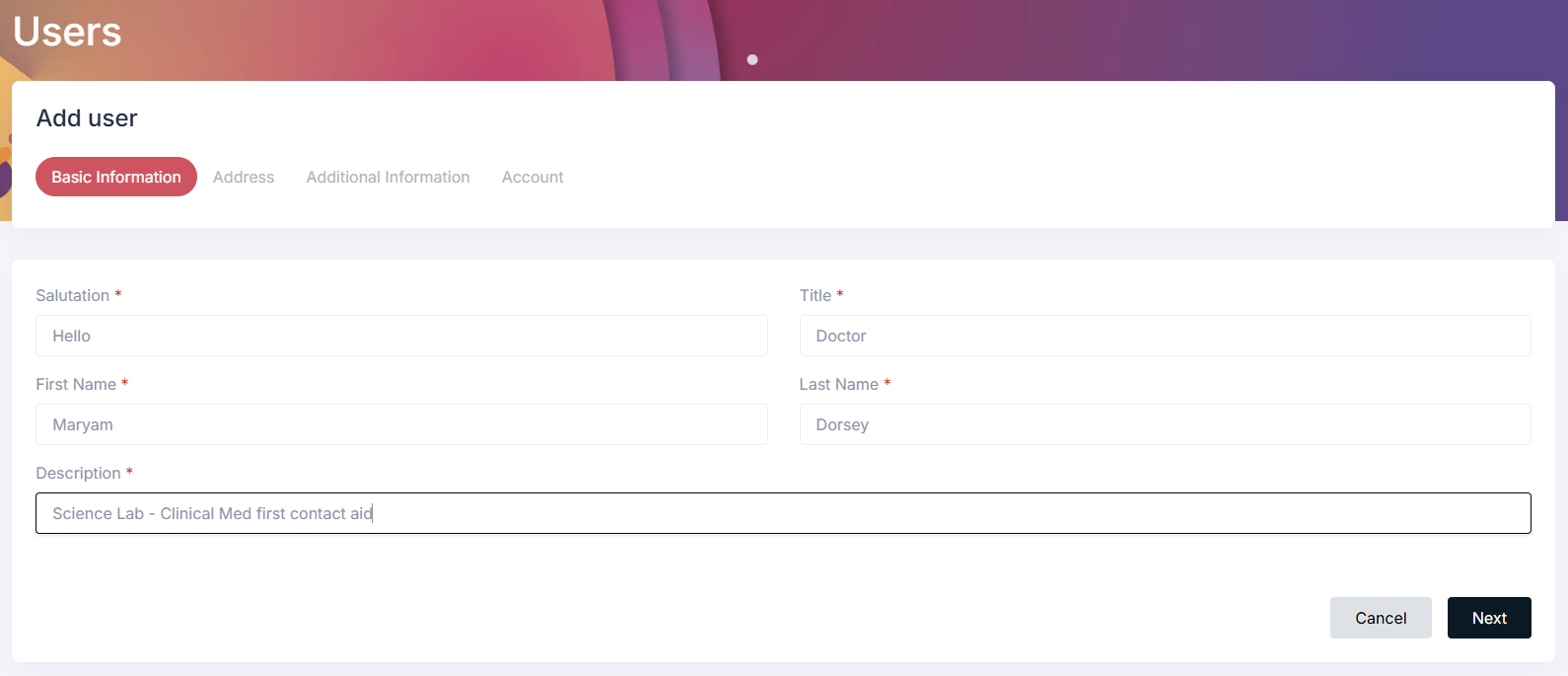
This will open a form where you can enter the new user’s details, such as:
-
Description
-
Salutation
-
Title
-
First Name
-
Last Name
The next section of the form allows you to set the user’s addresses. Clicking on the “Add address” button will open a new address form. The user is allowed to enter multiple addresses, including:
-
Street
-
City
-
State
-
Country
-
Zip Code
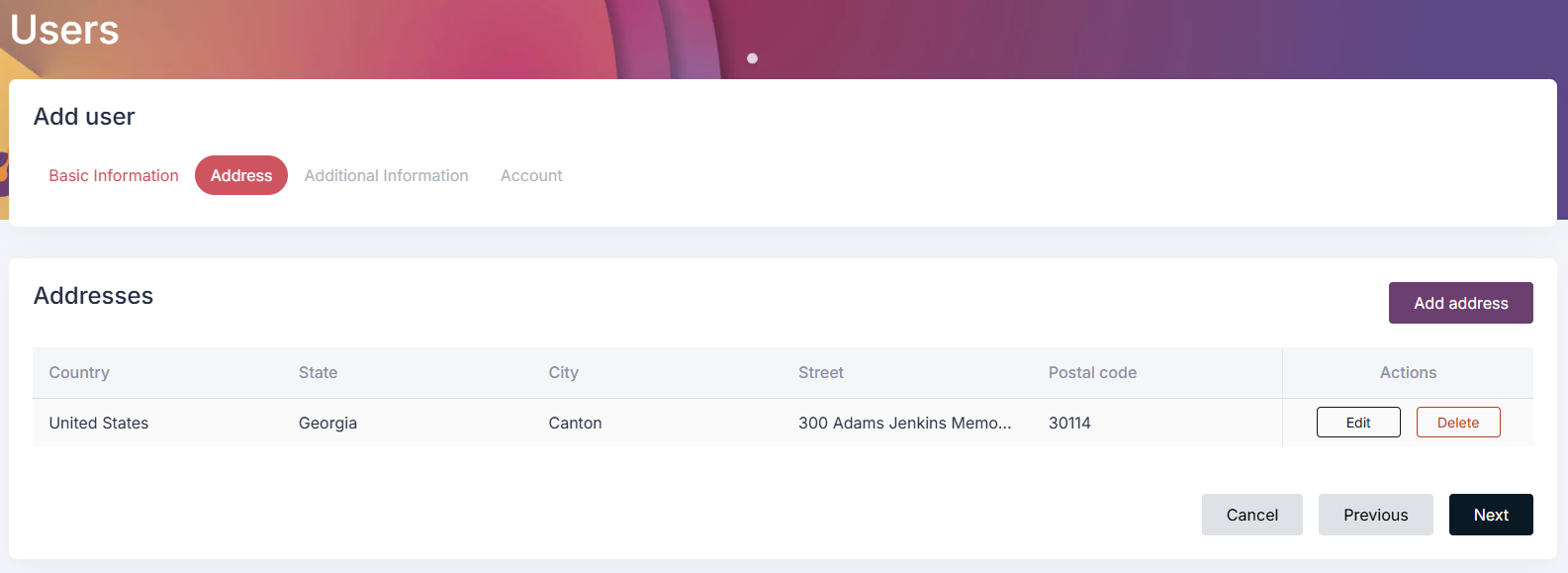
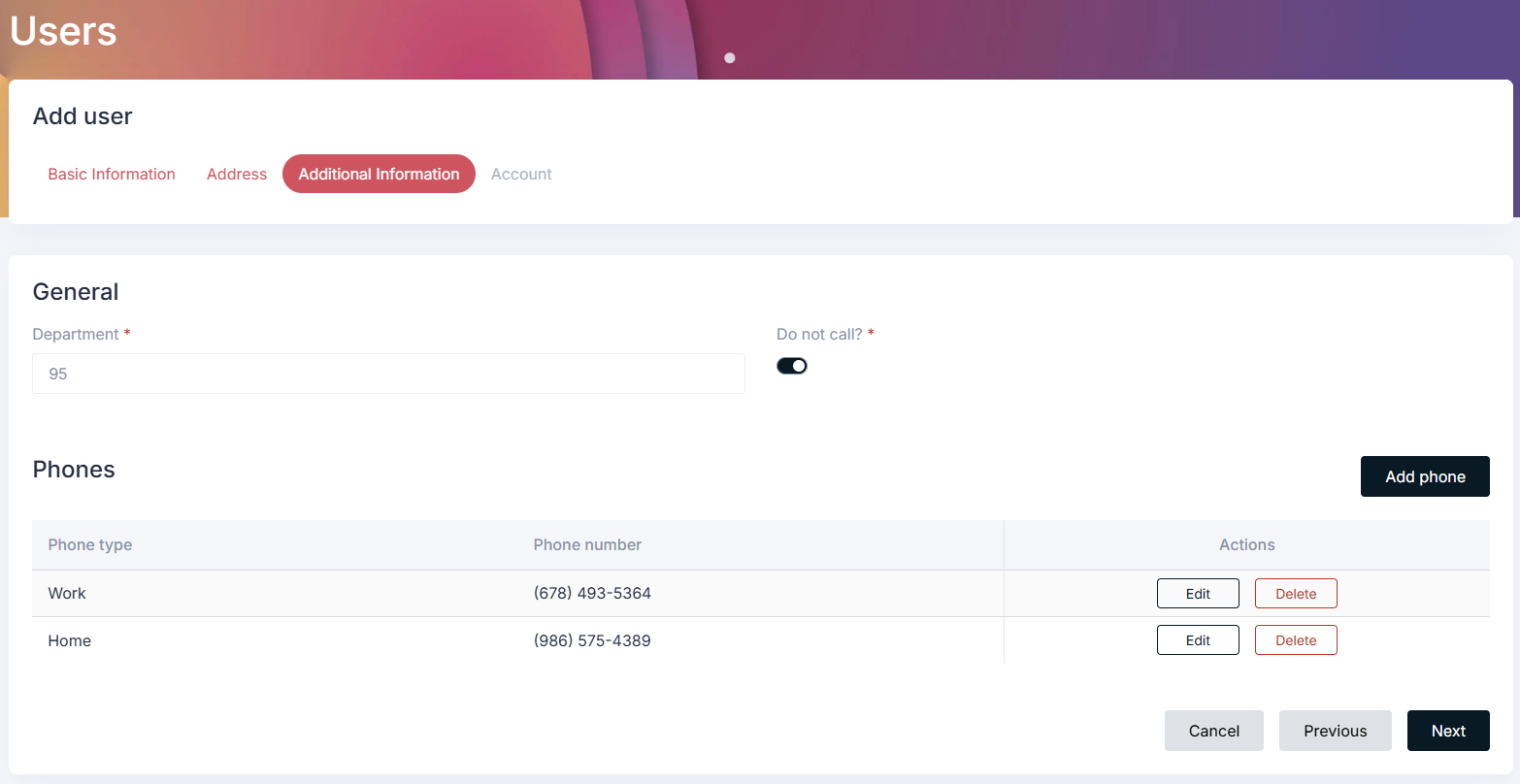
After entering the address details, you can proceed to the next section. In this section, you can set the user’s additional information, such as:
- If user prefers to receive calls.
- Department No.
- Phone Numbers
The user is allowed to enter multiple phone numbers by clicking on the “Add phone number” button.
Finally, you can set the user’s login credentials.
-
An unique email address is required for account verification and communication.
-
You need to provide a unique username for the user to log in.
-
Set a secure password for the user account.
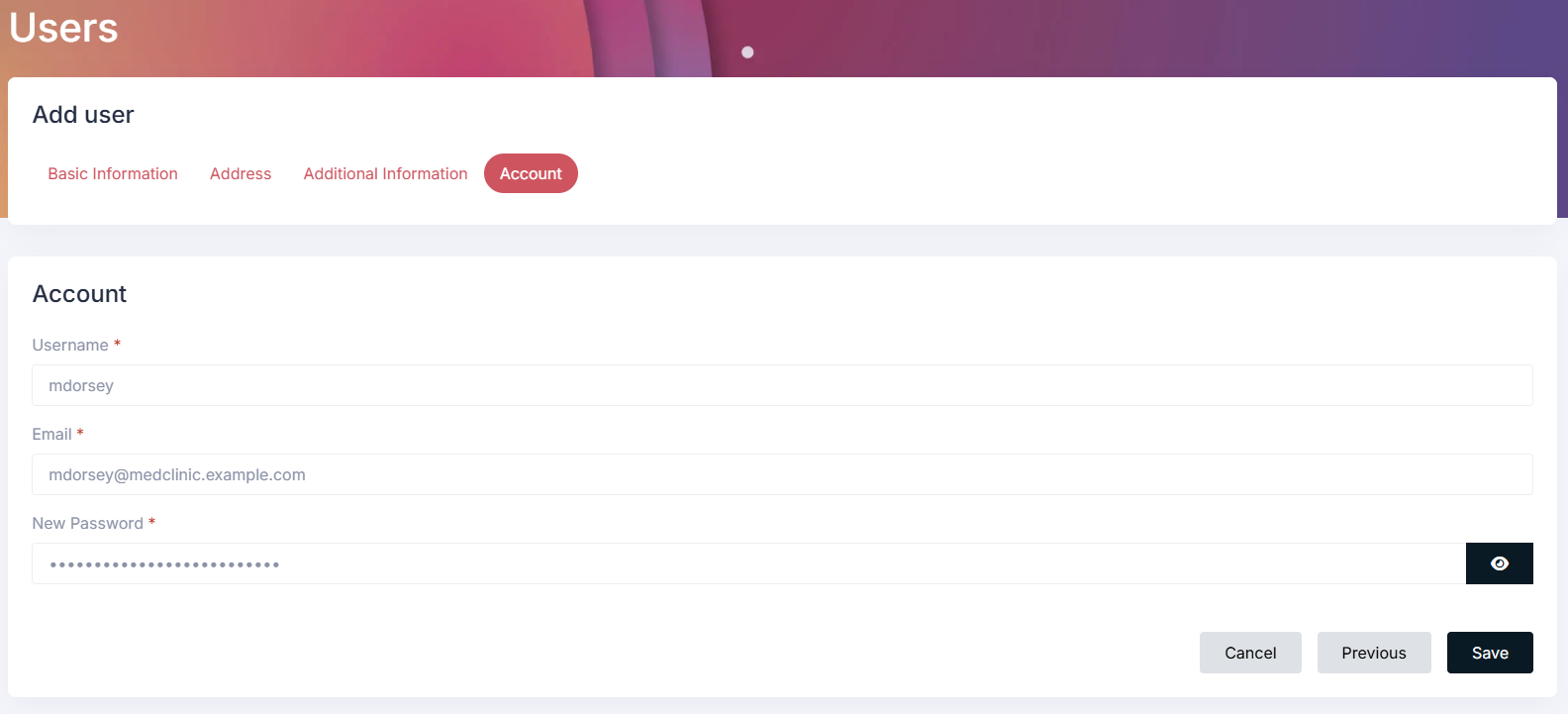
Once all of that information is filled out, click on the “Save” button at the bottom of the form to save the new user.
How to edit an existing User in the module
Section titled “How to edit an existing User in the module”To edit an existing User, navigate to the Users module and locate the user you want to edit.
-
Use the filters to find the user quickly, allowing you to filter by first name, last name or email.
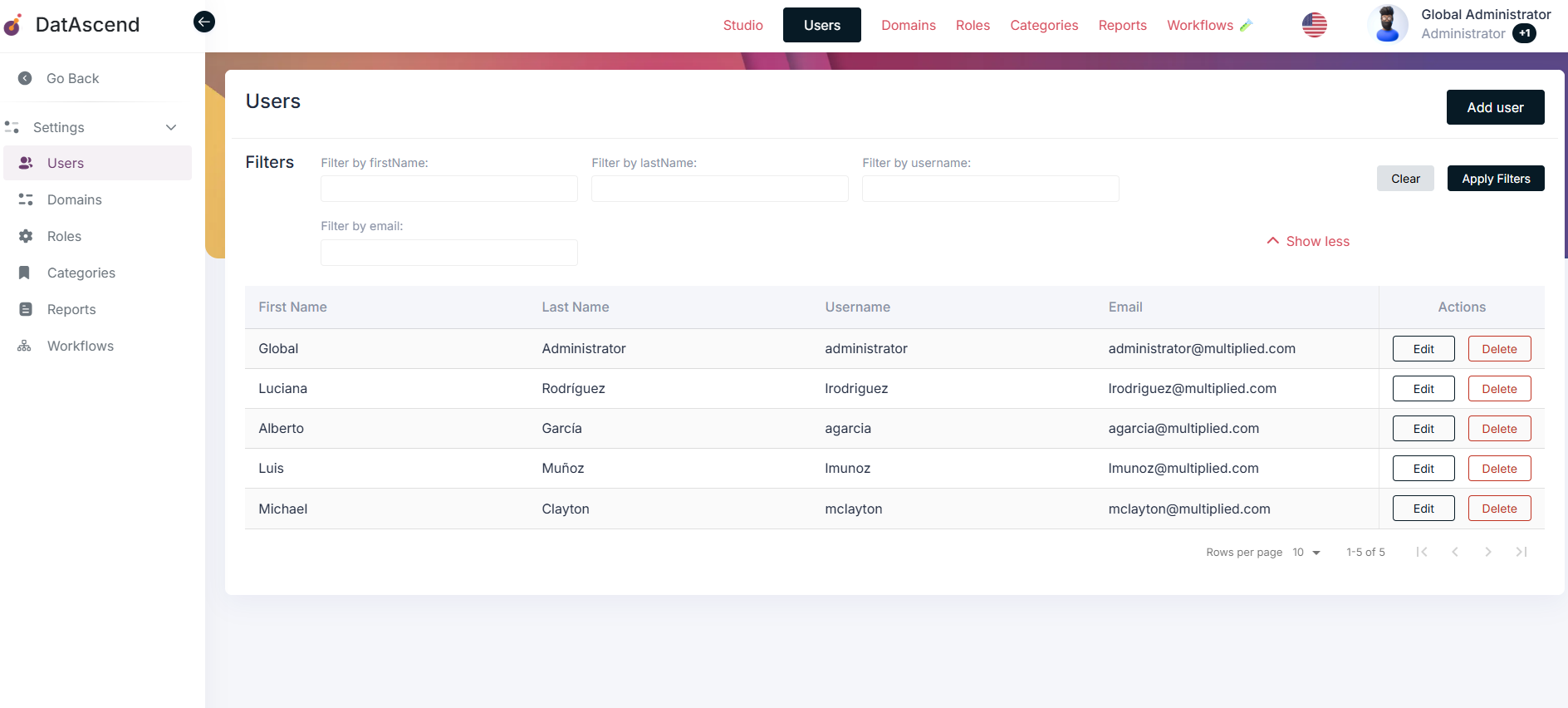
Click on the user edit button on the right side of the user entry.
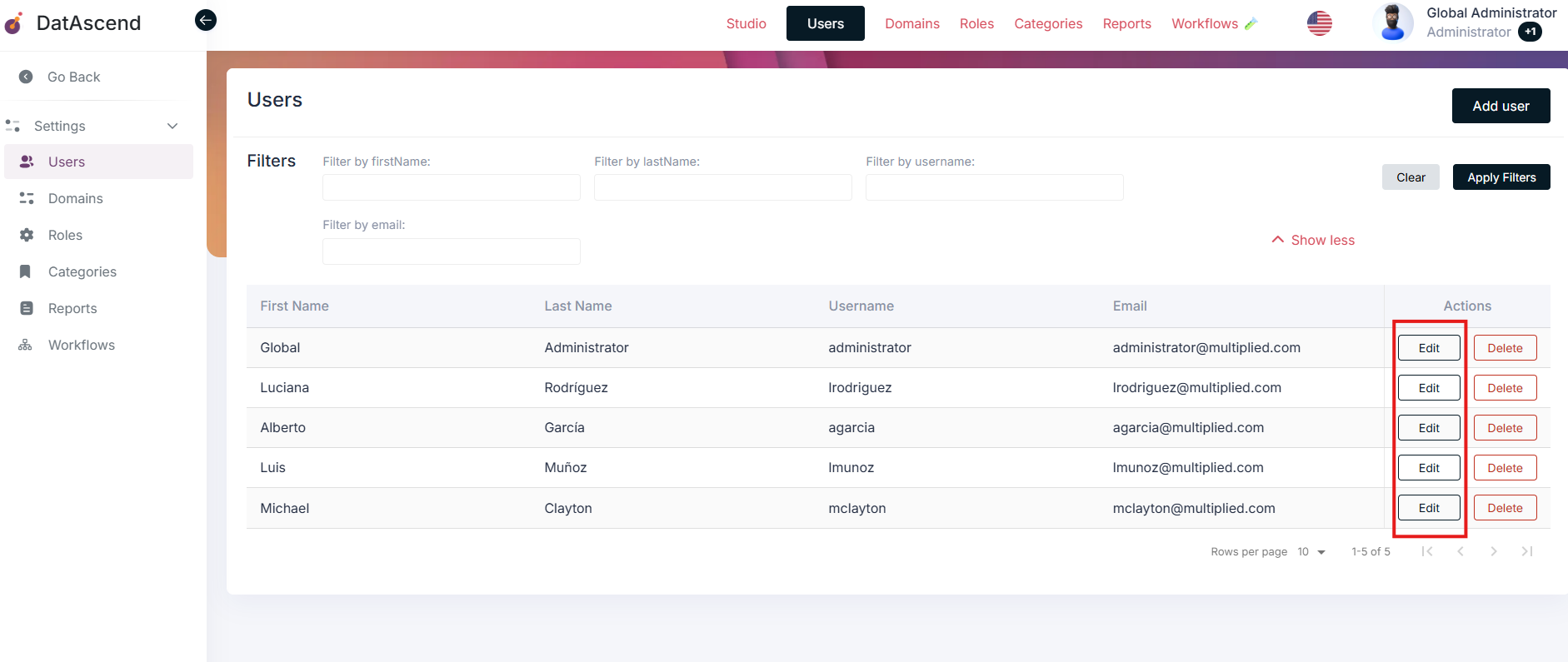
The same form used to create a new user will open, but this time it will be pre-filled with the existing user’s information. Please edit all the necessary required fields as needed, then proceed to click on the “Save” button at the bottom of the last form to save the changes.
How to delete an existing User in the module
Section titled “How to delete an existing User in the module”To delete an existing User, navigate to the Users module and locate the user you want to delete.
-
Use the filters to find the user quickly, allowing you to filter by first name, last name or email.
Click on the user delete button on the right side of the user entry.
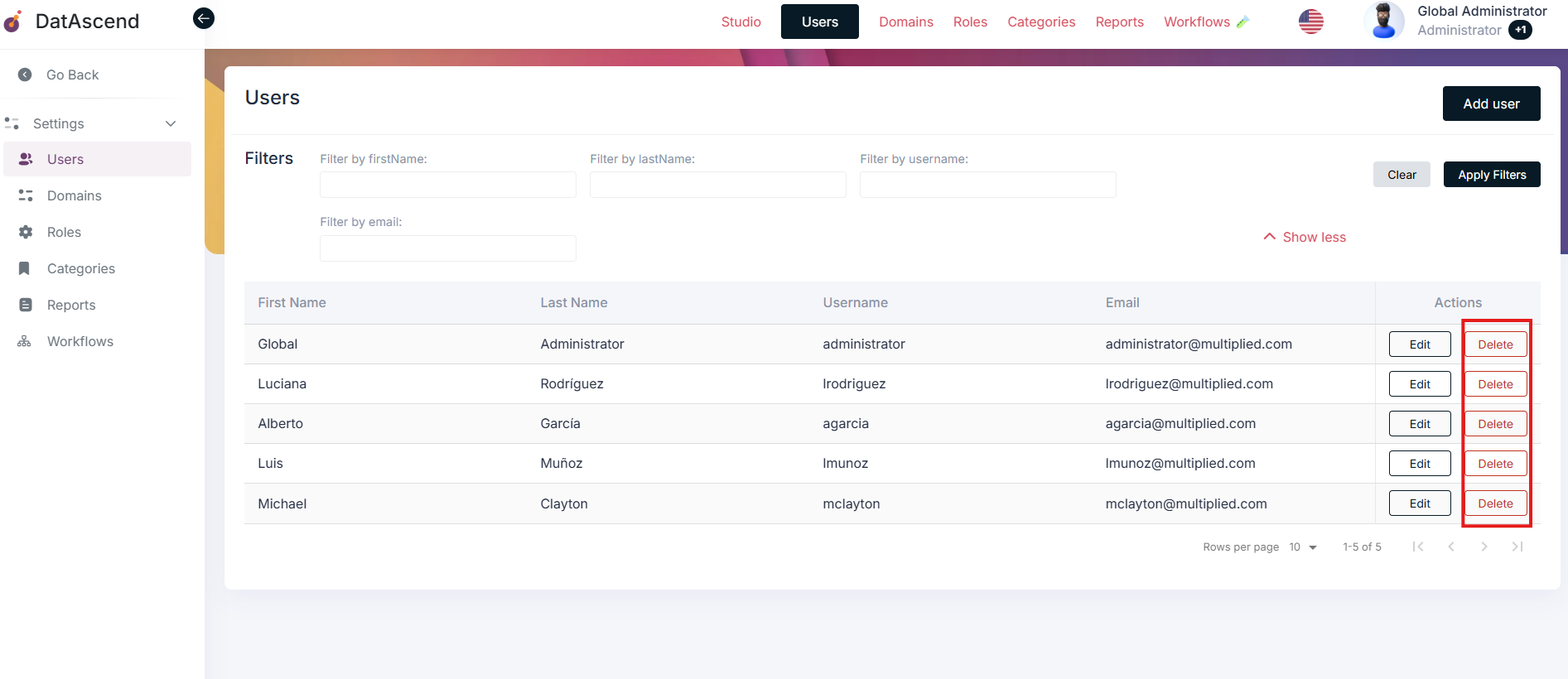
A confirmation dialog will appear, asking you to confirm the deletion.
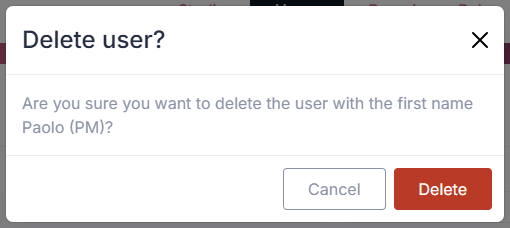
Please note that deleting a user is a permanent action and cannot be undone. Make sure to double-check that you are deleting the correct user. To proceed with the deletion, click on the “Delete” button in the confirmation dialog.
Tips and common mistakes
Section titled “Tips and common mistakes”- Each deletion action is permanent; be cautious when deleting users, especially those with administrative privileges.
- Always double-check the user details before creating or editing a user to ensure accuracy.
- Use the search and filter options to quickly locate users in large lists.
- Addresses and phone numbers can be added multiple times; ensure you input all necessary contact information.
- Regularly review user roles and permissions to maintain security and proper access control.
The user forgot his password, what can I do?
Section titled “The user forgot his password, what can I do?”If a user forgets their password, you can assist them by initiating a password reset process.
- Navigate to the Users module and locate the user who needs a password reset.
- Click on the user edit button on the right side of the user entry.
- In the user edit form, by clicking Next on each screen go to the Account tab.
- Create a new password for the user by entering it in the “New Password” field.
- Click on the “Save” button at the bottom of the form to save the changes.