
Roles
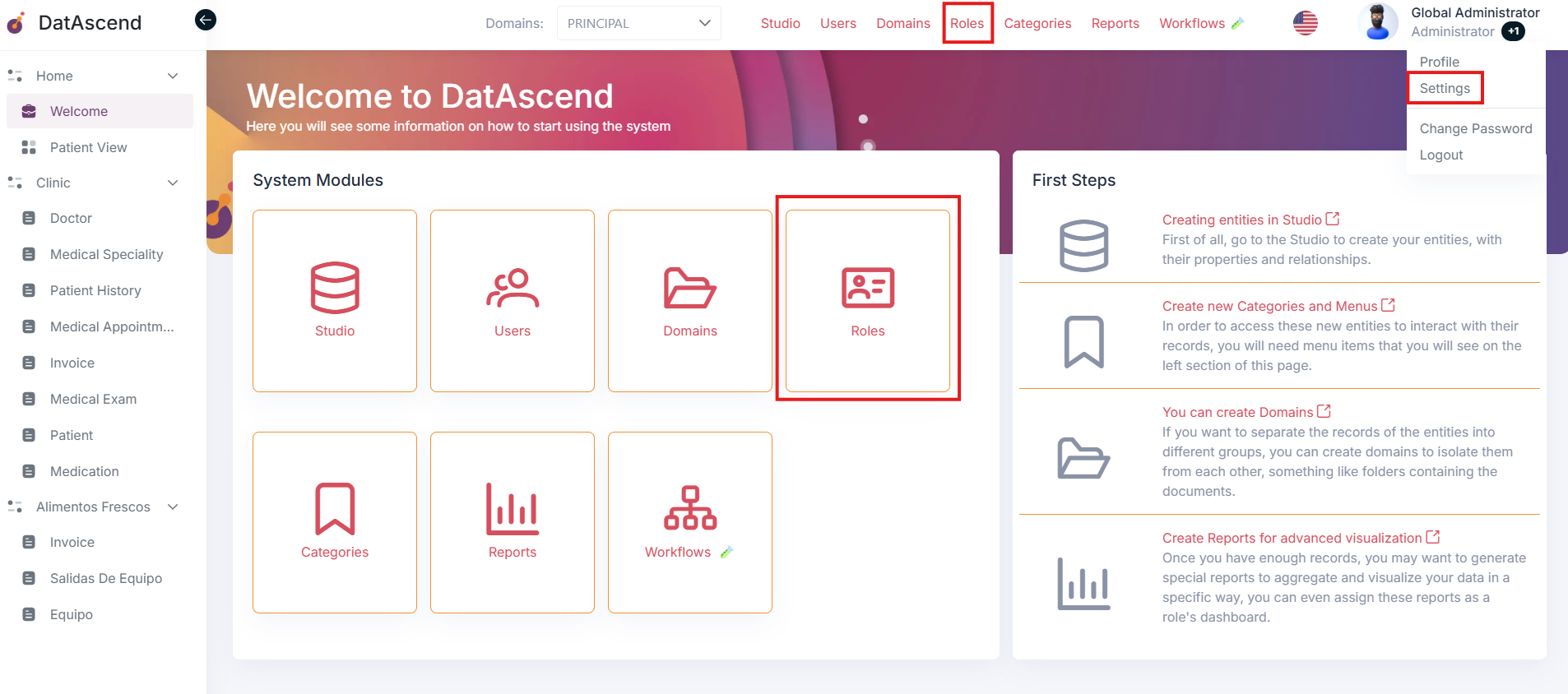
Roles are used to assign permissions to users and define what actions they can perform on different entities, domains, and categories. You can access this section through the global navigation or the settings layout.
How to create a role?
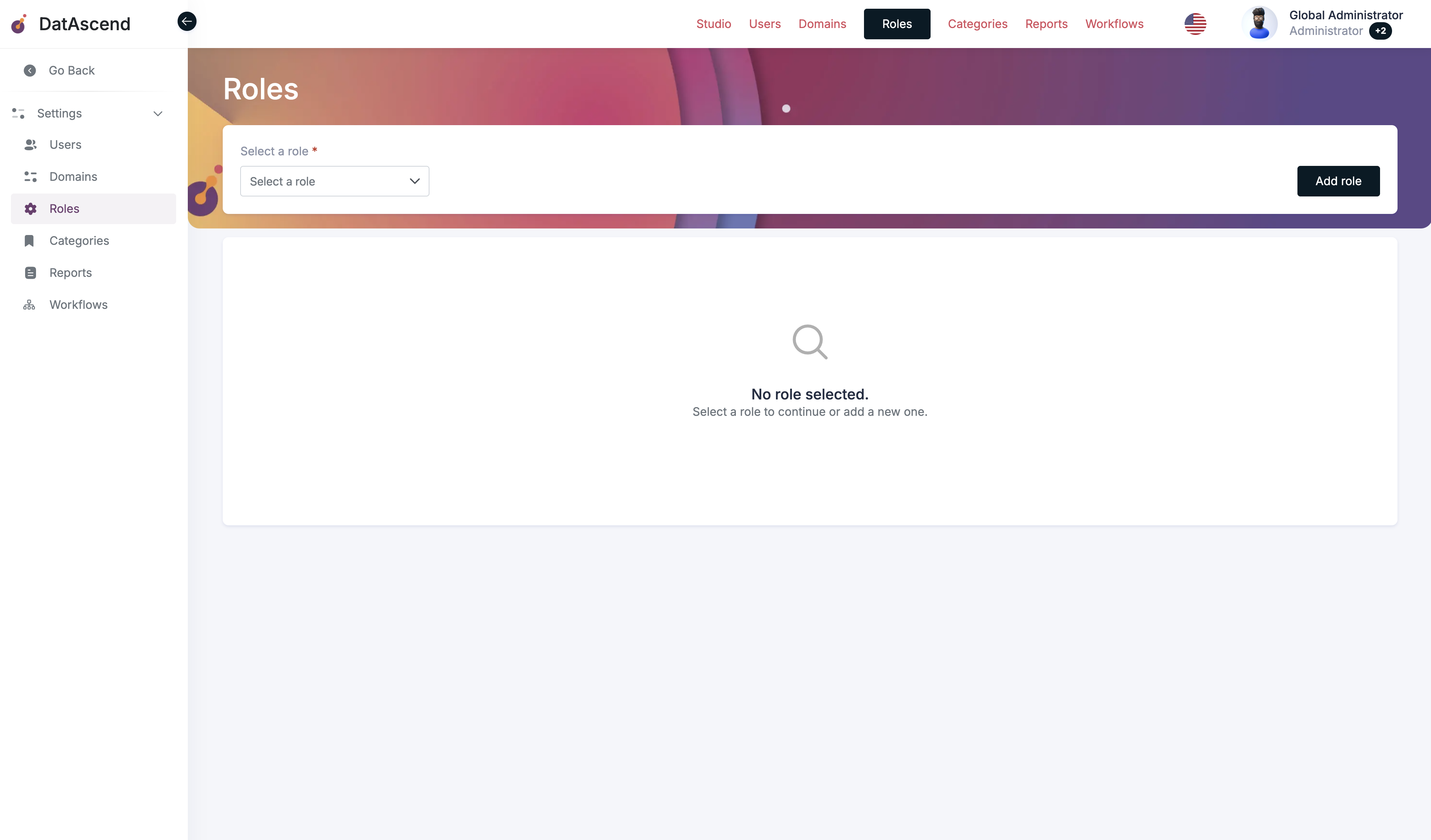
Section titled “How to create a role?”- To create a new role, click the “Add role” button located in the upper-right corner of the page.
Subsequently, another view will open with the required fields to create a role, which are:
- Name
- Description
- Default report
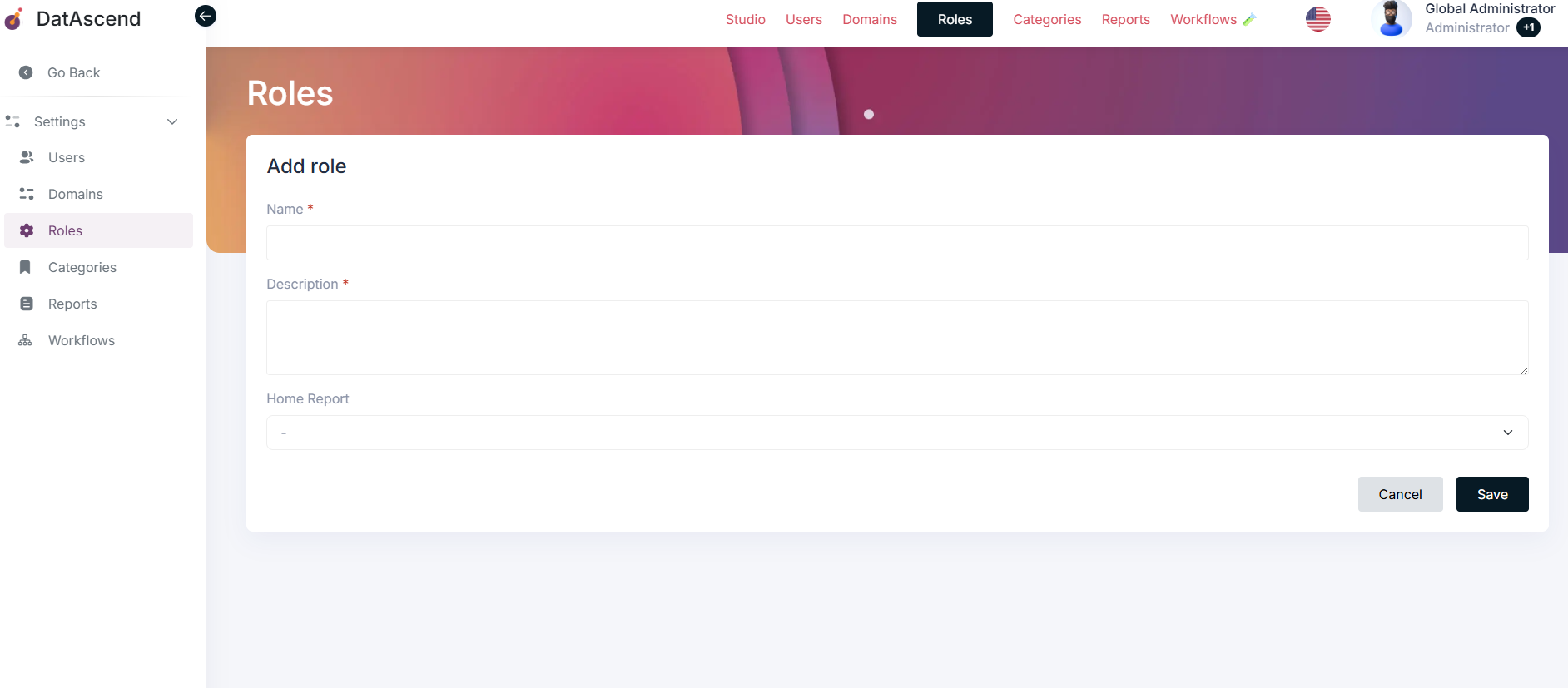
Once the information is entered, click the “Save” button to create the role in the system.
How to edit a role in the system?
Section titled “How to edit a role in the system?”In the main roles view, select the role to edit from the selector labeled “Select a role”
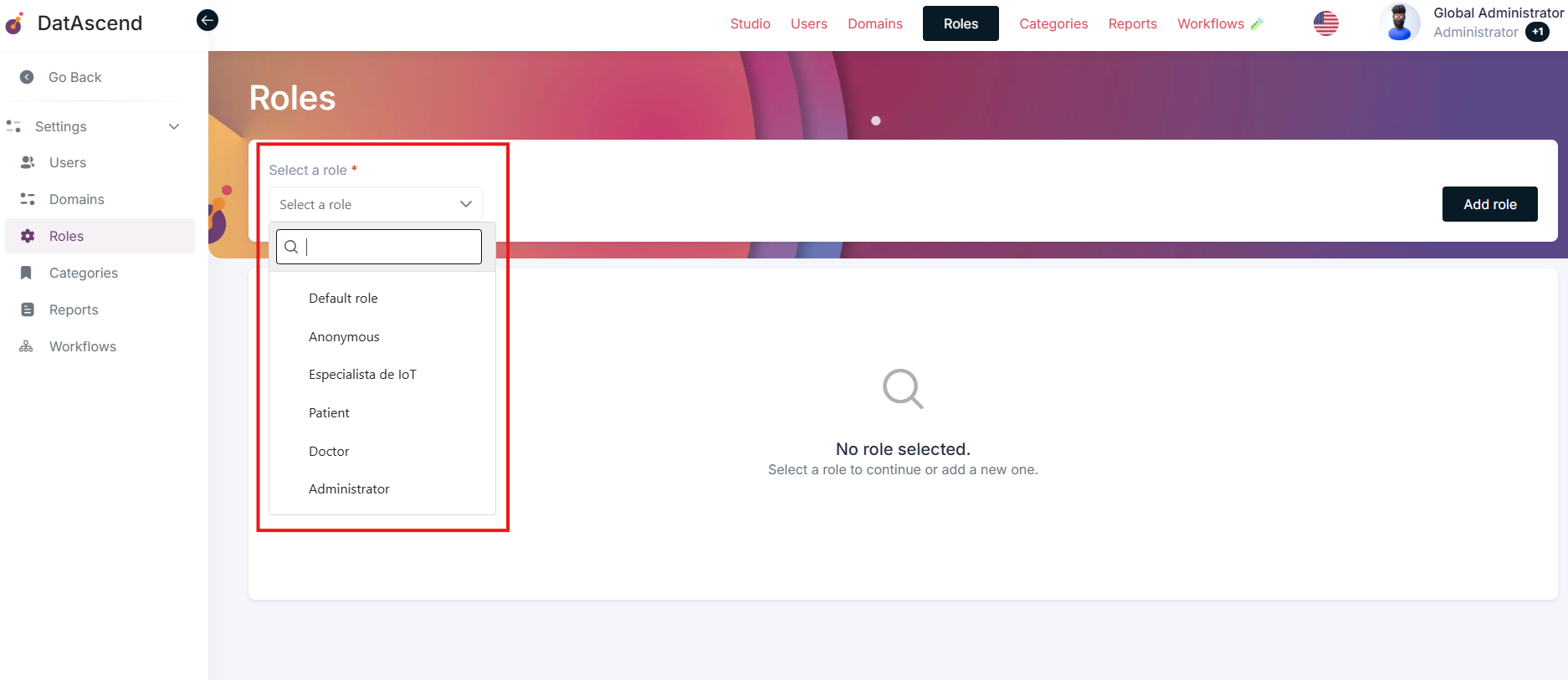
The edit view contains the following tabs:
Basic Information
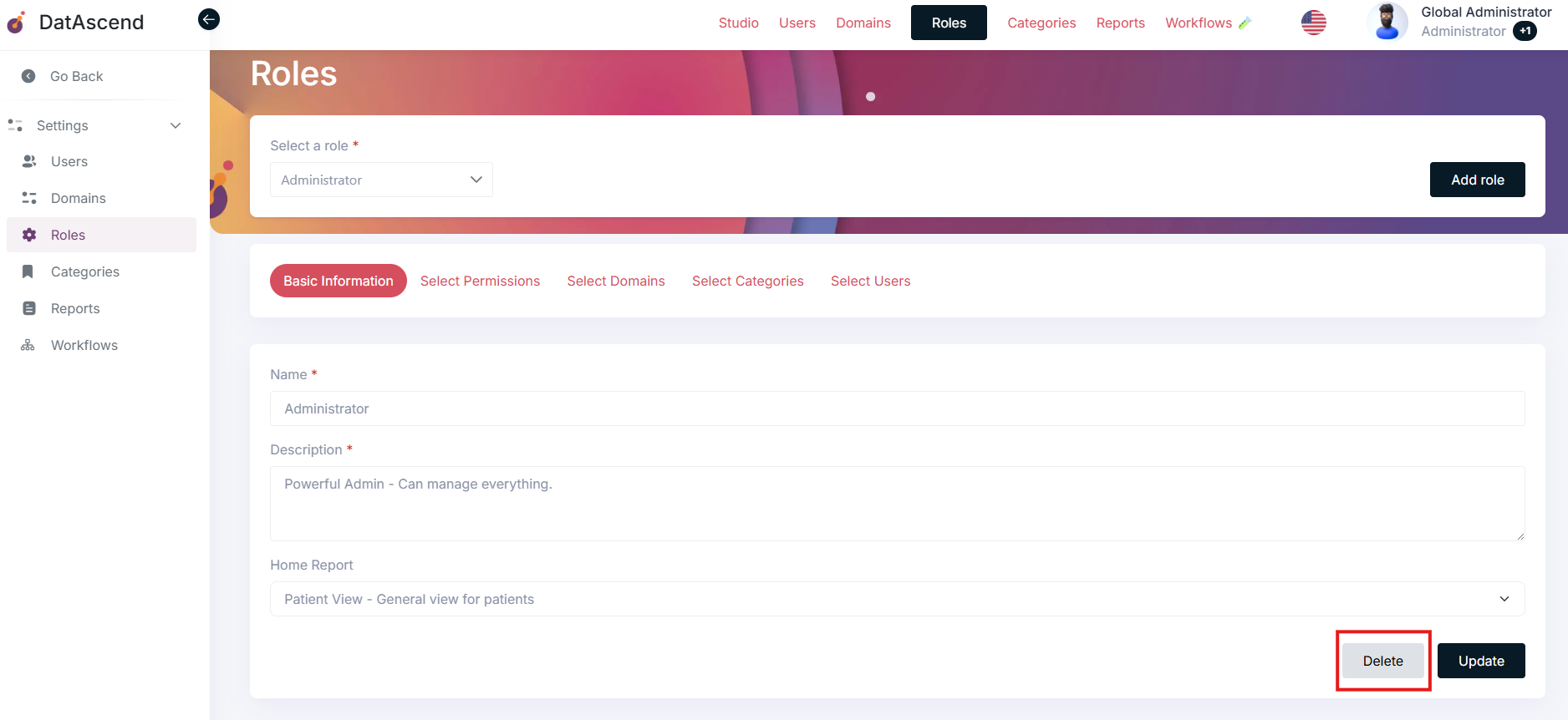
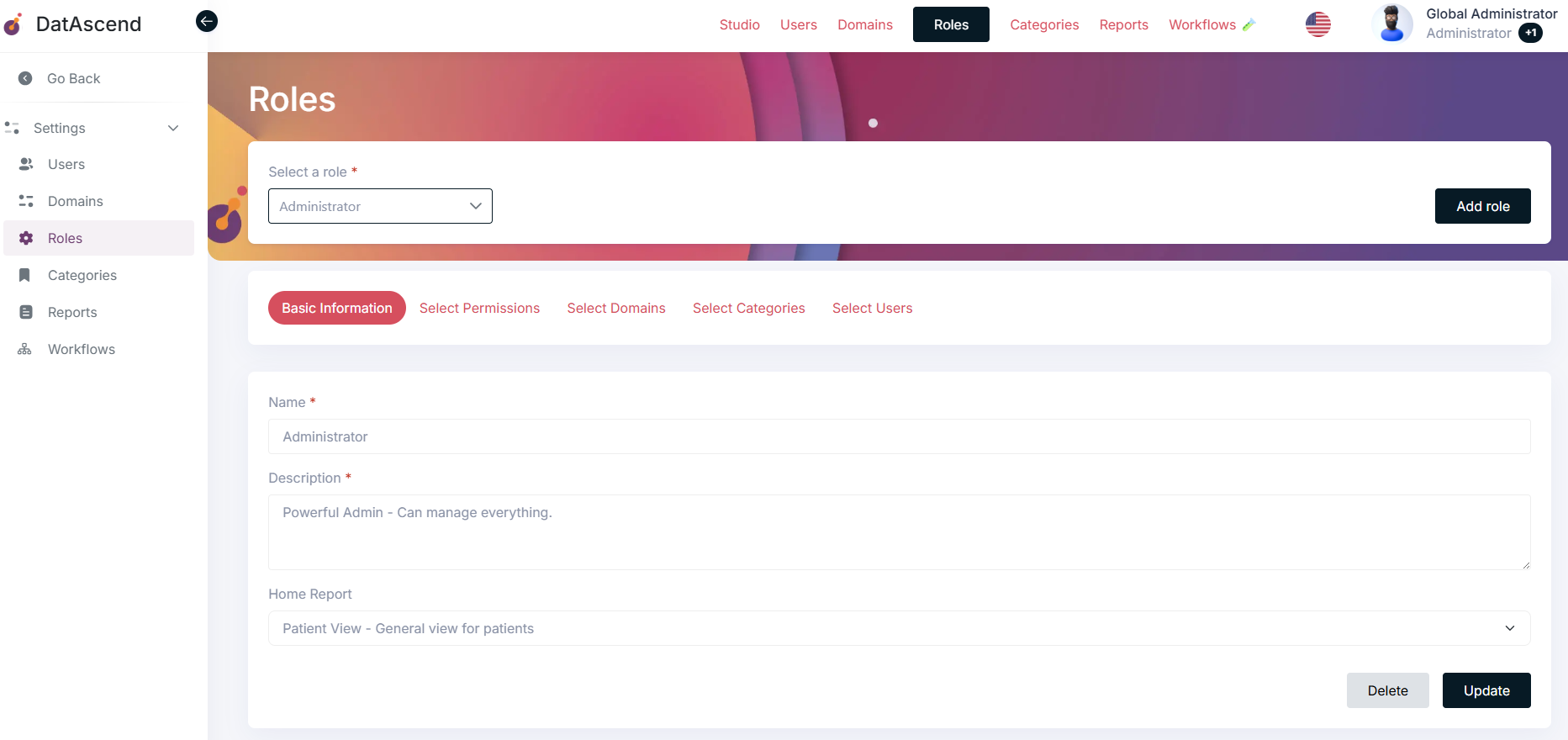
Section titled “Basic Information”This view contains the basic information of the role that was entered during creation.
- It includes the role’s name, description, and default report (the report that will be displayed on the home screen for users assigned to this role).
- Once the information has been modified, click the “Update” button to save the changes in the system.
Permissions
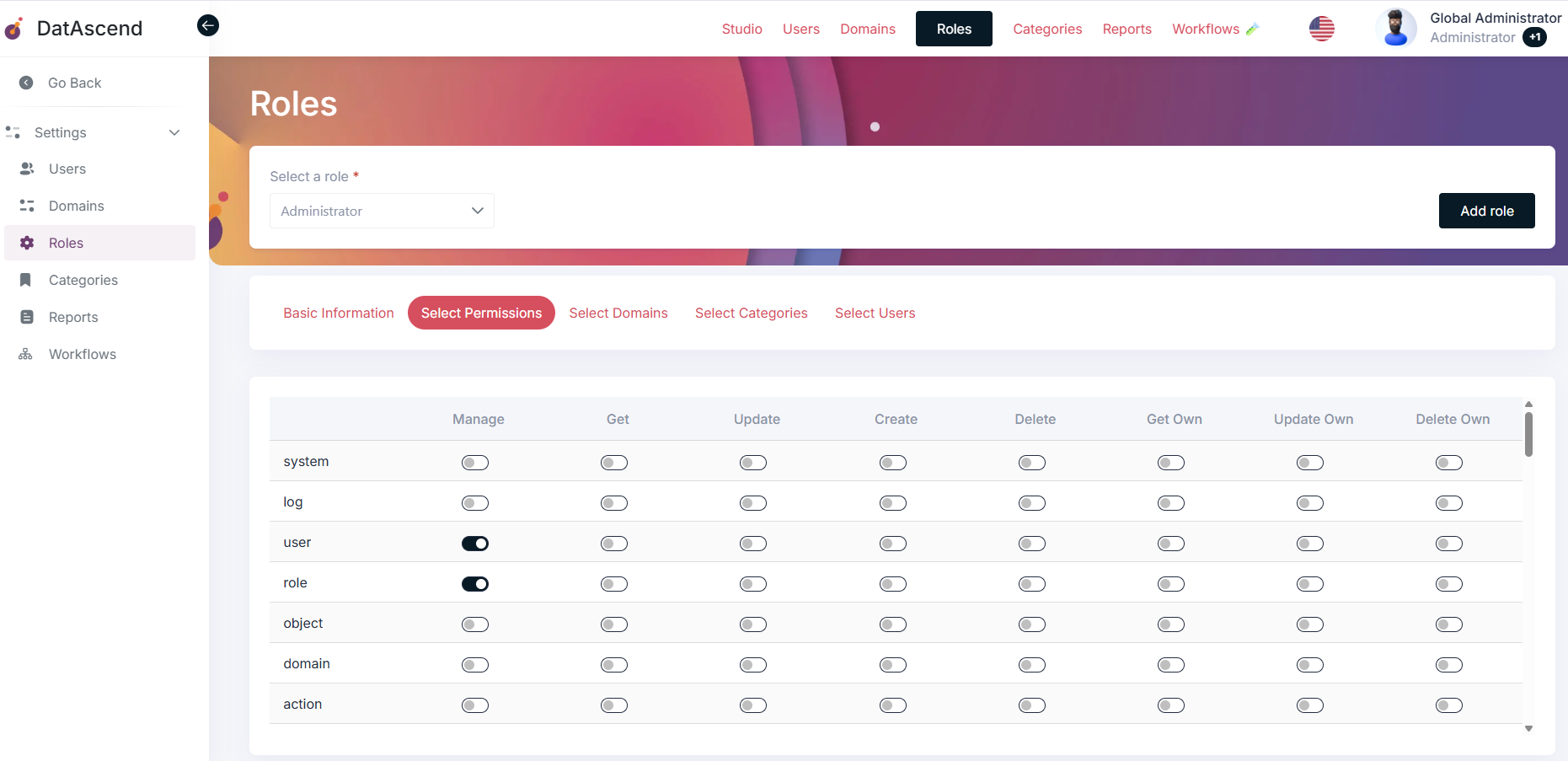
Section titled “Permissions”- Click on the “Select Permissions” tab.
- A matrix of entities and actions will be displayed, with a toggle switch for each combination to enable or disable it.
- Find the entity and action you want to assign to the role by clicking the corresponding toggle in the appropriate cell.
Domains
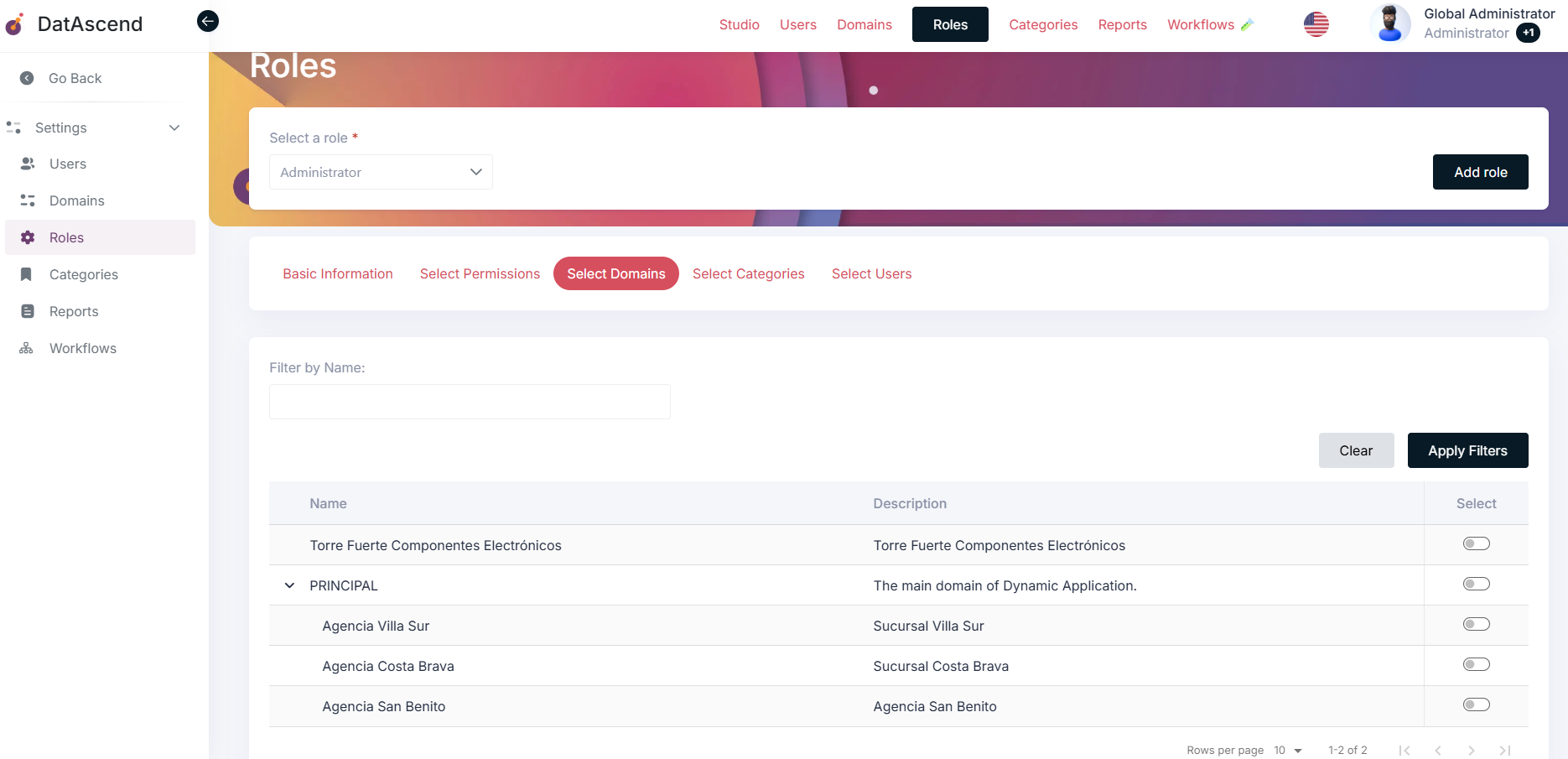
Section titled “Domains”- Click on the “Select Domains” tab.
- A list of system domains will be displayed.
- You will also see an option to filter domains by name.
- Each cell in the table shows a toggle switch to assign or unassign the domain to the role.
- Activate or deactivate the selector to assign or unassign the domain from the role.
Categories
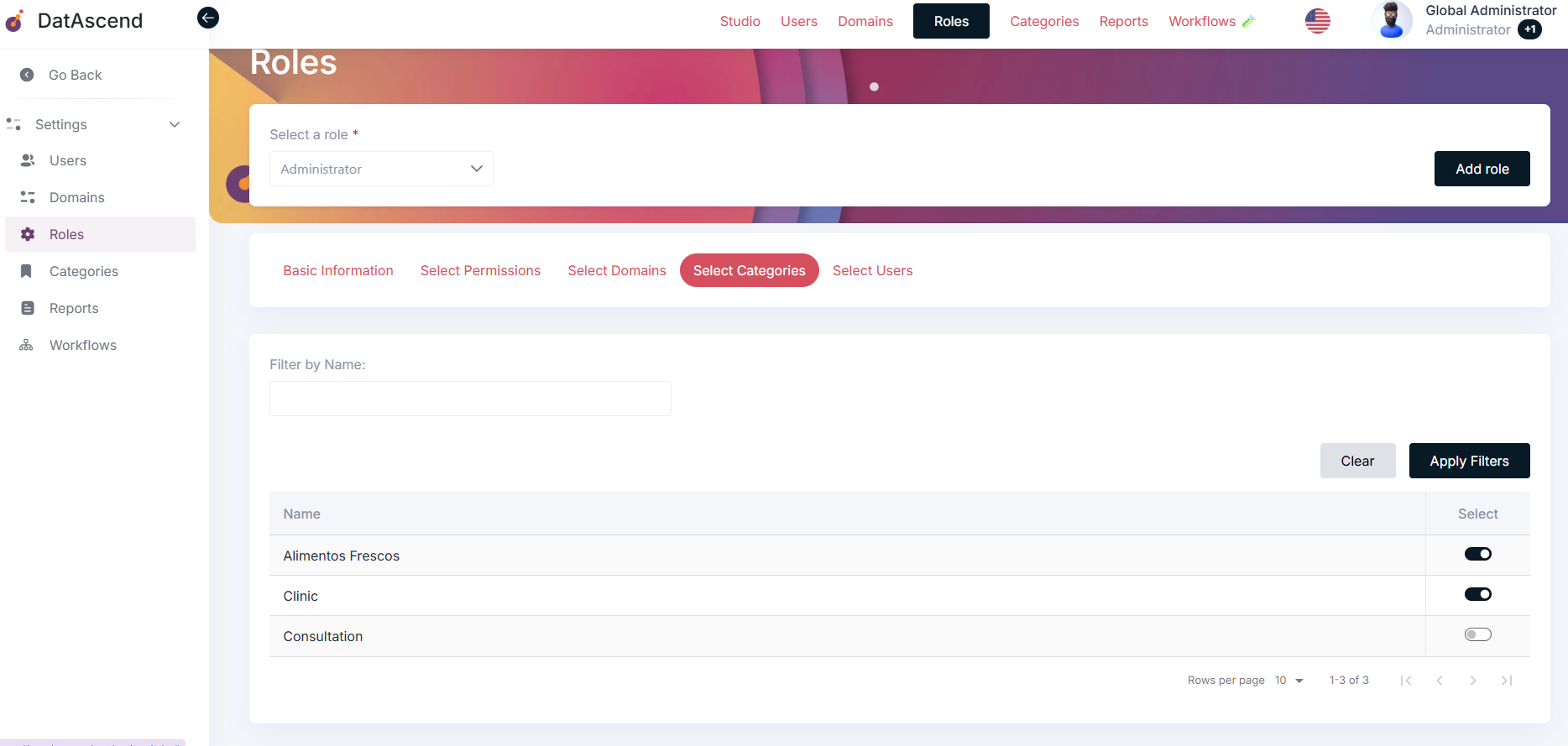
Section titled “Categories”- Click on the “Select Categories” tab.
- A list of categories created in the system will be displayed.
- You will also see an option to filter categories by name.
- Each cell in the table shows a toggle switch to assign or unassign the category to the role.
- Activate or deactivate the selector to assign or unassign the category from the role.
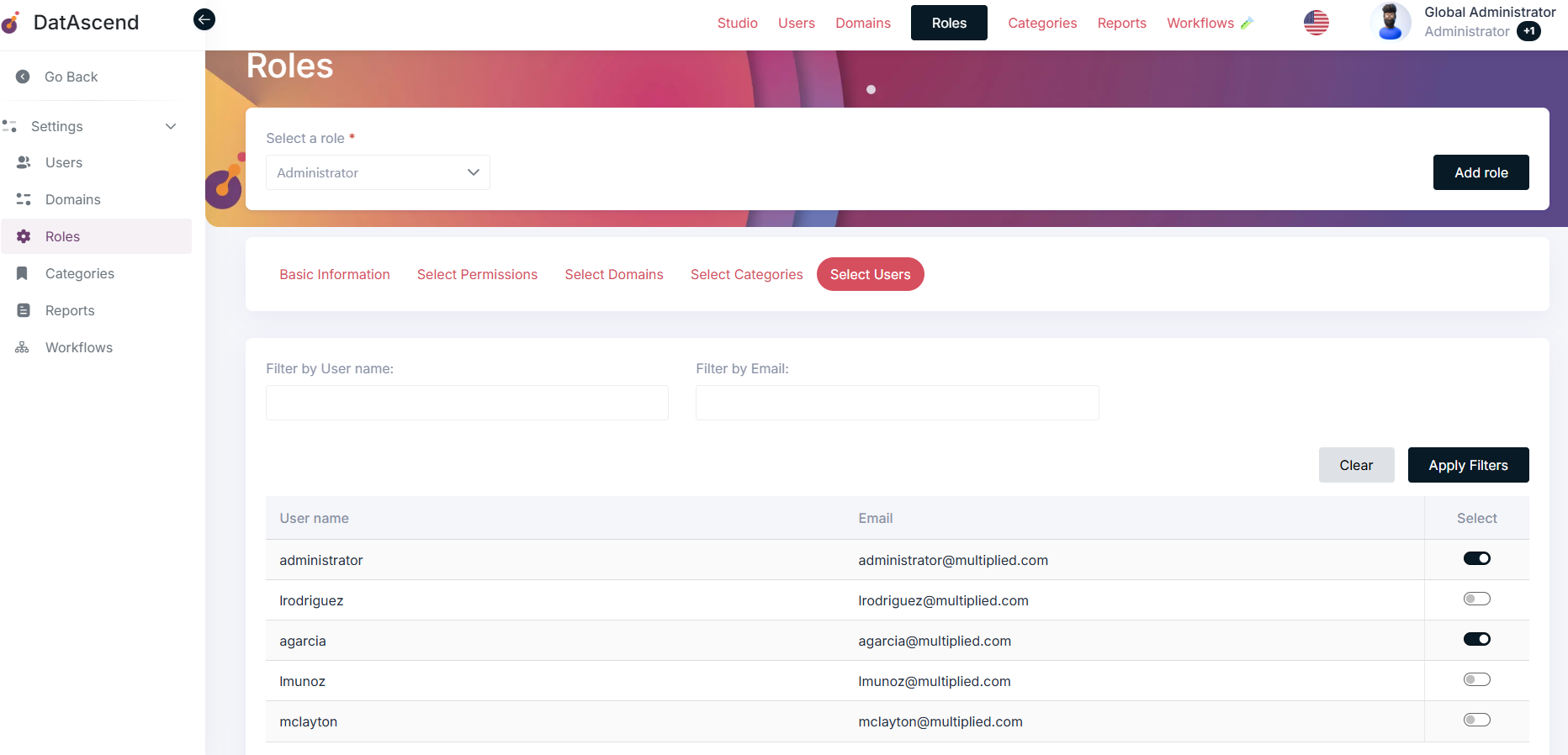
- Click on the “Select Users” tab.
- A list of users created in the system will be displayed.
- You will also see an option to filter users by name or email address.
- Activate or deactivate the toggle in each cell to assign or unassign a user to the role.
How to delete an existing role?
Section titled “How to delete an existing role?”- Go to the Roles section.
- Select the role you want to delete.
- Click on the “Basic Information” tab.
- Click the “Delete” button.