

Domains
The domains module provides a way to handle multiple entities data grouped by its domain assignement.
Domains are a way to organize and manage your application’s data and business logic. They represent specific areas of functionality and help to separate concerns, making assignments to entities more straightforward.
How to access the Domains module?
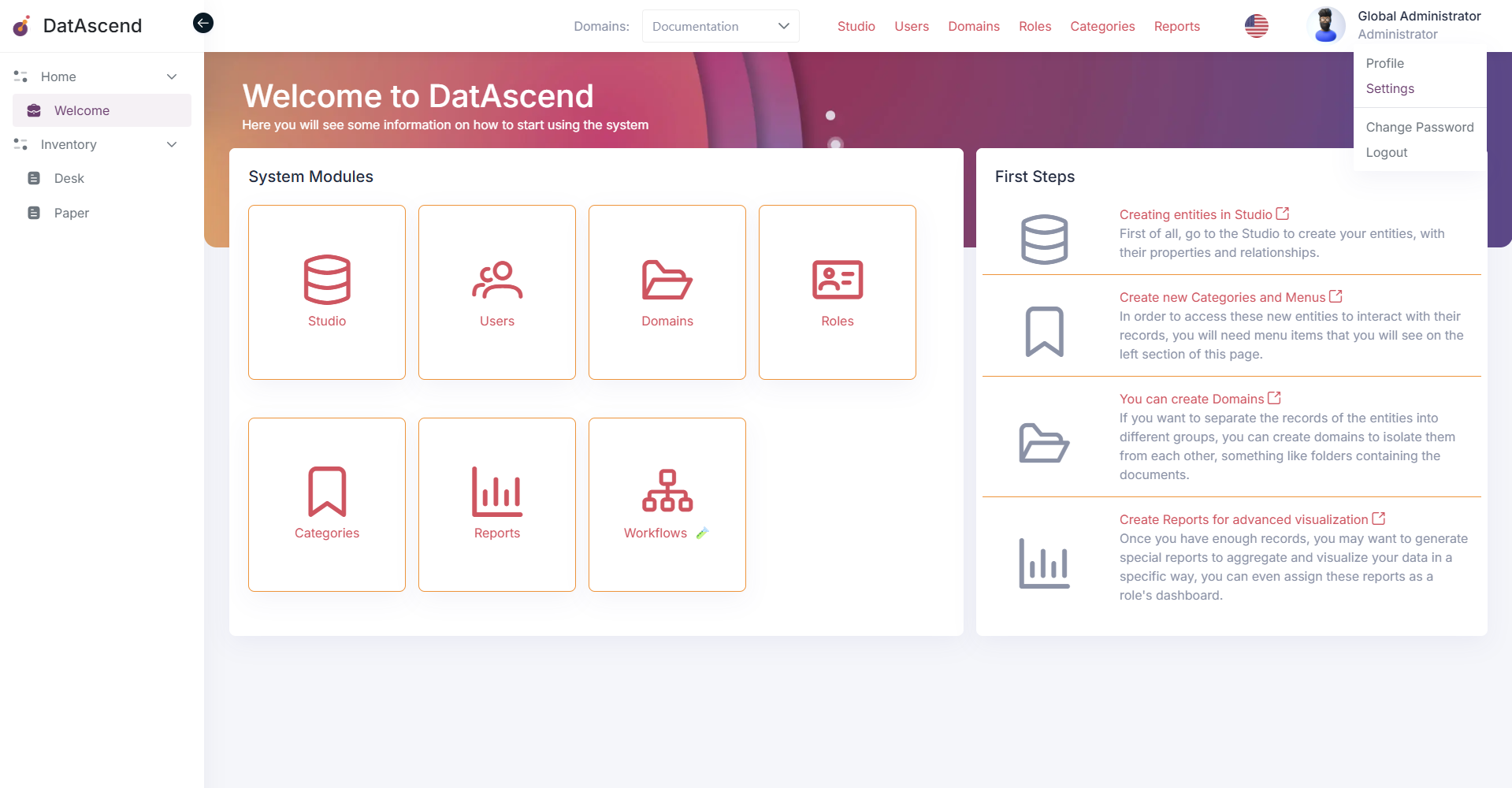
Section titled “How to access the Domains module?”To access the Domains module, you can use the global navigation or the settings panel. First, go to the settings page by clicking on the profile top right corner and selecting “Settings”.
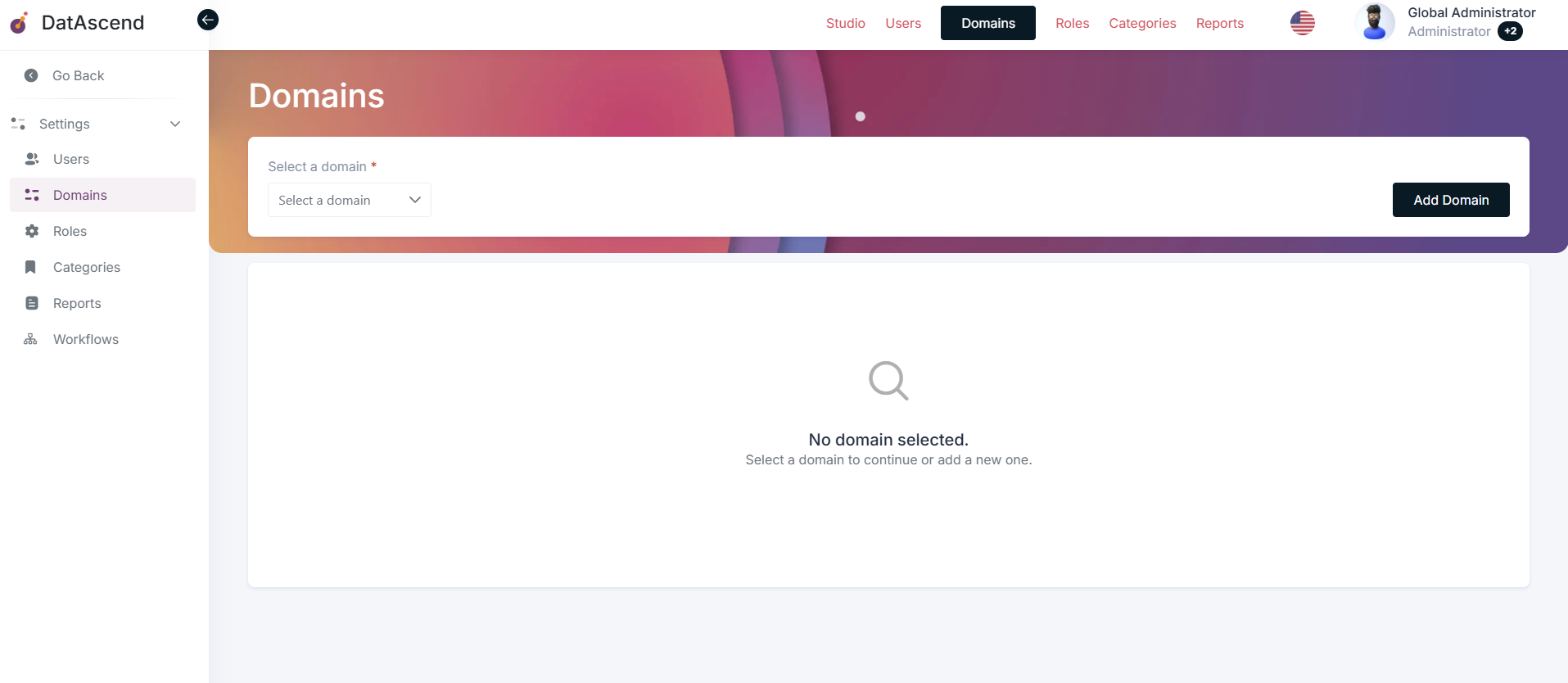
Then, in the settings panel, you will find the “Domains” option in the sidebar.
How to create a Domain?
Section titled “How to create a Domain?”To create a new Domain, click on the “Add Domain” button located at the top right corner of the page. The next screen will display a form where you can enter the details of the new domain, as name and description.
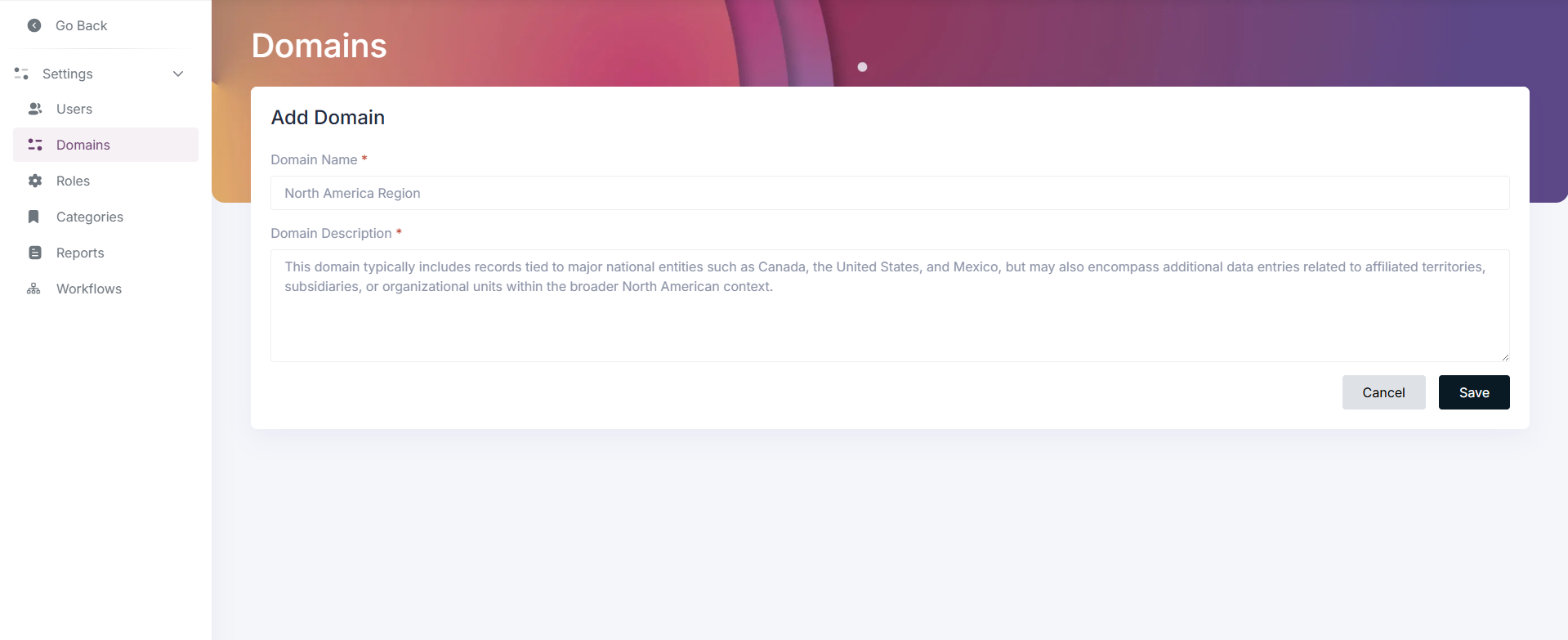
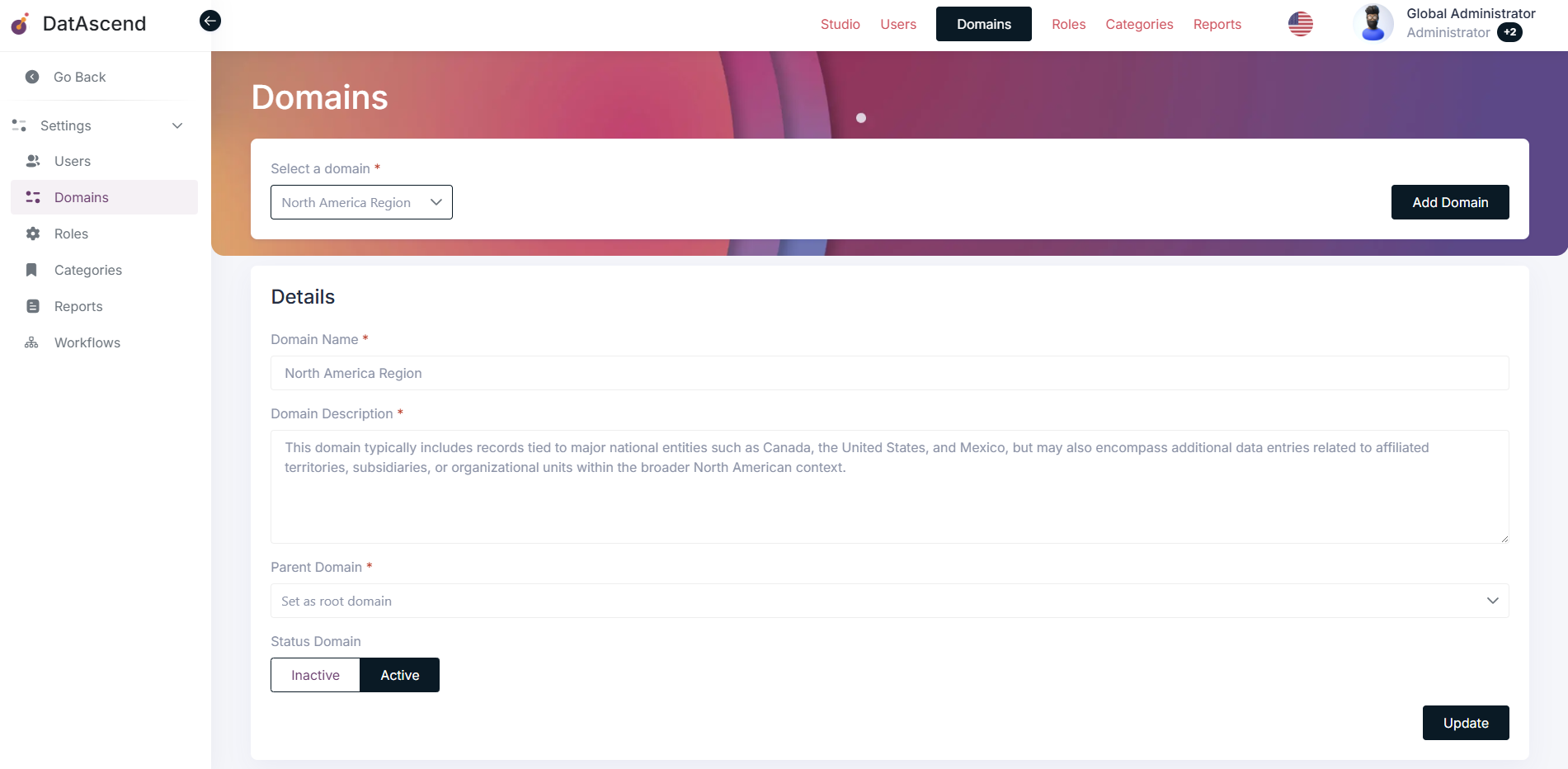
After filling in the form, click on the “Save” button to create the new Domain. The following screen will show the newly created domain in the domains module.
How to edit a Domain?
Section titled “How to edit a Domain?”To edit a Domain, go to the “Domains” section in the settings panel. Find and select the domain you want to edit from the dropdown list at the top left corner.
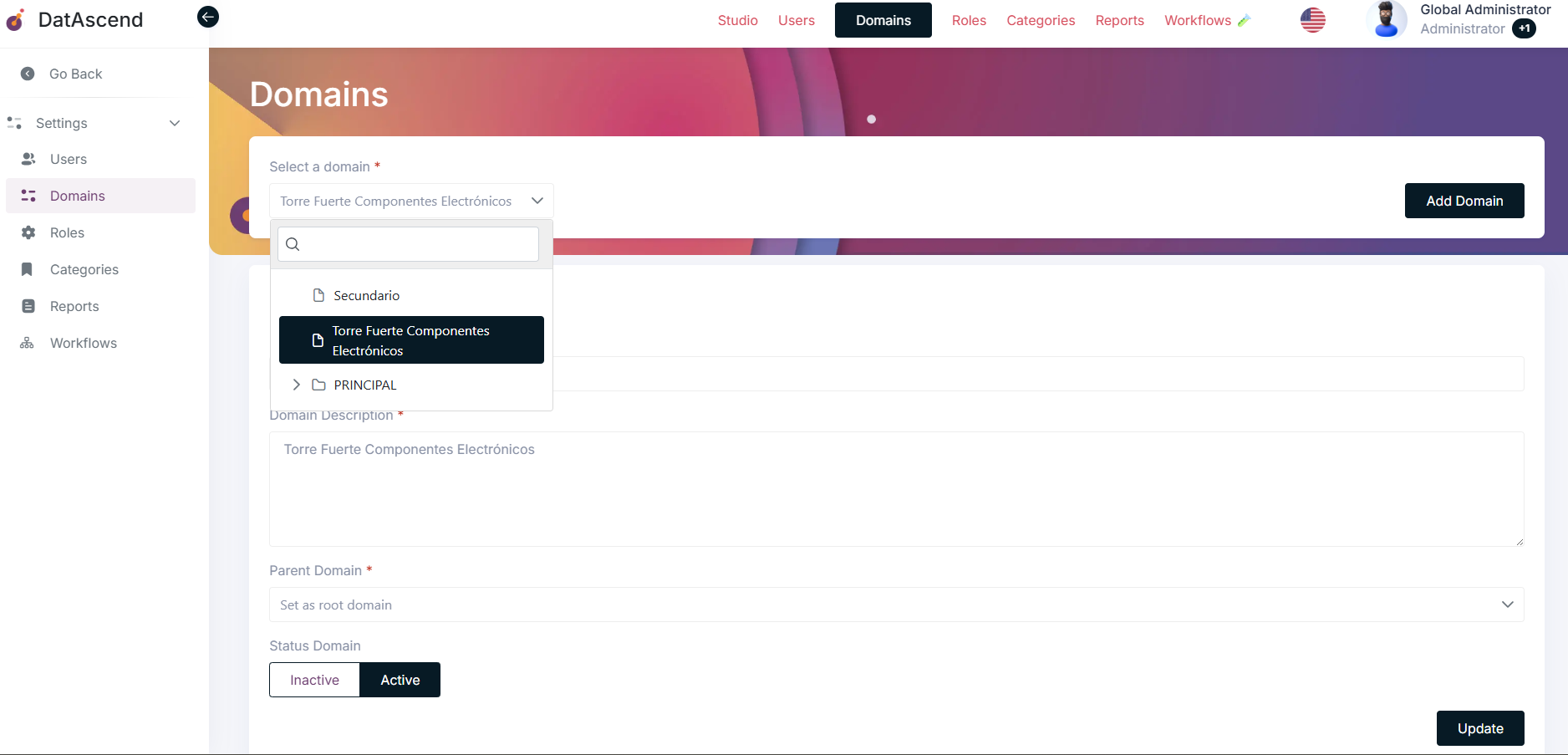
The following screen will appear with the details of the selected domain. From here, you can edit the domain’s name, description, it’s parent domain, and its active status.
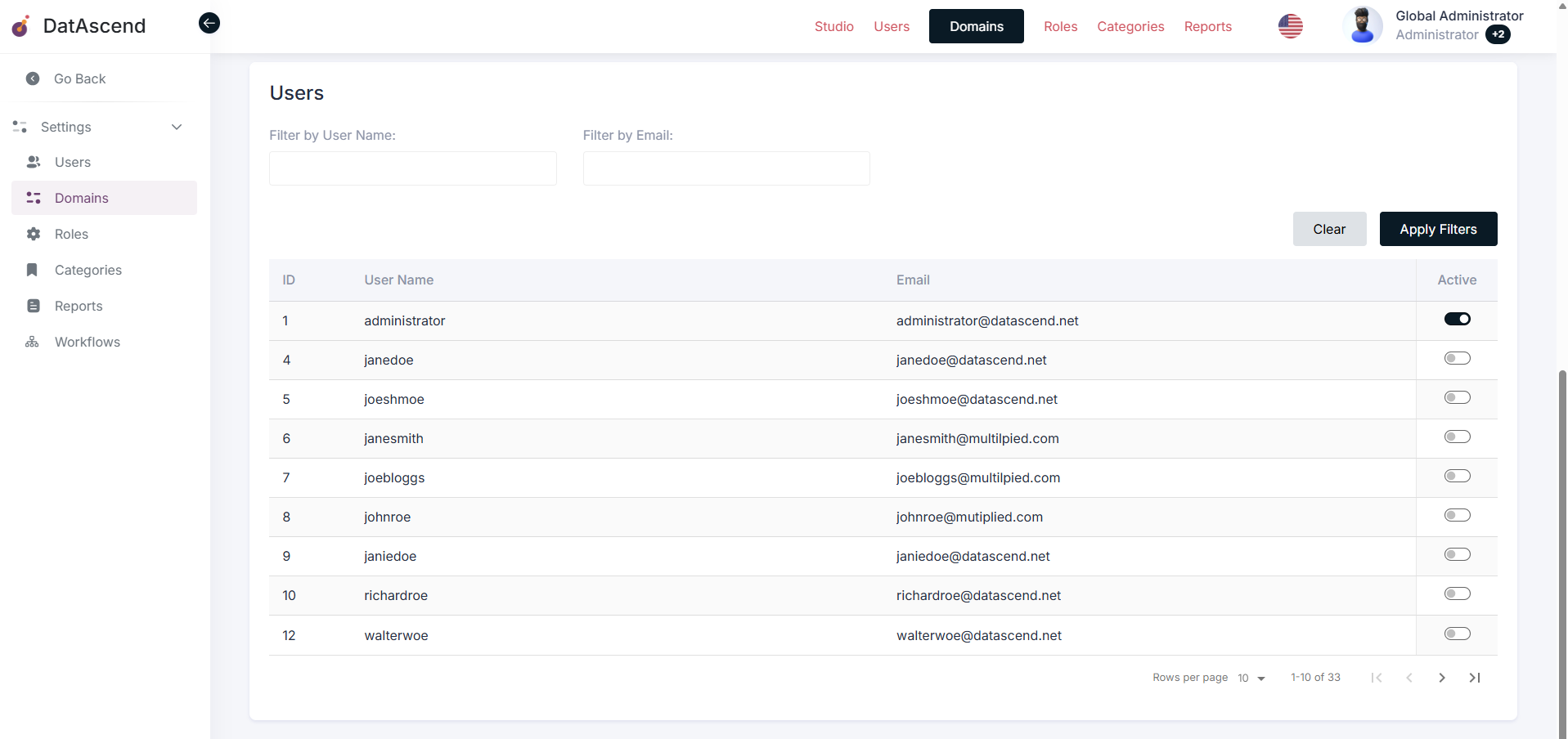
Also scrolling down on the same page, you will find the list of users assigned to the domain. You can add or remove users from the domain by toggling the switch next to each record in the list.
- Use the filters to find specific users by name or email.
How to change the active Domain for the current user?
Section titled “How to change the active Domain for the current user?”To change the active Domain for the current user, go to the main application page. On the top navigation bar, you will see a dropdown menu displaying the current active domain. Click on the dropdown to see the list of available domains assigned to your user.
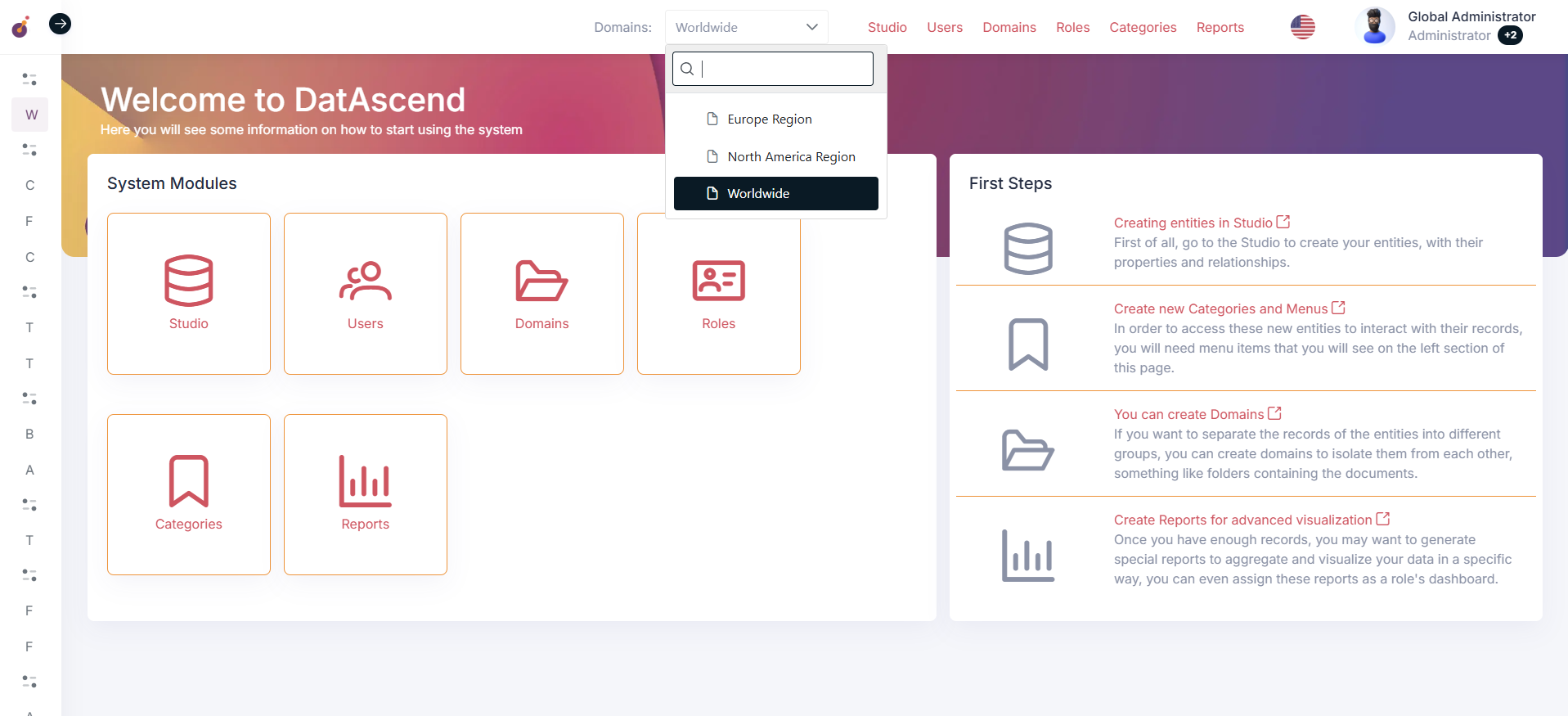
Select the desired domain from the list to set it as the active domain. The application will then show only the data belonging to the selected domain over all the application.
How domains are used or referenced in other sections?
Section titled “How domains are used or referenced in other sections?”Filtering data by active Domain on Entities module
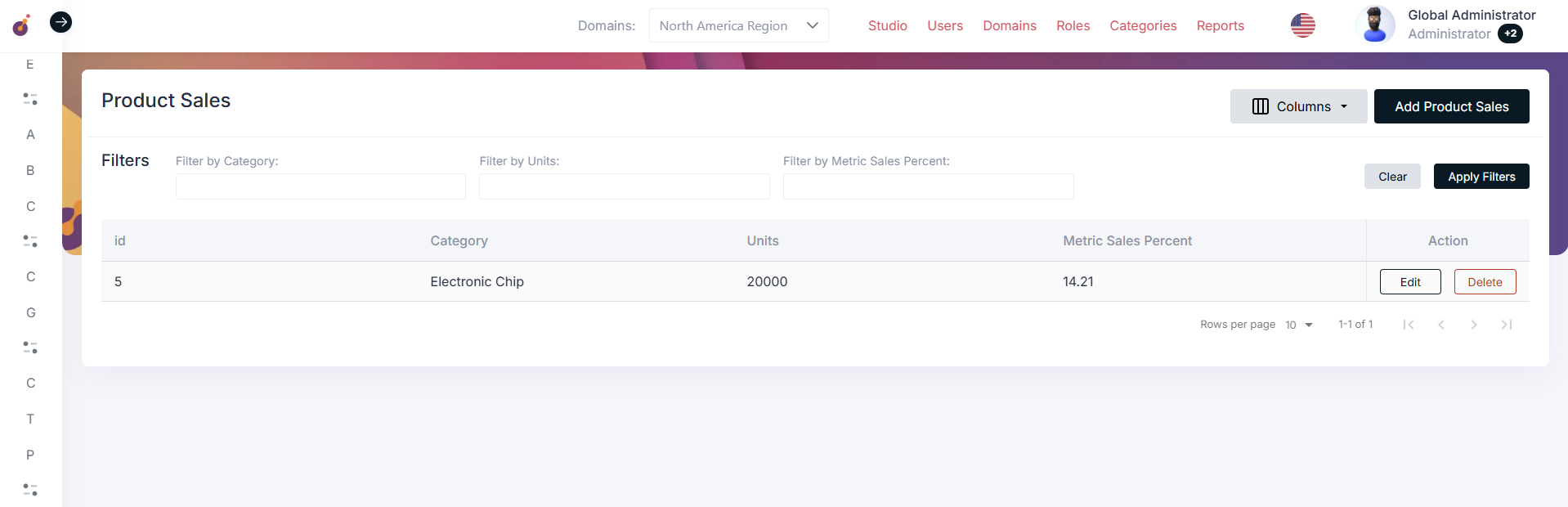
Section titled “Filtering data by active Domain on Entities module”Domains can be used to filter and manage data in various sections of the application. For example, in the “Entities” module, you can display only the entities that belong to the active domain.
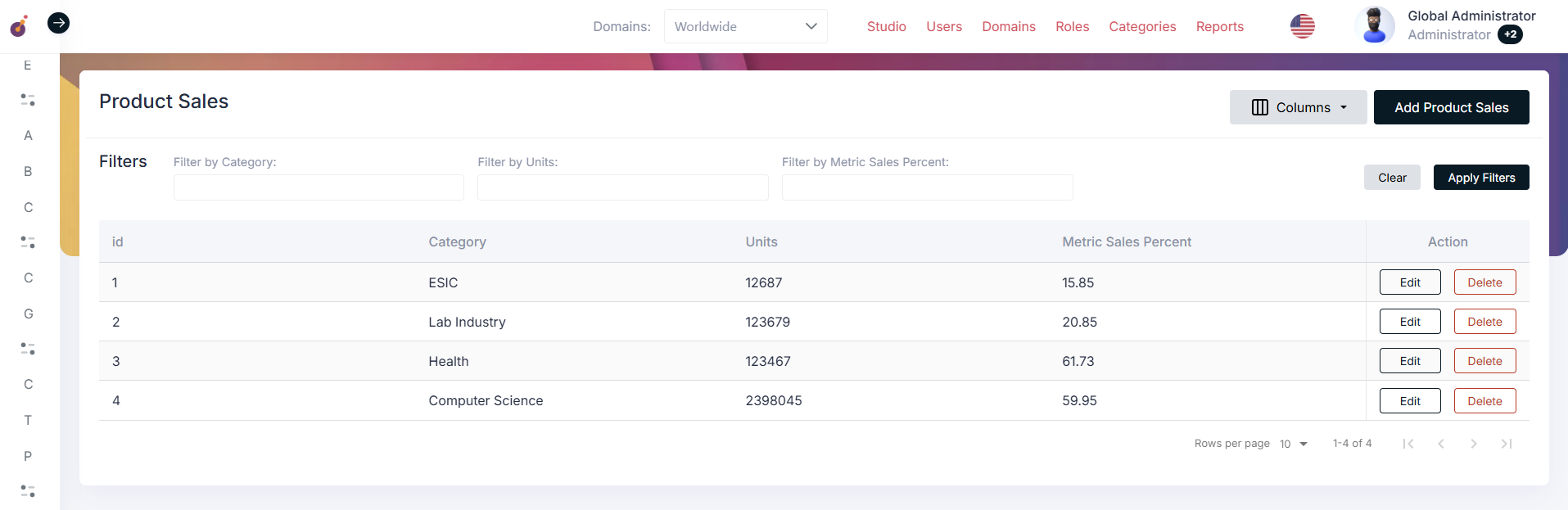
If the active domain is changed, the data displayed in the “Entities” module will update accordingly to show only the entities belonging to the selected domain.
Assigning Domains in the Roles module
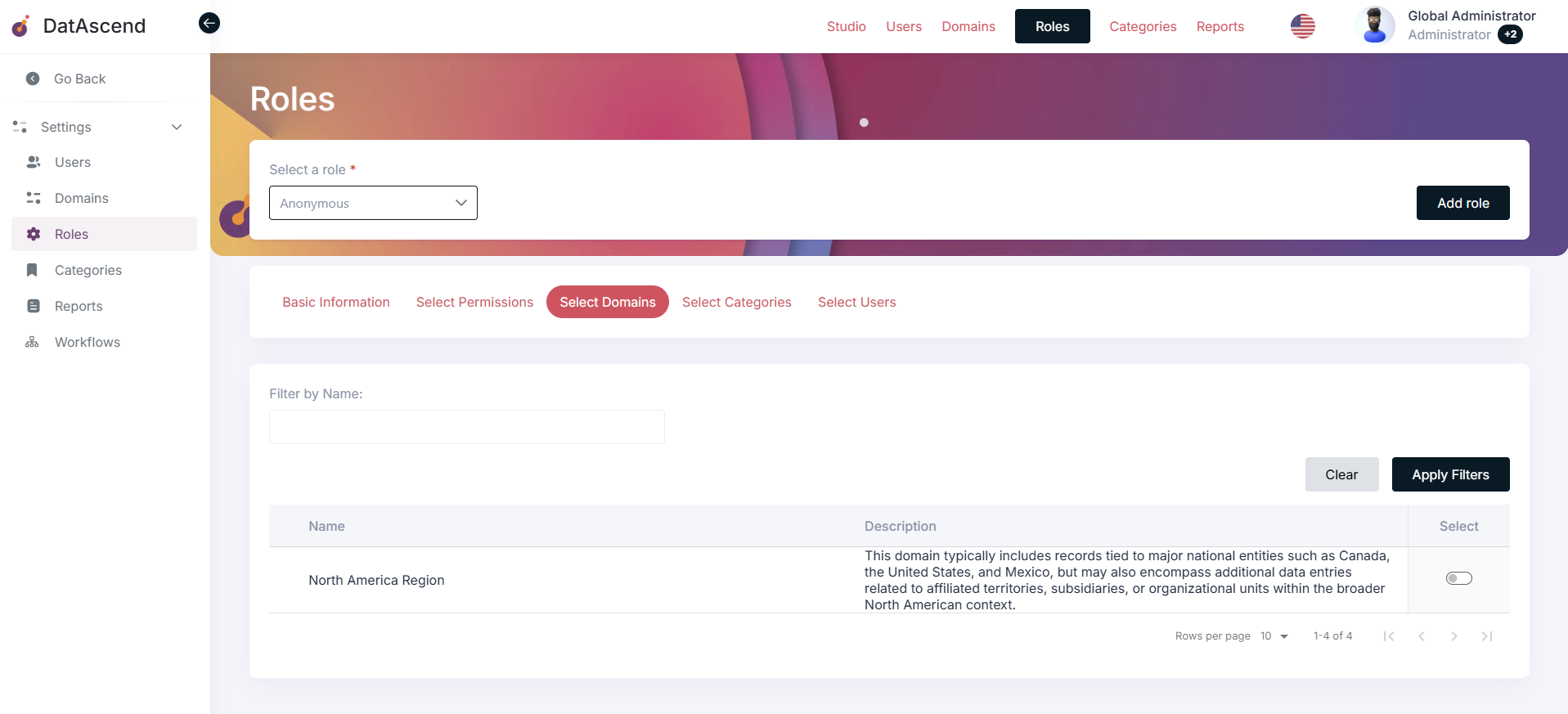
Section titled “Assigning Domains in the Roles module”In the “Roles” module, you can assign specific domains to user roles. This allows for more granular control over what data users can access based on their role and the associated domains. They can be assigned to one or more domains, and users with that role will only see data from those domains.
Tip and common issues
Section titled “Tip and common issues”I cant create a record inside a domain.
Section titled “I cant create a record inside a domain.”- Ensure that you have the necessary permissions to create records in the selected domain.
- Verify that the domain is active and not restricted for your user or role.
I cant see data from other domains.
Section titled “I cant see data from other domains.”- Check if your user role has access to multiple domains.
- Make sure you have selected the correct active domain from the dropdown menu.
More tips
Section titled “More tips”- Use clear and descriptive names for your domains to easily identify their purpose.
- Regularly review and update domain assignments to ensure they align with your organizational structure.
- Use the search and filter options in the Domains module and dropdown menus to search for specific domains quickly.
- The domains must be active to be used all over the application, else they will not allow the creation of any data.