

Working with Entities
What is Entity Manipulation?
Section titled “What is Entity Manipulation?”In DatAscend, manipulating an entity refers to performing actions on the records of an existing entity, such as editing, deleting, or filtering them.
This also includes managing the relationships that connect records to other entities, allowing administrators, configurators, and business users to maintain accurate and organized data across the system.
Manipulating Entity Records
Section titled “Manipulating Entity Records”This section covers basic record operations like filtering, editing, and deleting.
Accessing Entity Records
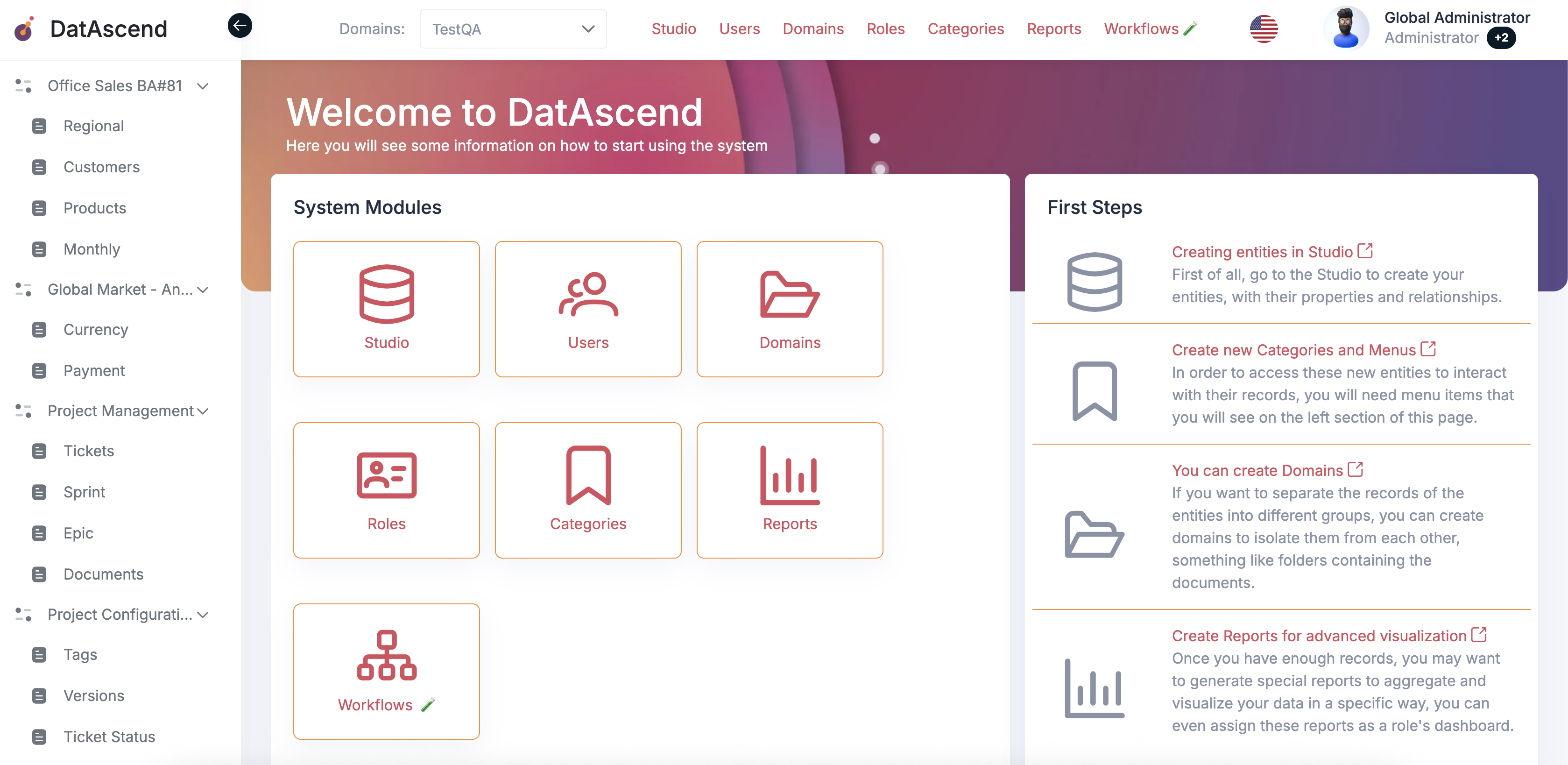
Section titled “Accessing Entity Records”- To access an entity’s records, use the left navigation menu on the sidebar.
- Each item in the menu represents an entity (for example:
Desk,Worksheet, orProject). - Click on the desired entity to view its table of records.
Understanding the Entity Record Table
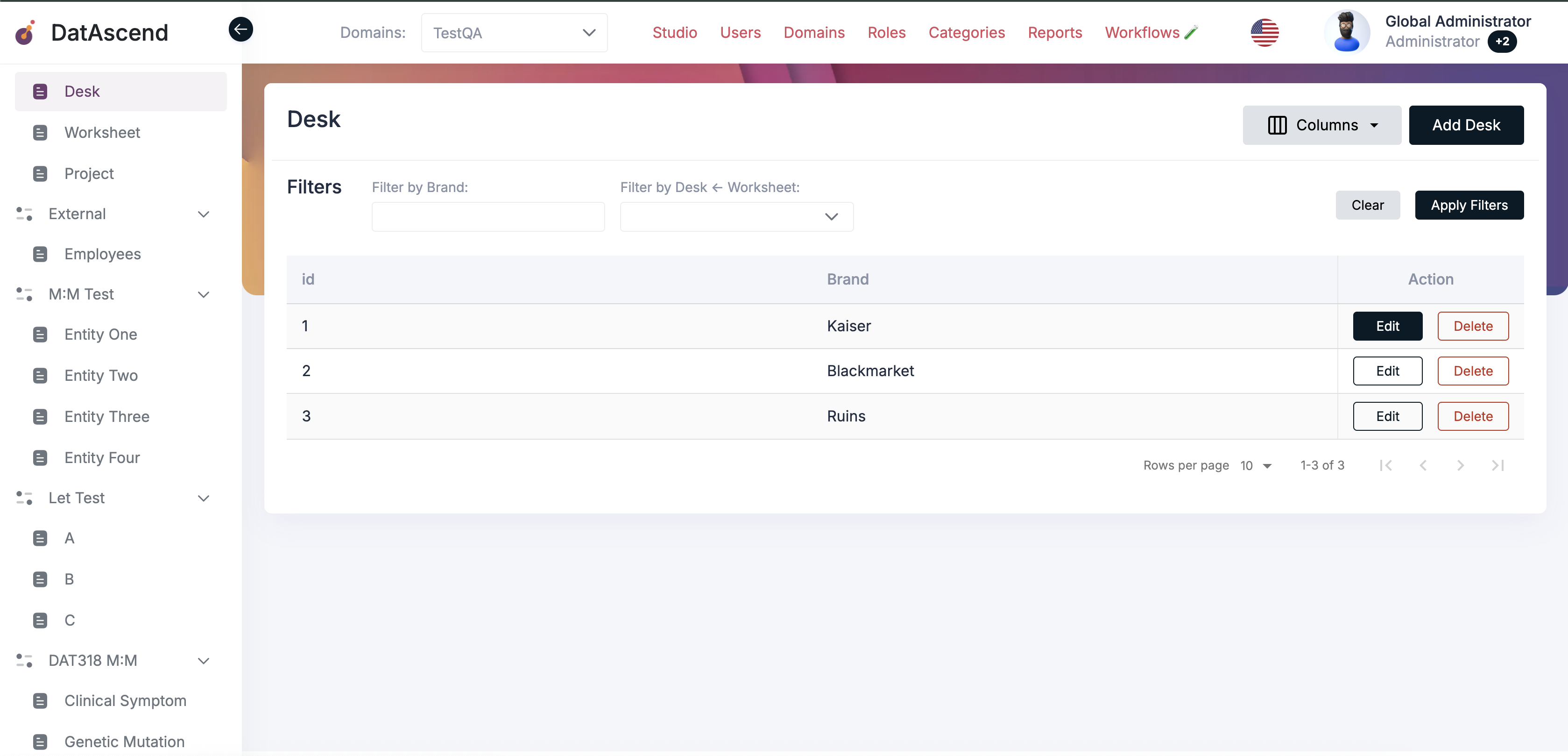
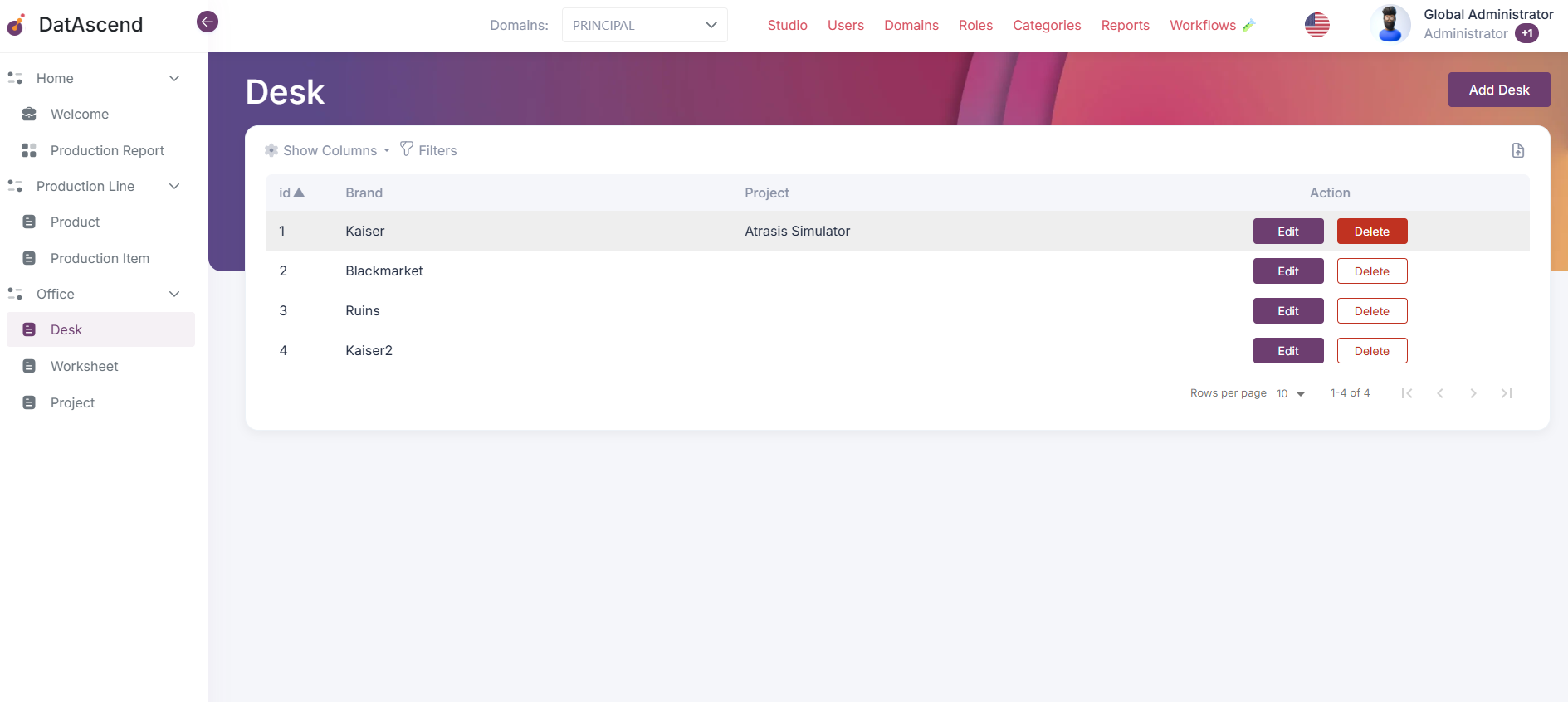
Section titled “Understanding the Entity Record Table”When an entity is selected, a records table will be displayed with the following key areas:
- Filters: To search or narrow down records by field values.
- Columns Menu: Allows you to show or hide specific columns.
- Actions: Each row contains contextual actions such as
EditandDelete. - Pagination Controls: Manage the number of visible rows per page.
Filtering Records
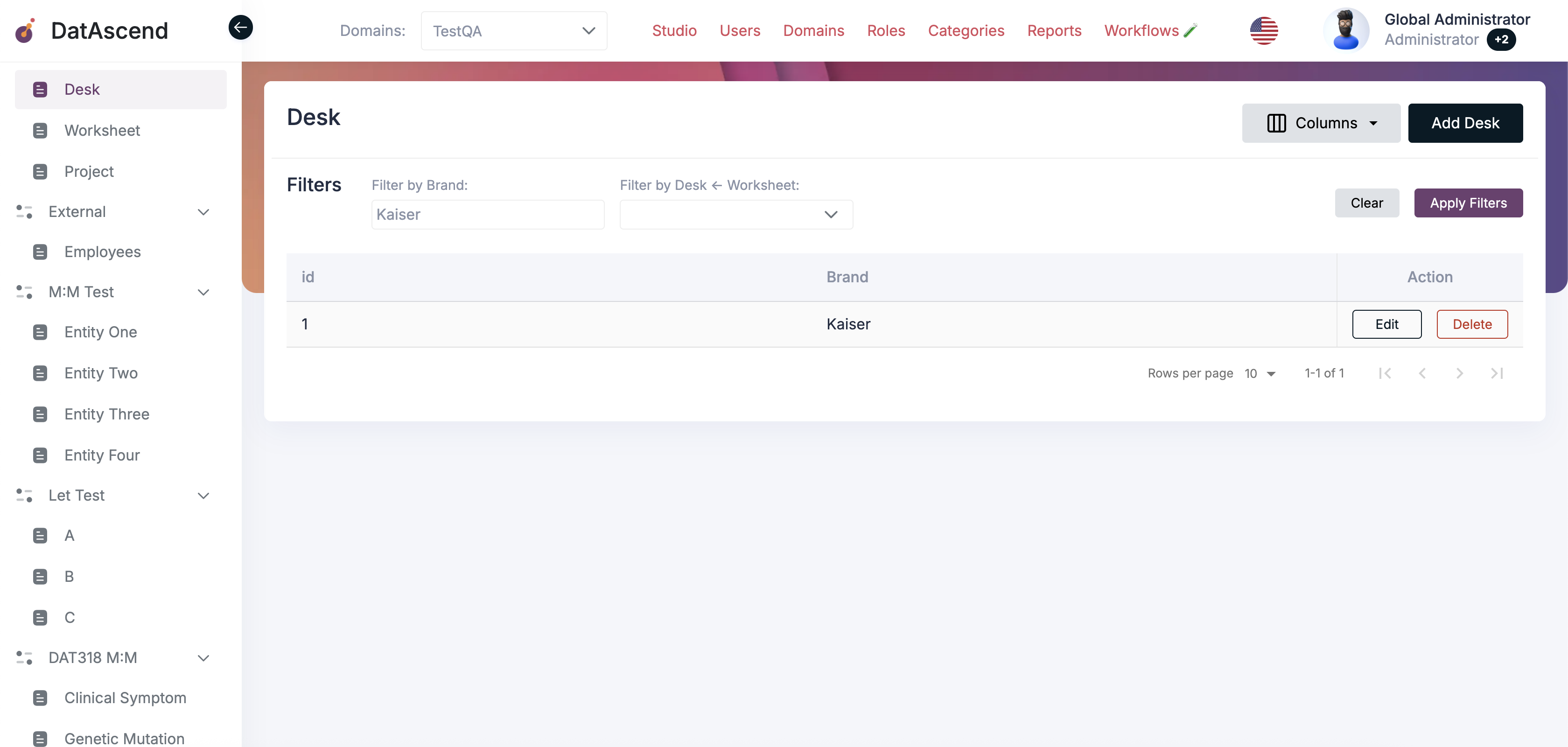
Section titled “Filtering Records”Filtering lets you locate specific records based on certain field criteria.
- In the
Filterssection, type or select a value (e.g., “Kaiser” in Filter by Brand). - Click Apply Filters to refresh the table with matching records.
- To clear filters, click Clear.
✅ Best Practice: Use filters before editing or deleting to ensure you are working with the correct subset of records.
Column Visibility
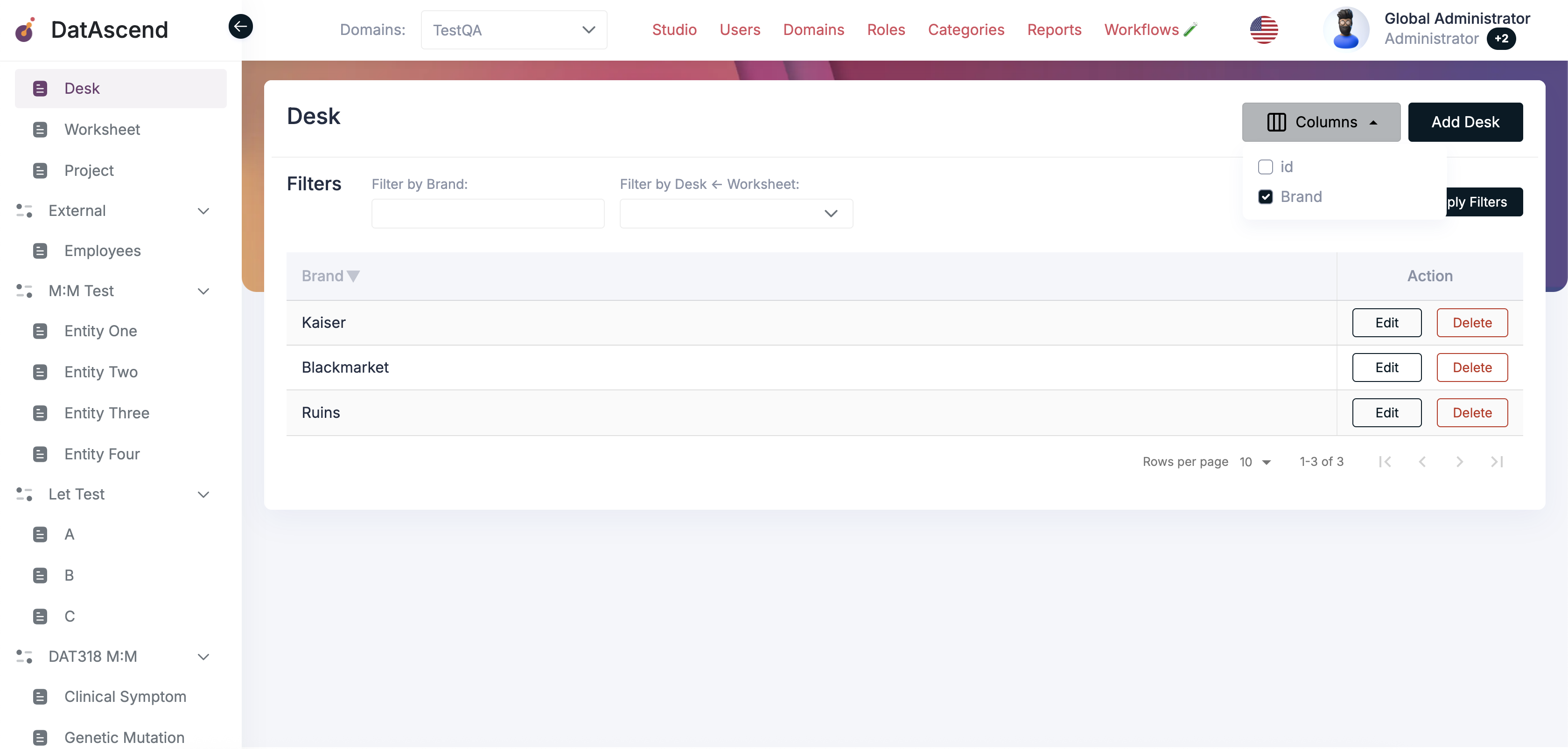
Section titled “Column Visibility”You can customize which fields appear in the record table:
- Click the Columns button above the table.
- Check or uncheck the fields you wish to show or hide.
- The table will update immediately.
Editing Entity Records
Section titled “Editing Entity Records”To modify an existing record:
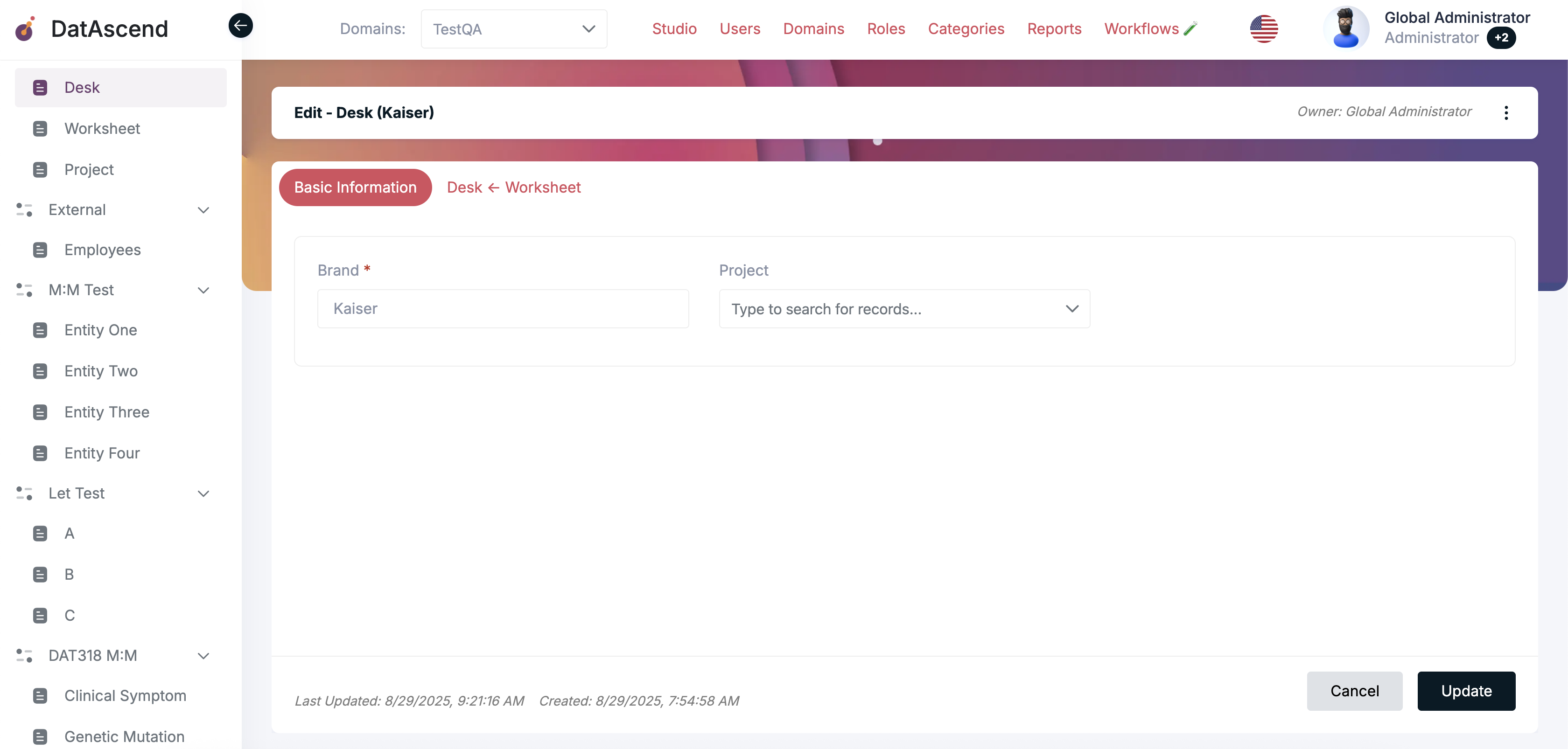
- In the entity’s record table, locate the record you want to edit.
- Click the Edit button next to that record.
- You will be redirected to the record editor view.
- Make the necessary changes in the available fields.
- Click Update to save your changes.
⚠️ Note: Some fields may be locked depending on your role or the entity configuration (e.g., system-managed fields or read-only properties).
Managing Domains and Ownership
Section titled “Managing Domains and Ownership”While editing a record, administrators can also manage domain assignments and ownership.
Change Domain
Section titled “Change Domain”- Click the three-dot menu (
⋮) on the top-right corner of the record editor. - Select Change Domain.
- A confirmation modal will appear warning that relationships will be removed upon domain change.
- Choose the new domain and click Save.
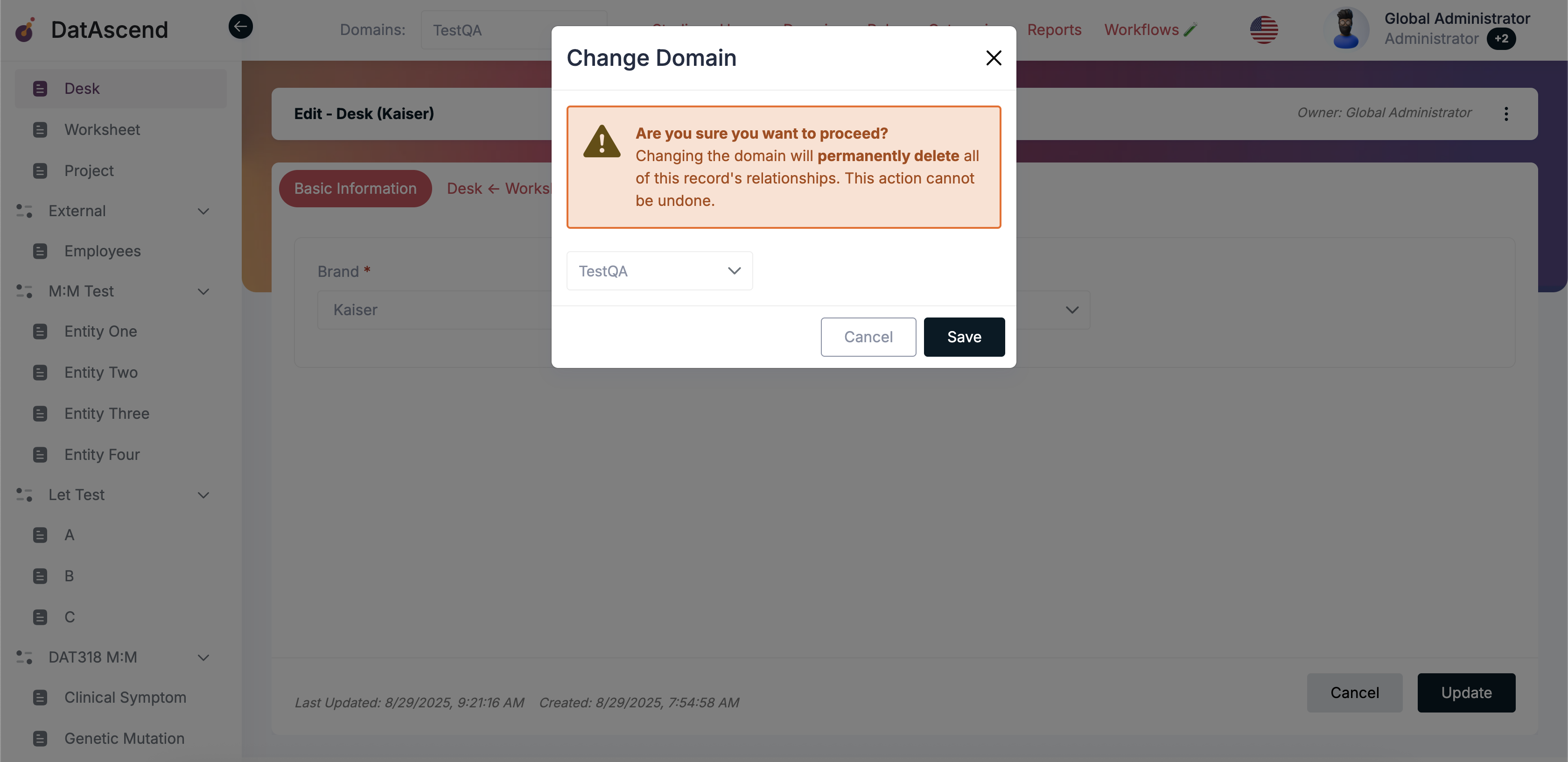
⚠️ Warning: Changing domains permanently deletes all relationships tied to that record. Proceed only if you are sure this record should move to another domain.
Change Owner
Section titled “Change Owner”- Open the same three-dot menu (
⋮) and select Change Owner. - Choose the new owner from the dropdown list.
- Click Save to assign ownership.
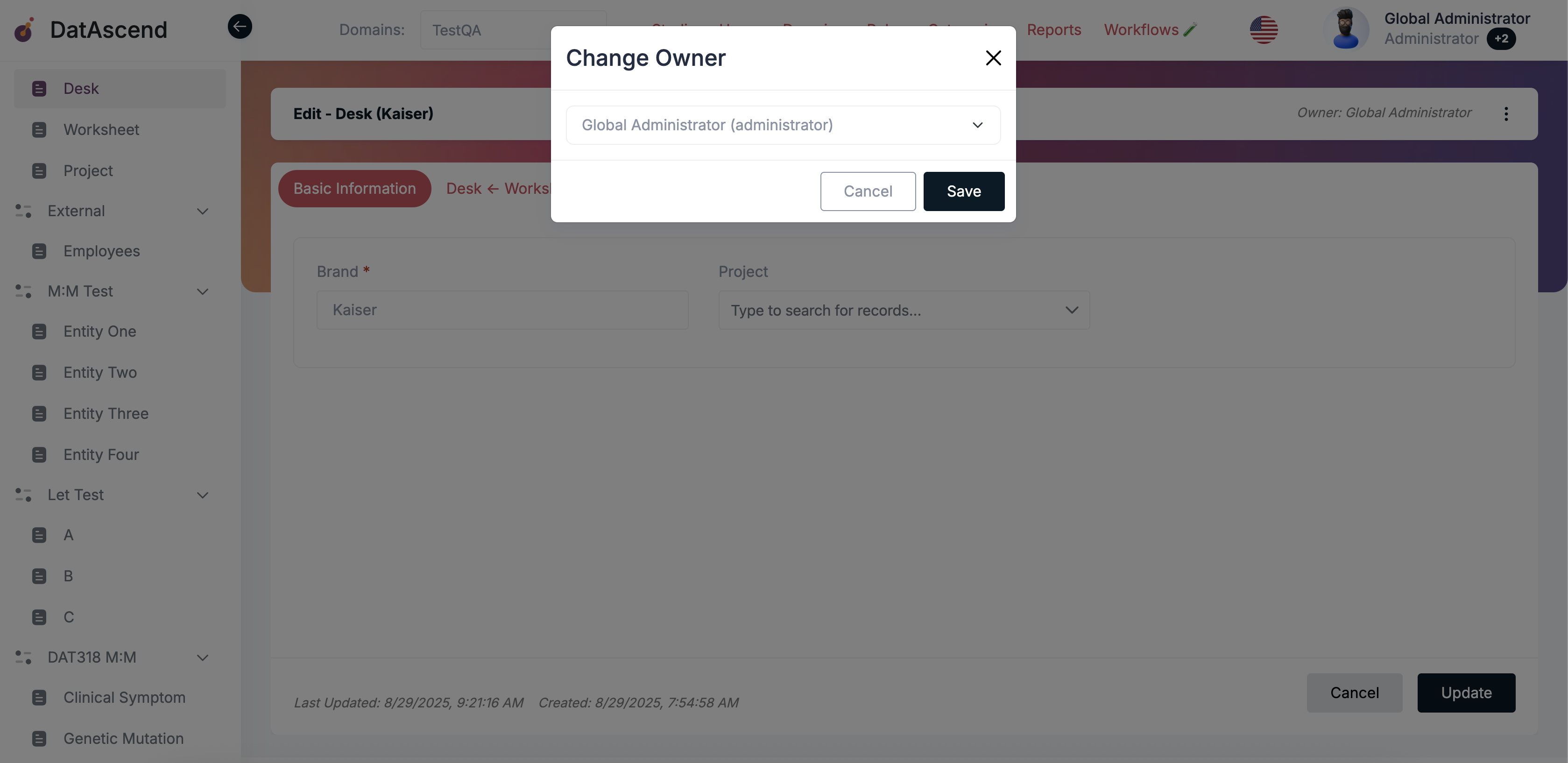
💡 Tip: Use this feature when transferring responsibility of a record to another administrator or domain user.
Deleting Entity Records
Section titled “Deleting Entity Records”To delete a record:
- In the entity table, locate the record you wish to remove and click the Delete button beside it. This highlights the row and opens a confirmation prompt.
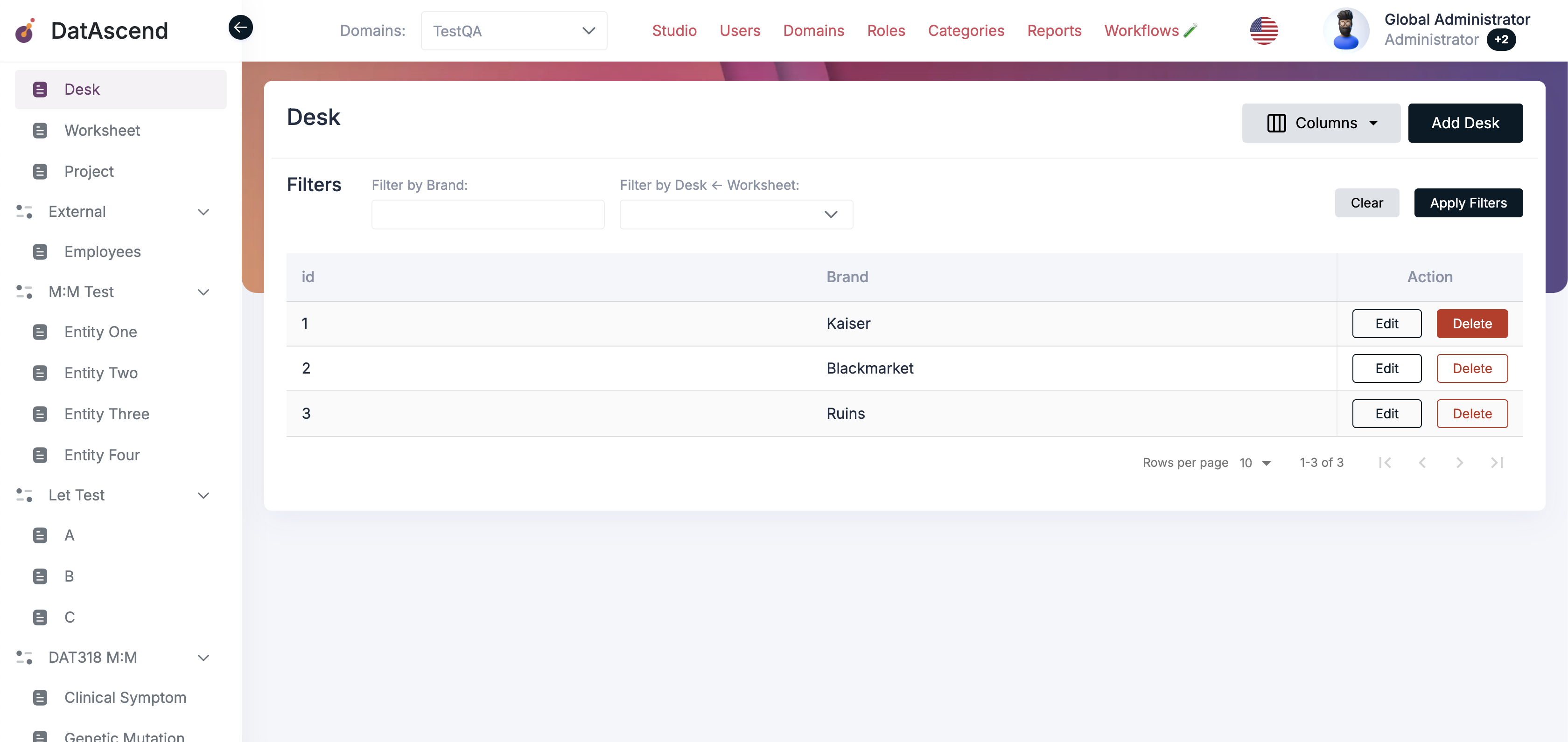
- A confirmation modal will appear asking if you’re sure.
- Click Delete to confirm the action.
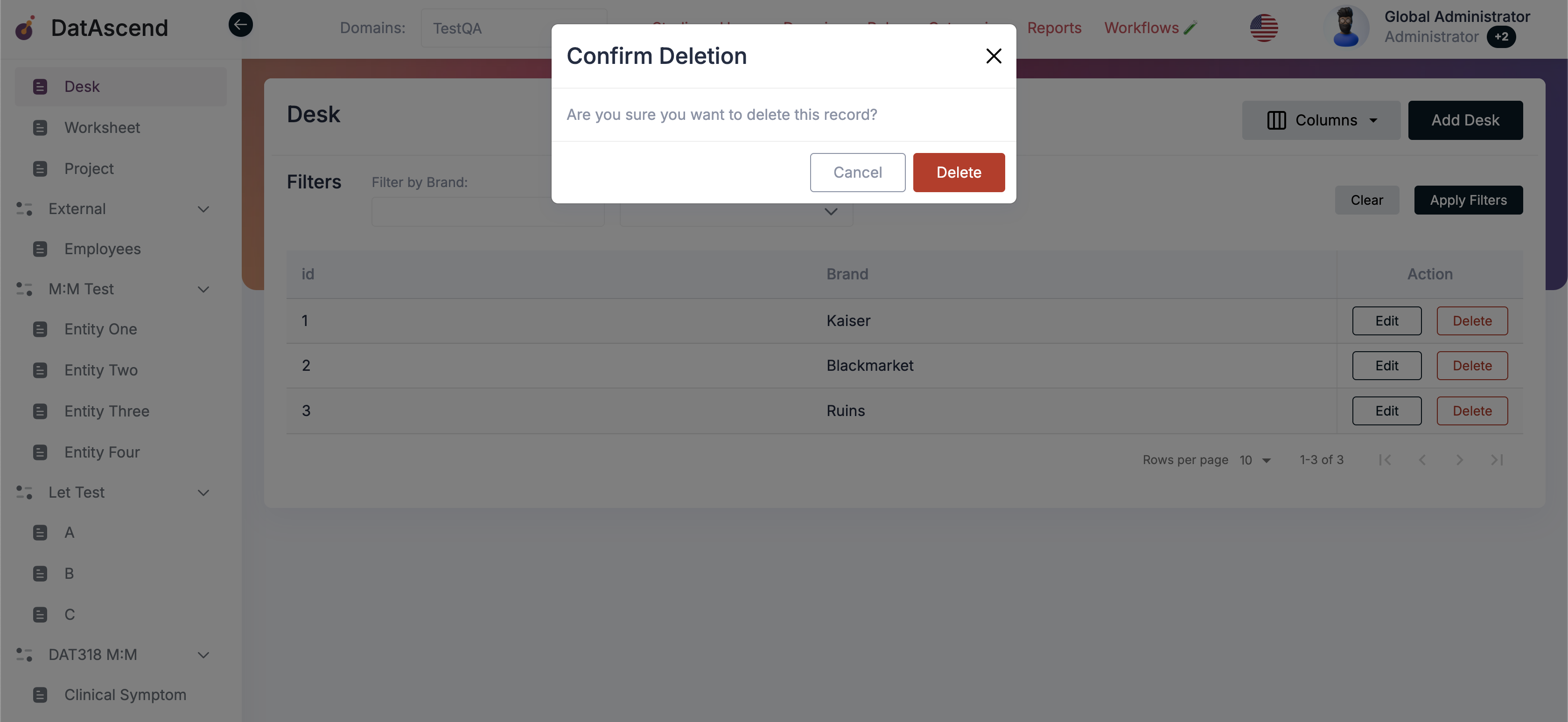
⚠️ Warning: Deleting a record is permanent and cannot be undone. If the record has relationships (e.g., linked tasks, users, or related entities), ensure those relationships are not required elsewhere.
Managing Entity Relationships
Section titled “Managing Entity Relationships”Entity relationships allow you to connect records across multiple entities within the same domain. Understanding and managing these relationships ensures consistent, accurate data and supports complex data models.
Relationship Types
Section titled “Relationship Types”DatAscend supports the following relationship types:
- One-to-One (1:1)
- One-to-Many (1:N)
- Many-to-One (N:1)
- Many-to-Many (N:N)
Each type determines how records interact and how they appear in the record editor.
Working with Relationships
Section titled “Working with Relationships”Accessing Related Records
Section titled “Accessing Related Records”When you open a record that has relationships configured, you’ll see relationship tabs in addition to the basic information tab:
- “Basic Information”: Contains the entity’s own fields
- “[Parent Entity] ← [Child Entity]”: For One-to-Many relationships (e.g., “Desk ← Worksheet”)
- “[Relationship Name]”: For Many-to-Many relationships (e.g., “One and three”)
Each relationship tab displays a table of related records with:
- Filter controls to narrow down results
- Column visibility options
- Actions buttons (Edit, Unlink)
- Option to add new related records
Navigation with Breadcrumbs
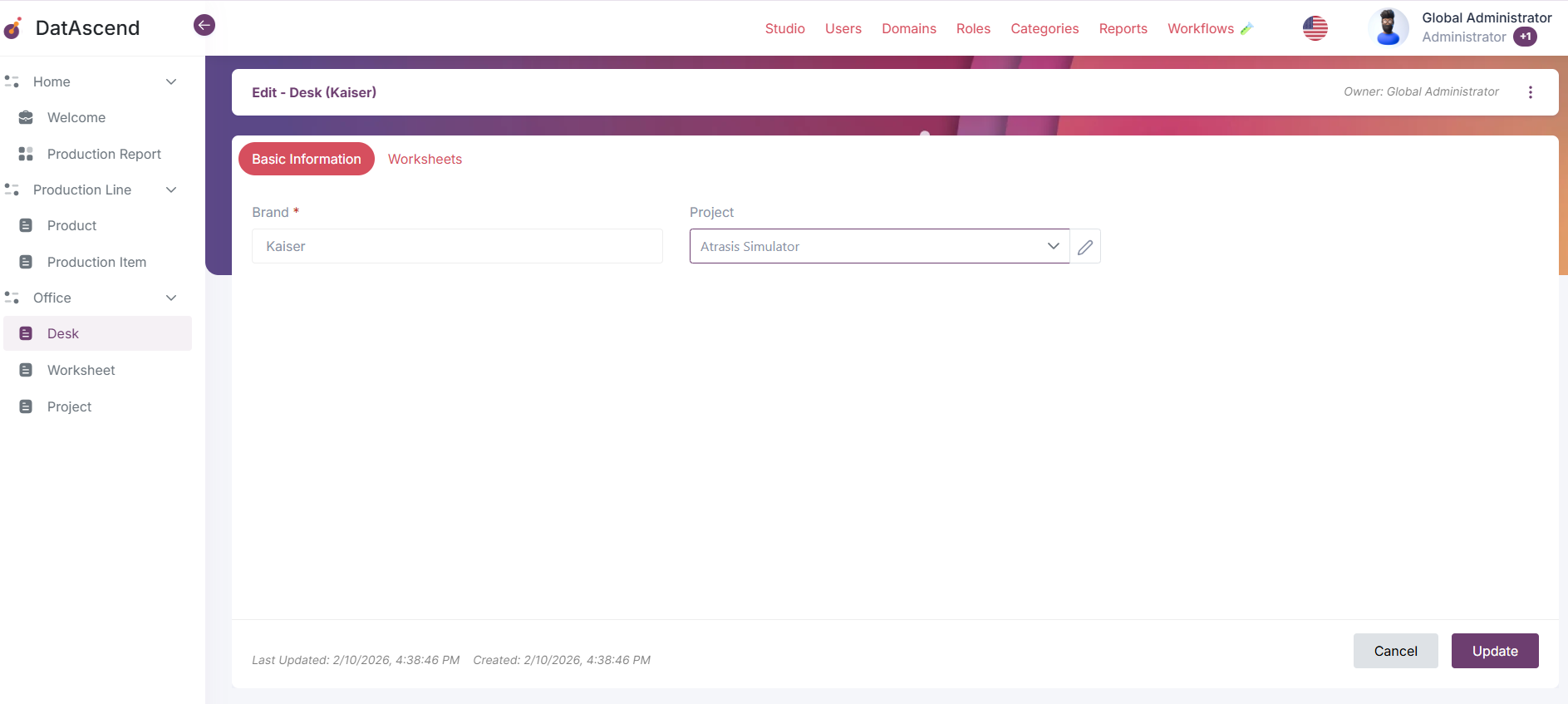
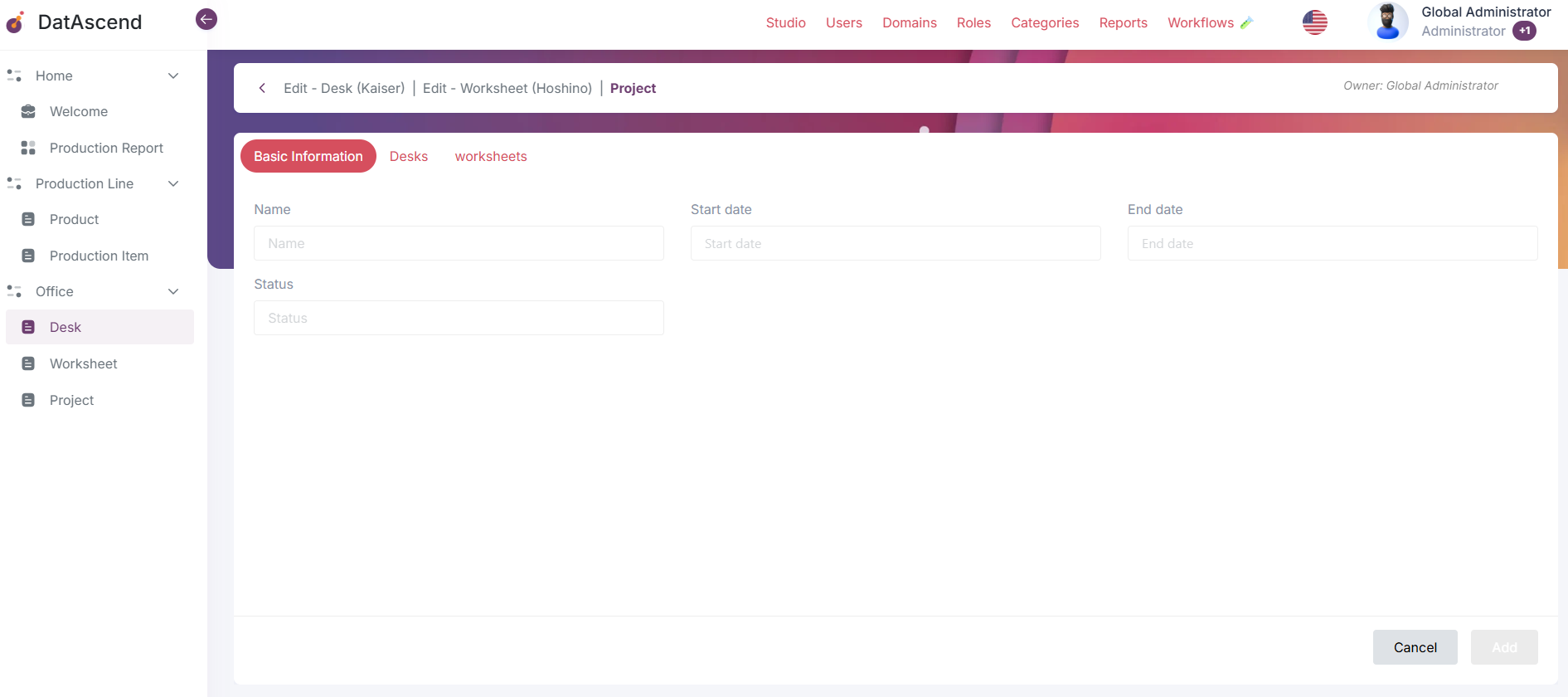
Section titled “Navigation with Breadcrumbs”When working with nested relationships, DatAscend shows contextual breadcrumbs at the top of the page to help you navigate:
Examples:
Edit - Desk (Kaiser)→ Editing a Desk record named “Kaiser”Edit - Desk (Kaiser) | Worksheet→ Viewing Worksheets related to Desk “Kaiser”Edit - Desk (Kaiser) | Edit - Worksheet (Hoshino)→ Editing a Worksheet named “Hoshino” that belongs to Desk “Kaiser”Desk | Worksheet | Project→ Creating a new Project from within a Worksheet that belongs to a Desk
Navigation Tips:
- Click any level in the breadcrumb to navigate back to that context
- The breadcrumb helps you understand your current location in nested relationships
- The system preserves your navigation path when moving between related entities
Creating and Linking Related Records
Section titled “Creating and Linking Related Records”Method 1: Link Existing Records
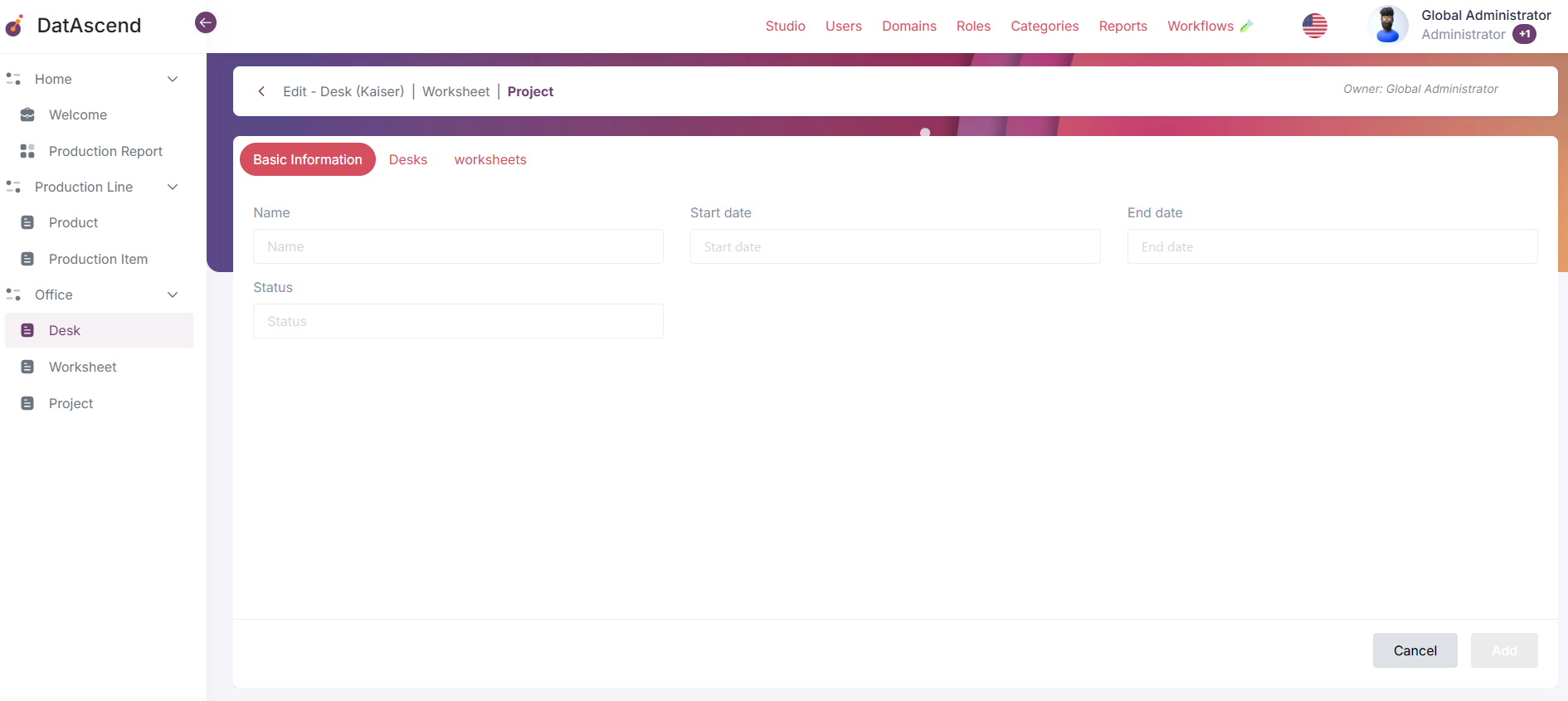
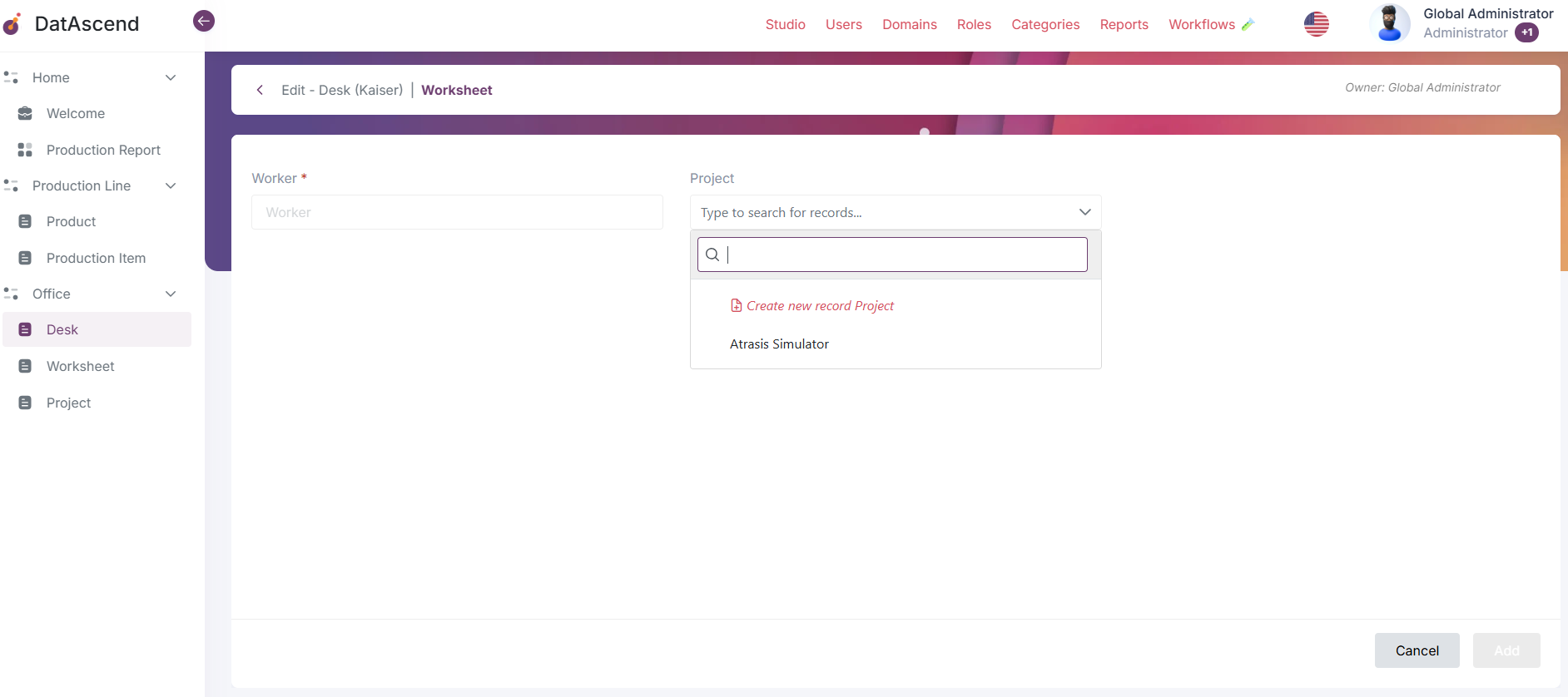
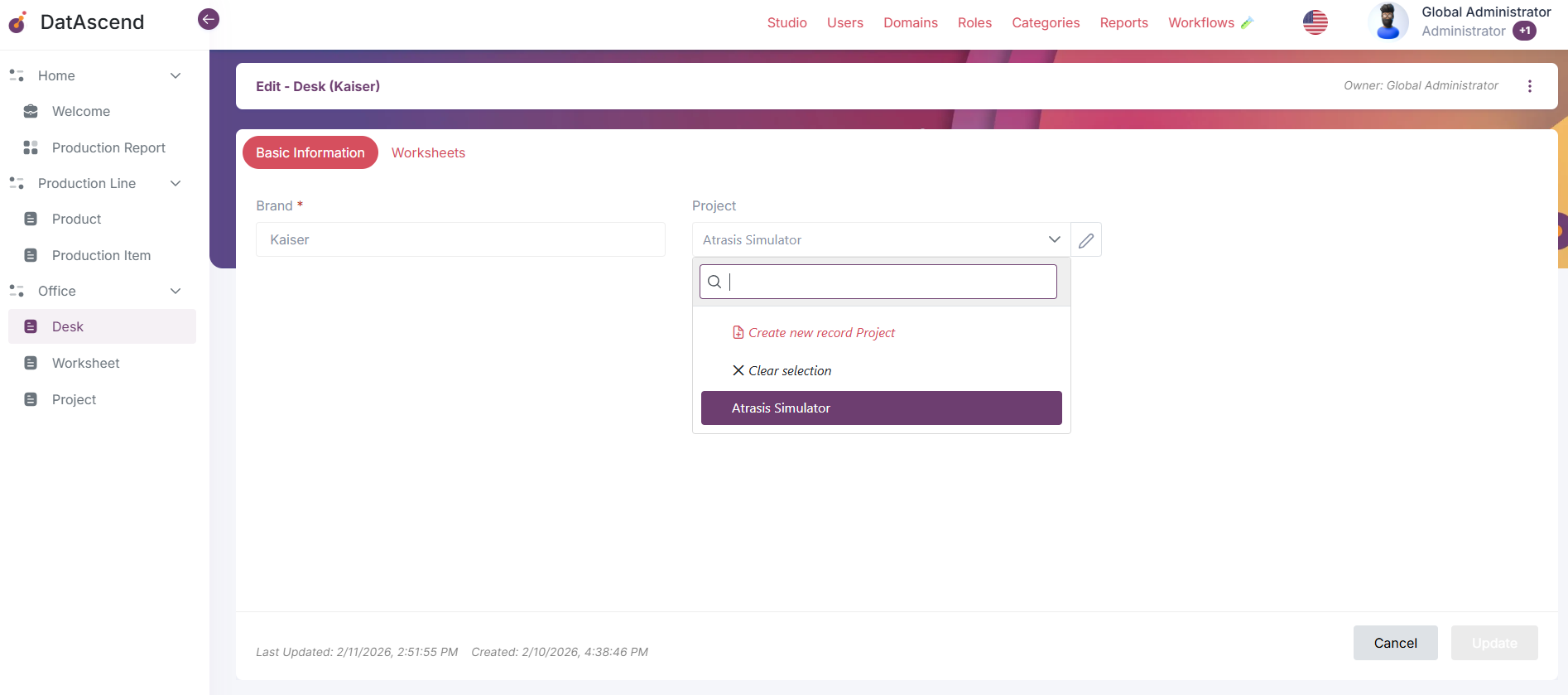
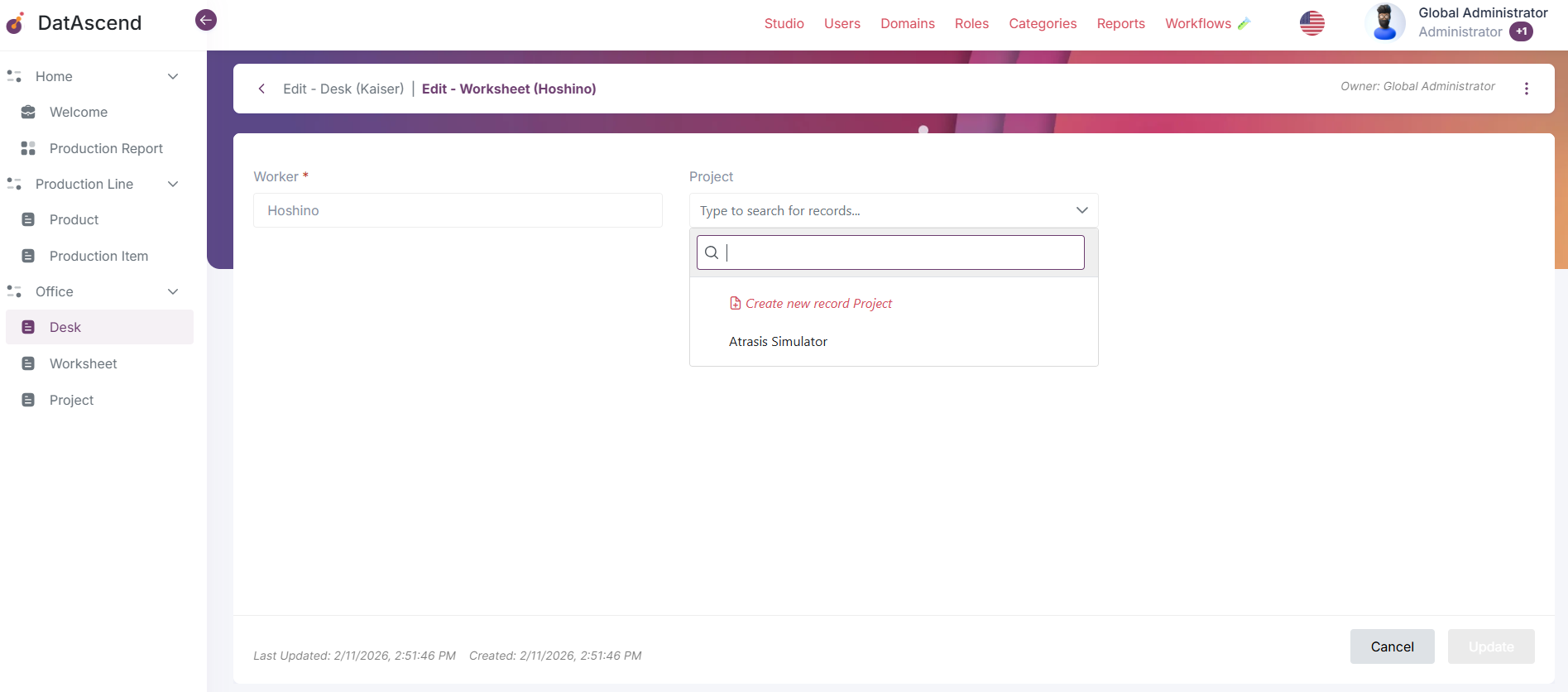
Section titled “Method 1: Link Existing Records”When editing a relationship field (e.g., selecting a Project for a Desk):
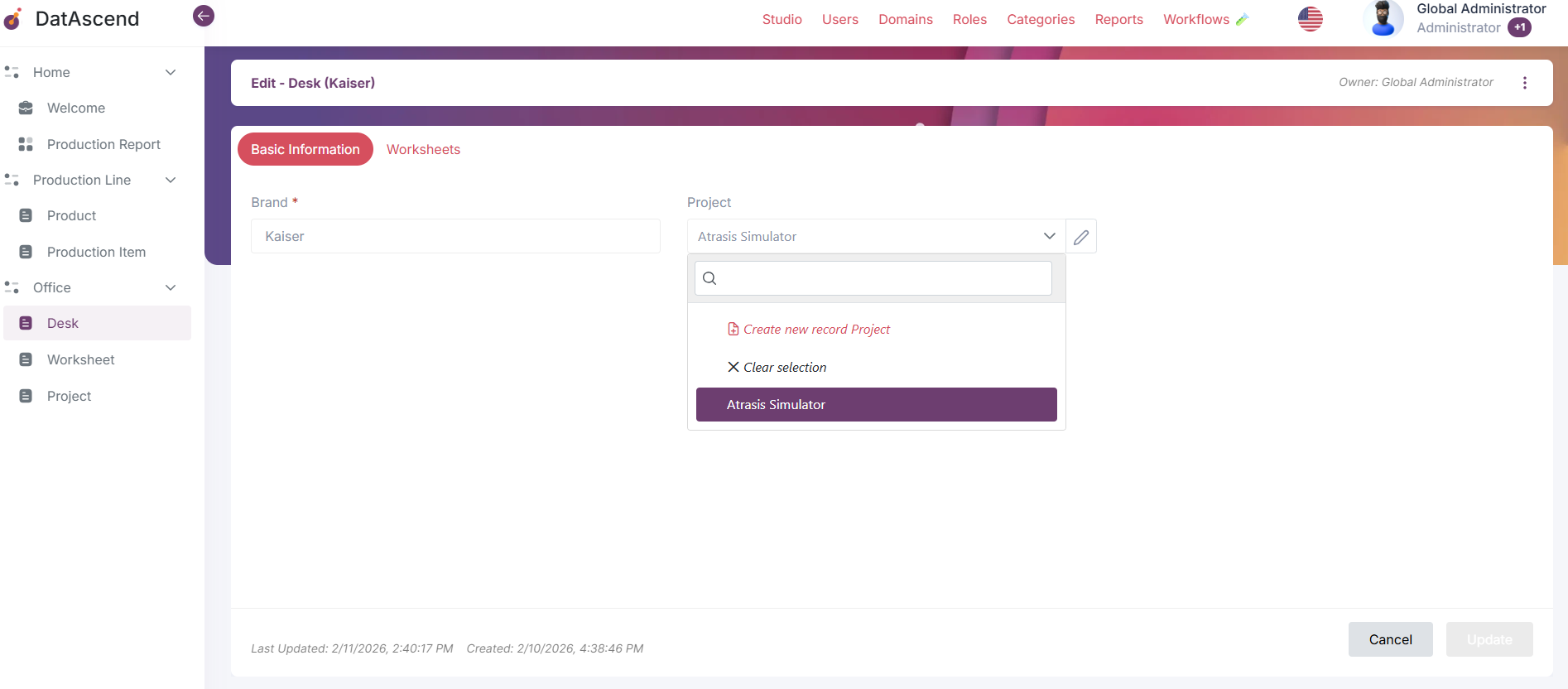
- Click on the relationship field dropdown (e.g., “Project”)
- A search panel will appear with:
- Search box: Type to find existing records
- Available options: List of records you can link
- Select the record you want to link
- Click Update to save the relationship
Example: Linking a Desk to an existing Project
- The dropdown shows available Projects: “Atrasis Simulator”, “Divi:sion”, “Blackmarket”, “Ruins”
- Search to filter options
- Select the desired Project
- Save to establish the link
Method 2: Create New Related Records
Section titled “Method 2: Create New Related Records”Instead of linking to an existing record, you can create a new record directly from the relationship field:
- Click on the relationship field dropdown
- Click the “Add new record [Entity]” option (in red)
- A new form will open to create the related record
- Fill in the required fields
- Click Add or Update to save
- The new record is automatically linked to the parent
Benefits:
- Speeds up data entry by reducing context switching
- Ensures the relationship is established immediately
- Maintains data consistency
Method 3: Add from Relationship Tabs
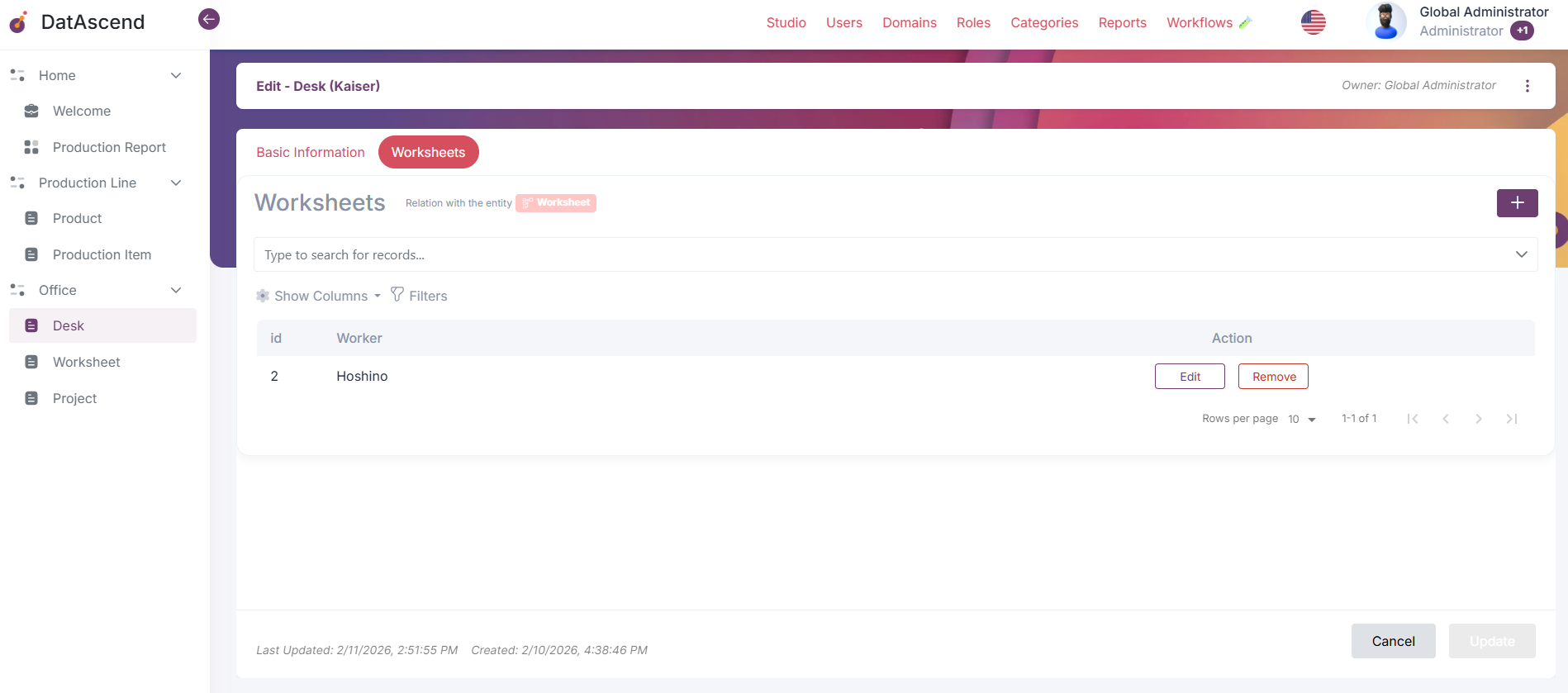
Section titled “Method 3: Add from Relationship Tabs”When viewing a relationship tab (e.g., “Desk ← Worksheet”):
- Navigate to the relationship tab
- Click “Add [Entity]” button (e.g., “Add Worksheet”)
- Fill in the new record’s form
- The parent relationship is automatically set
- Save to add the record to the relationship
Note: The parent entity (e.g., Desk) is automatically linked when creating from a relationship tab.
Clearing a Relationship Selection
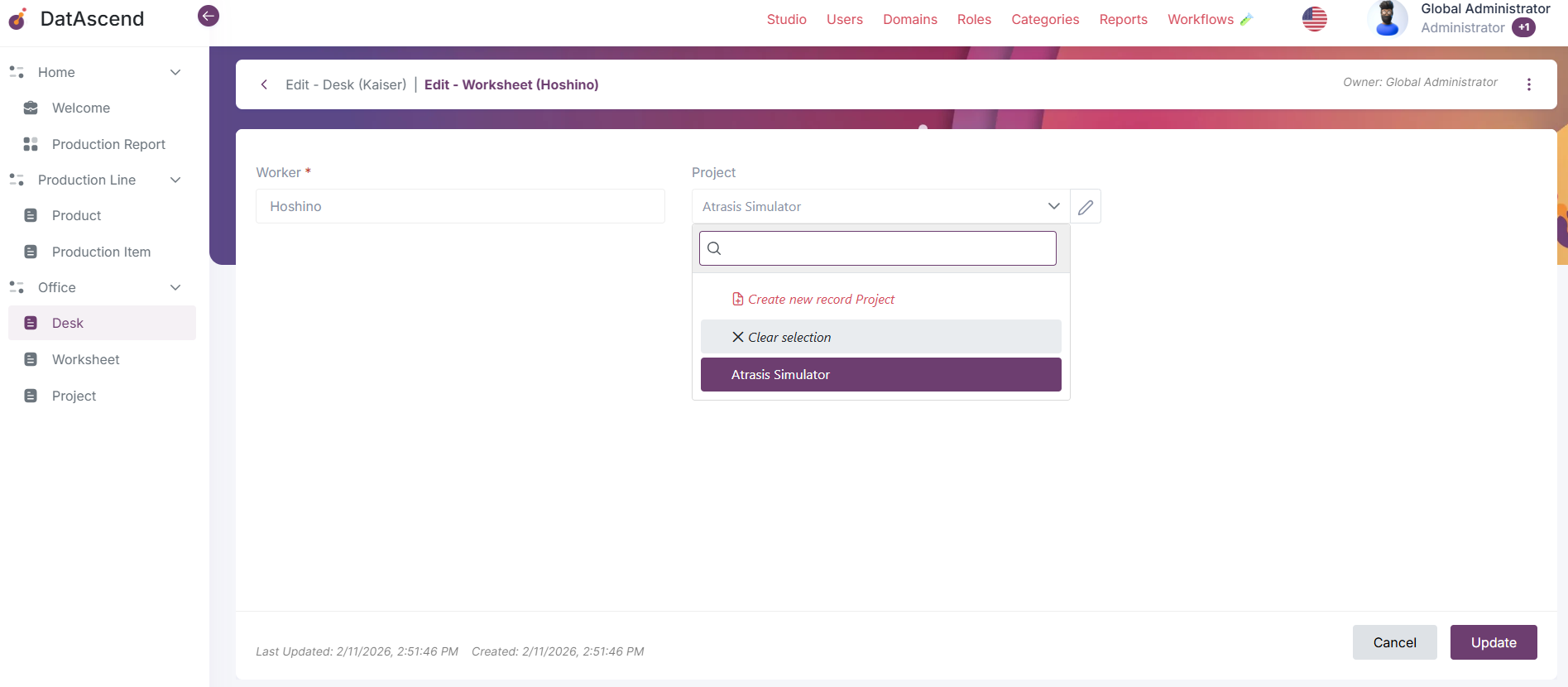
Section titled “Clearing a Relationship Selection”To unlink a record without deleting it:
- Open the relationship field dropdown
- Click ”✕ Clear selection”
- The relationship will be removed, but both records remain in the system
- Save to confirm
Important: This only removes the link between records; neither record is deleted.
Editing Related Records
Section titled “Editing Related Records”From the Relationship Tab
Section titled “From the Relationship Tab”- Navigate to the relationship tab (e.g., “Desk ← Worksheet”)
- Locate the record you want to edit in the table
- Click the “Edit” button next to the record
- Modify the fields as needed
- Click “Update” to save changes
Breadcrumb Navigation:
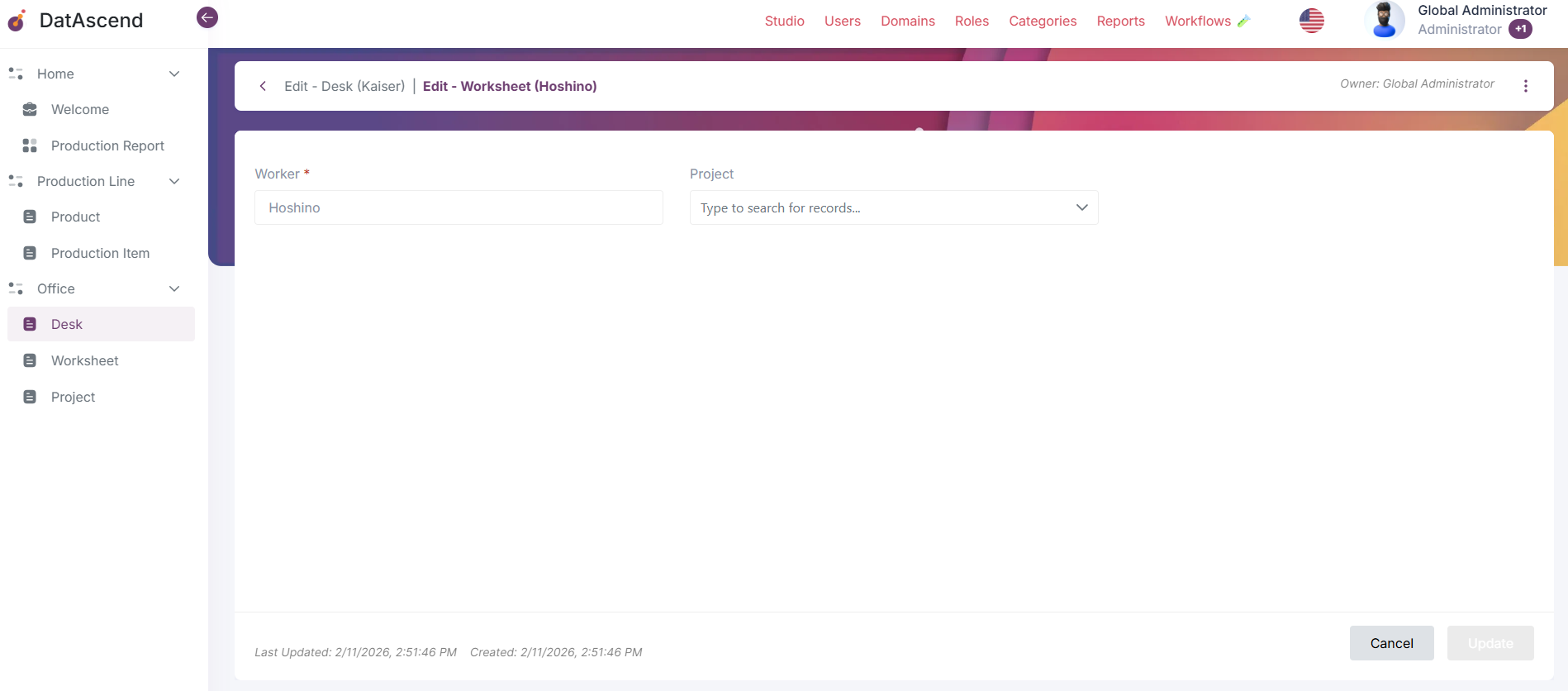
- When editing a related record, the breadcrumb shows your path
- Example:
Edit - Desk (Kaiser) | Edit - Worksheet (Hoshino) - This helps you understand you’re editing a Worksheet that belongs to a specific Desk
Nested Relationship Editing
Section titled “Nested Relationship Editing”DatAscend supports multi-level relationship editing:
Example Flow:
- Edit a Desk record (breadcrumb:
Desk) - Navigate to the Worksheet tab (breadcrumb:
Desk | Worksheet) - Create or edit a Worksheet (breadcrumb:
Desk | Worksheet) - From within the Worksheet, edit or create a Project (breadcrumb:
Desk | Worksheet | Project)
This nested approach allows you to:
- Work with deeply related data without losing context
- Maintain referential integrity across multiple levels
- Navigate back to any level using breadcrumbs
Removing Related Records
Section titled “Removing Related Records”Understanding “Unlink” vs “Delete”
Section titled “Understanding “Unlink” vs “Delete””DatAscend provides two different actions for managing related records:
🔗 Unlink
Section titled “🔗 Unlink”- Removes the relationship between two records
- Does NOT delete either record from the database
- Both records continue to exist independently
- The link can be re-established later if needed
Use when:
- You want to dissociate records but keep both
- You might need to link them again in the future
- You’re reorganizing relationships
❌ Delete
Section titled “❌ Delete”- Permanently deletes the related record from the database
- Cannot be undone
- The relationship is also removed
- May affect other relationships if the deleted record has dependencies
Use when:
- The record is no longer needed in the system
- You’re certain it won’t be needed again
- You’ve verified it doesn’t have critical dependencies
⚠️ Warning: Delete is permanent and cannot be undone.
How to Unlink Records
Section titled “How to Unlink Records”- Navigate to the relationship tab
- Locate the record in the related records table
- Click “Unlink” next to the record
- The relationship is removed, but the record still exists in the system
How to Delete Related Records
Section titled “How to Delete Related Records”⚠️ Warning: This action is permanent and cannot be undone.
- Navigate to the relationship tab
- Locate the record you want to delete
- Click “Delete” (if available)
- Confirm the deletion in the modal
- The record is permanently removed from the database
Relationship Type Details
Section titled “Relationship Type Details”One-to-One (1:1) Relationship
Section titled “One-to-One (1:1) Relationship”Each record in one entity links to exactly one record in another entity.
Example: A Desk is linked to a single Project.
How it works:
- Open a
Deskrecord - Locate the related
Projectfield in “Basic Information” - Select an existing Project or create a new one
- Save changes — both records stay synchronized
Technical Note: DatAscend enforces this with a unique foreign key ensuring only one link per record.
Use Case: Each workstation desk belongs to exactly one project; editing either record keeps both synchronized.
One-to-Many (1:N) Relationship
Section titled “One-to-Many (1:N) Relationship”One parent record can have multiple child records.
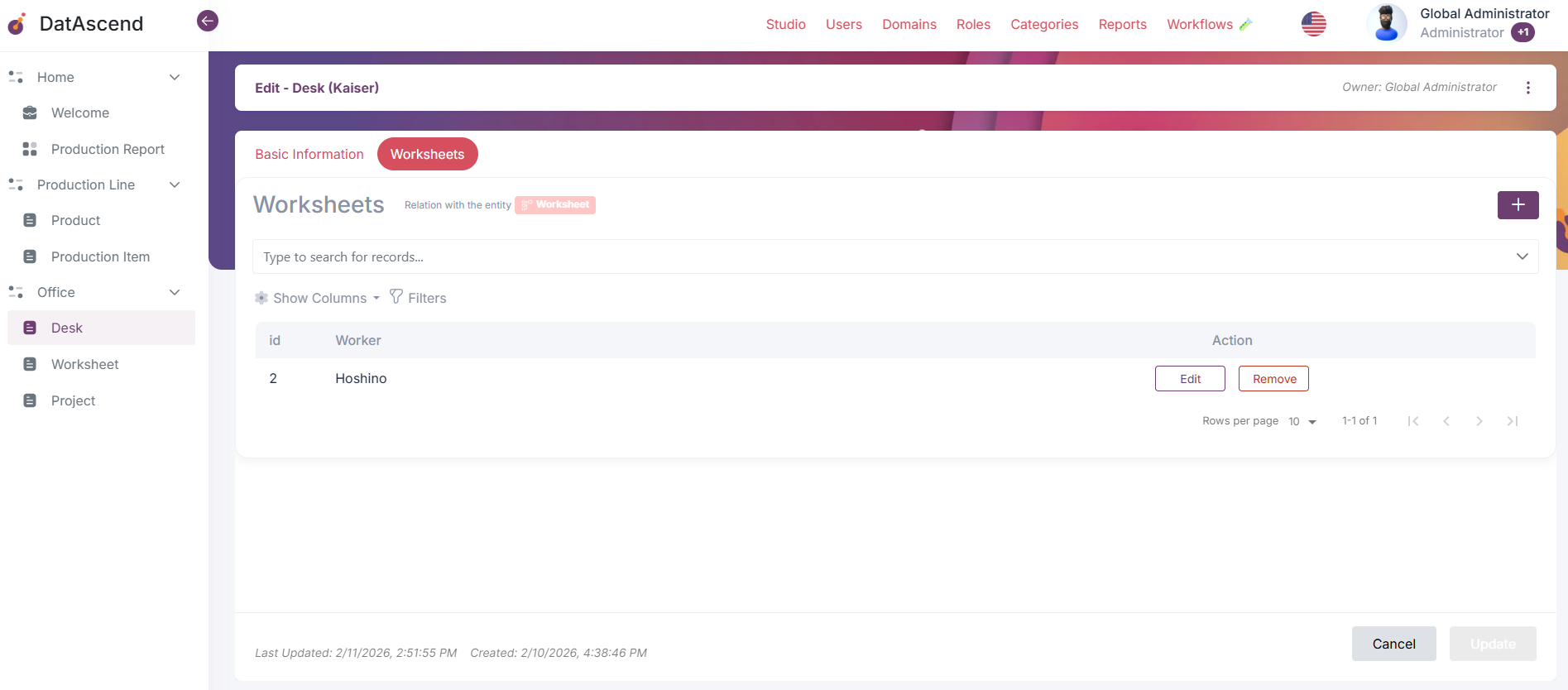
Example: A Desk can include several Worksheet records.
How it works:
- Open a
Deskrecord - Navigate to the “Desk ← Worksheet” tab
- Click “Add Worksheet” to add a new child record
- Or click “Edit” to modify an existing Worksheet
- The table shows all Worksheets linked to this Desk
Technical Note:
Each child record stores a foreign key field (e.g., desk_id) referencing its parent.
Use Case: A workstation can have multiple work reports directly under one desk record.
Many-to-One (N:1) Relationship
Section titled “Many-to-One (N:1) Relationship”Multiple records can reference the same parent entity.
Example: Multiple Worksheet records can point to a single Desk.
How it works:
- Create or edit a
Worksheet - In “Basic Information”, locate the
Deskfield - Choose the parent Desk from the dropdown or create a new one
- Save to establish the link
Technical Note: Each child record contains one foreign key pointing back to the parent.
Use Case: Centralize multiple work entries under one desk for better tracking and organization.
Many-to-Many (N:N) Relationship
Section titled “Many-to-Many (N:N) Relationship”Records in both entities can relate to multiple records in the other entity.
Example: An Entity One can be connected to several Entity Three records, and vice versa.
How it works:
- Open an Entity One record
- Navigate to the relationship tab (e.g., “One and three”)
- Click “Add Record” to create or link multiple Entity Three records
- Each Entity Three can also link back to multiple Entity One records
Technical Note: Managed through a join table that stores pairs of relationships between entities.
Use Case: Projects and employees linked bi-directionally — one employee can belong to multiple projects, and one project can have multiple employees.
Filters in Relationship Tables
Section titled “Filters in Relationship Tables”When viewing a relationship tab with many records, you can use filters to narrow down results:
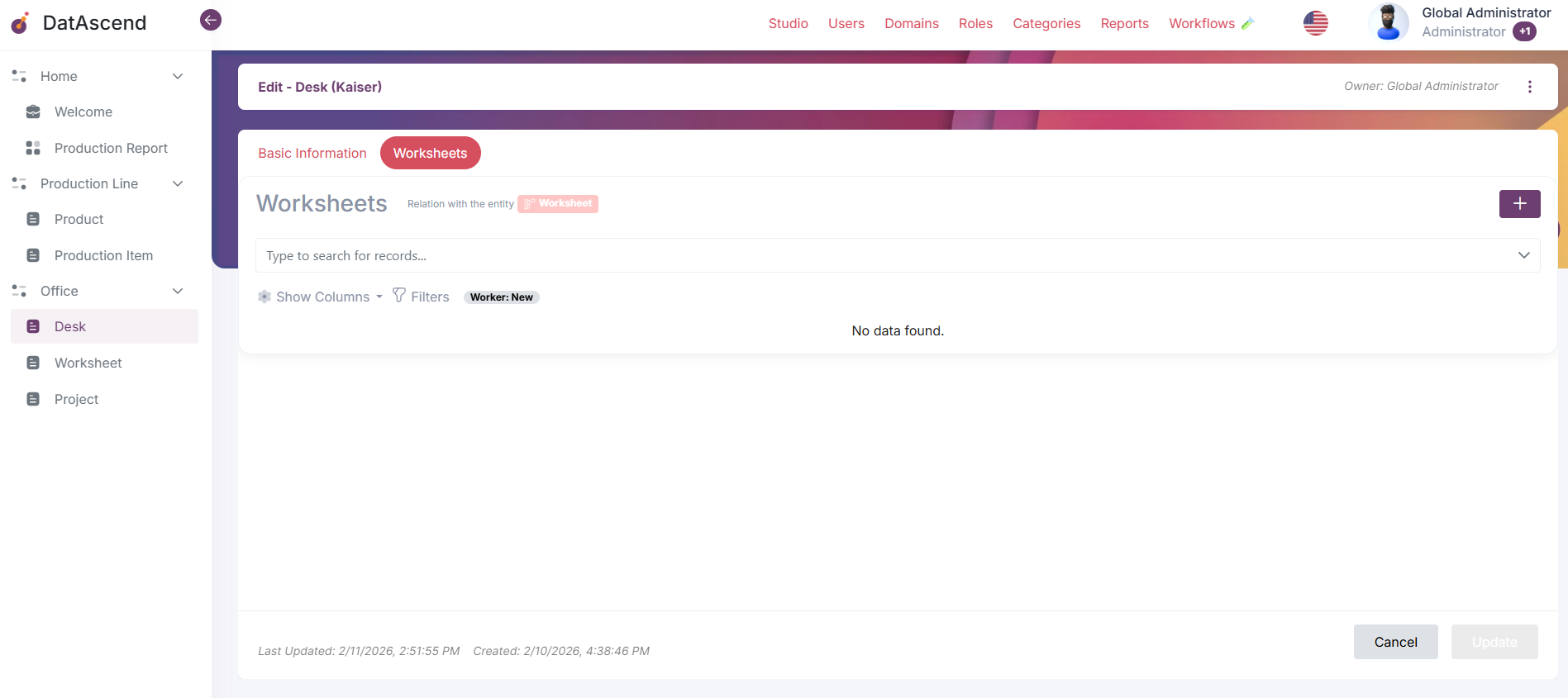
- Use the filter fields above the table (e.g., “Filter by Worker:”, “Filter by Result Expectation:”)
- Enter or select filter values
- Click “Apply Filters” to refresh the table
- Click “Clear” to clear all filters
Example: Filter Worksheets by “Worker” to see only worksheets assigned to “Hoshino”
Empty States
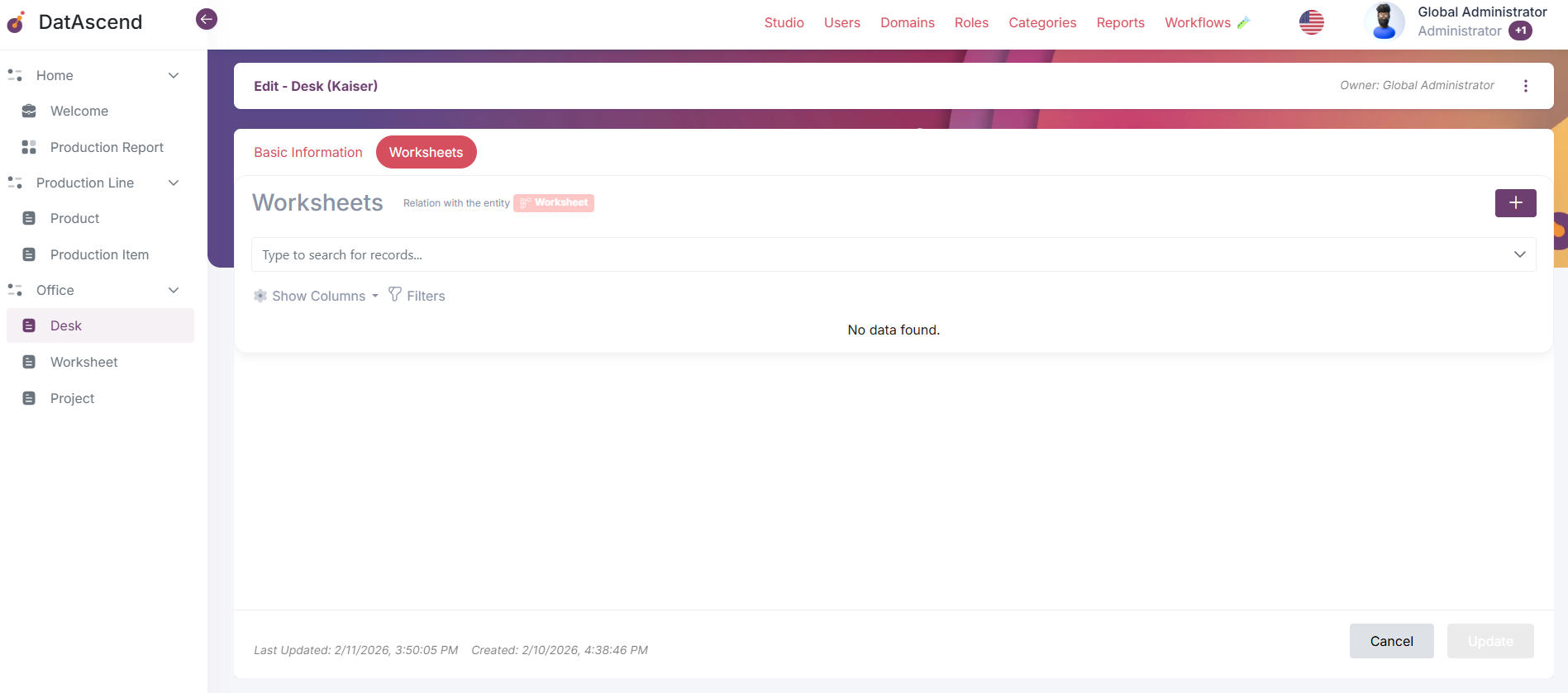
Section titled “Empty States”When a relationship tab has no related records, the system displays:
“No data found.”
This indicates:
- No records are currently linked
- You can add new records using the “Add [Entity]” button
- The relationship is configured but empty
Permissions and Domain Restrictions
Section titled “Permissions and Domain Restrictions”Domain-Scoped Relationships
Section titled “Domain-Scoped Relationships”CRITICAL: Relationships in DatAscend can only exist between entities in the same domain.
- You cannot link a Desk from “PRINCIPAL” domain with a Project from “TestQA” domain
- When you change a record’s domain, all relationships are permanently deleted
- Only users who belong to the domain can create and manage relationships
🔐 Permission Requirements
Section titled “🔐 Permission Requirements”To work with relationships, you need:
- Read access to view related records in relationship tabs
- Edit access to link existing records or modify relationships
- Create access to add new related records
- Delete access to use “Delete” on related records
- Unlink capability to unlink records (may be role-specific)
Best Practices & Critical Warnings
Section titled “Best Practices & Critical Warnings”✅ When to Use Each Relationship Type
Section titled “✅ When to Use Each Relationship Type”- 1:1: Use for unique associations (e.g., one desk = one project code)
- 1:N: Use for parent-child hierarchies (e.g., one desk has many work reports)
- N:1: Use when many children share a parent (e.g., many reports belong to one desk)
- N:N: Use for flexible associations (e.g., employees work on multiple projects)
✅ Navigation and Context
Section titled “✅ Navigation and Context”- Use breadcrumbs to understand your current location in nested relationships
- Navigate back to parent records by clicking on breadcrumb levels
- Keep track of which entity you’re editing to avoid confusion
✅ Linking vs Creating
Section titled “✅ Linking vs Creating”- Link existing records when the related record already exists elsewhere
- Create new records from relationship fields when adding related data quickly
- Use the search function to quickly find records to link
⚠️ Critical Warnings
Section titled “⚠️ Critical Warnings”
Domain Changes: Changing a record’s domain permanently deletes all its relationships. Only proceed if you’re certain the record should move to another domain.
Deleting Records: Deleting a related record is permanent and cannot be undone. If the record has other dependencies, ensure those are not required elsewhere before deleting.
Unlinking vs Deleting: “Unlink” removes the connection. “Delete” permanently destroys the record. Choose carefully based on whether you want to keep the record in the system.
Synchronization: Updates to linked records are automatically synchronized across relationships. Changing a Project name will update everywhere that Project is referenced.
Summary
Section titled “Summary”Managing entities in DatAscend involves:
- Basic Record Manipulation (Filter, Edit, Delete)
- Understanding relationship types (1:1, 1:N, N:1, N:N)
- Navigating with breadcrumbs to maintain context
- Creating or linking records through relationship fields or tabs
- Unlinking (Unlink) vs Deleting (Delete) records appropriately
- Respecting domain boundaries and permission requirements
By mastering these concepts, you can build interconnected and reliable data ecosystems in DatAscend.