

External Data Source
External data sources are connectors that allow DatAscend to access and retrieve information from external databases or systems.
Their importance lies in their ability to facilitate the integration, analysis, and visualization of data from different platforms in one place, providing a complete and unified view of the information.
Supported External Source Types
Section titled “Supported External Source Types”- MySQL
- PostgreSQL
How to Access the External Data Source Module?
Section titled “How to Access the External Data Source Module?”-
To access the External Data Source module, use the global navigation and click on the “Studio” button.
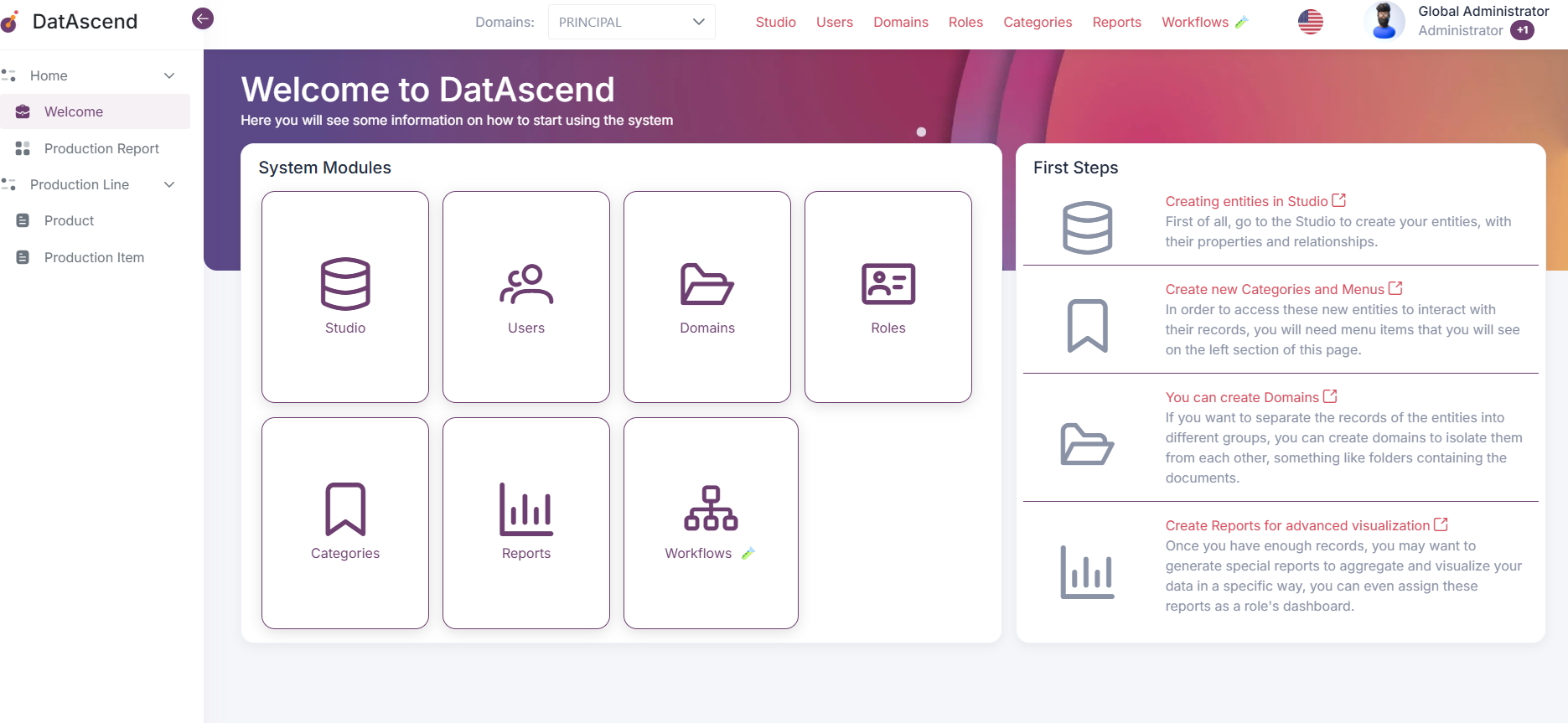
-
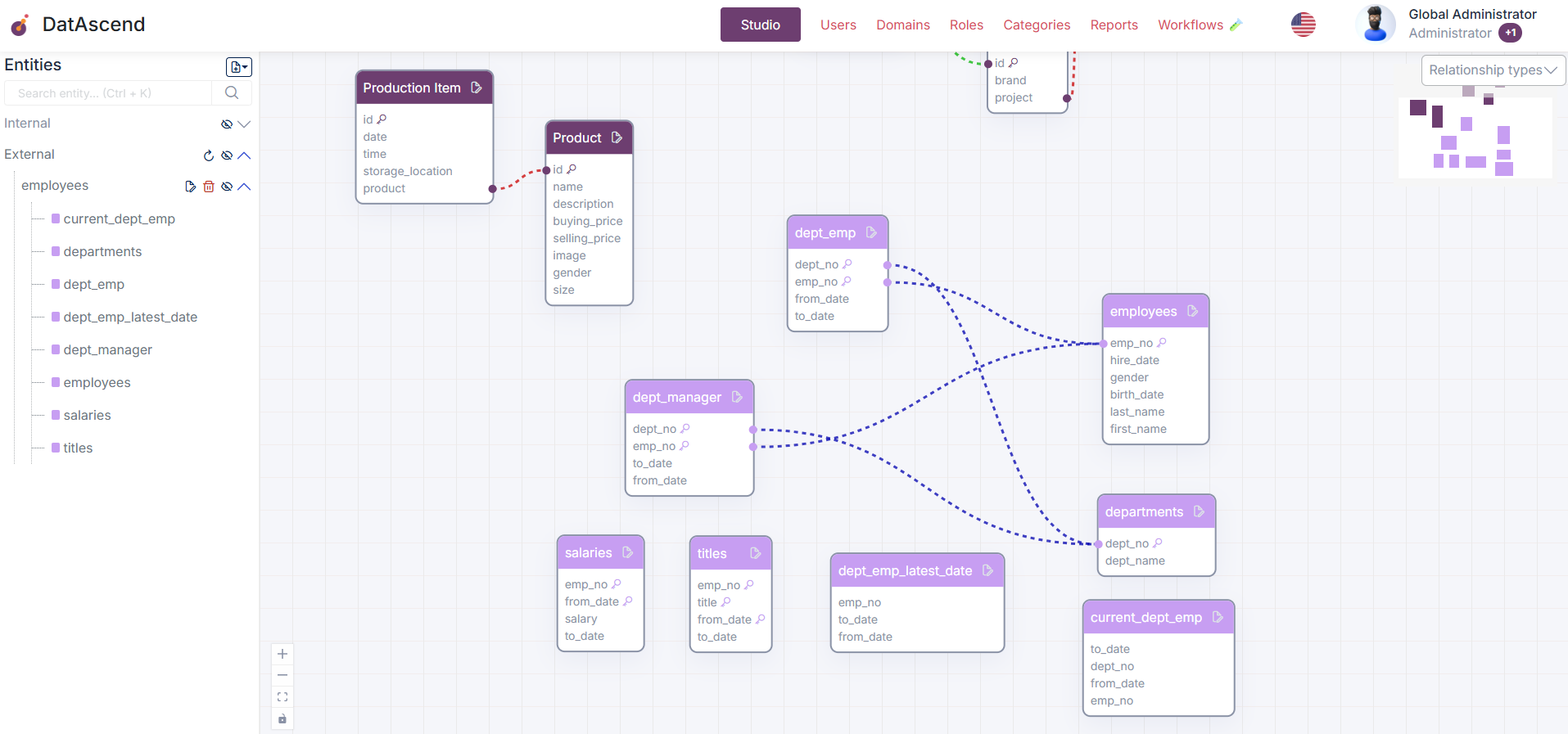
In the Entities panel (Left Panel), you will find the External section.
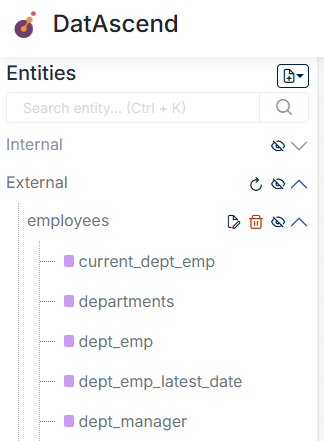
How to Configure a New External Data Source?
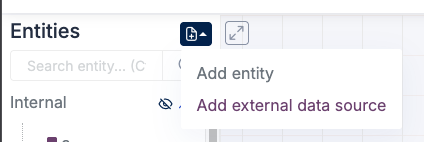
Section titled “How to Configure a New External Data Source?”- In the Entities panel (Left Panel), you will find a button that will display a dropdown menu with the External Data Source options

- Select the “External Data Source” option.
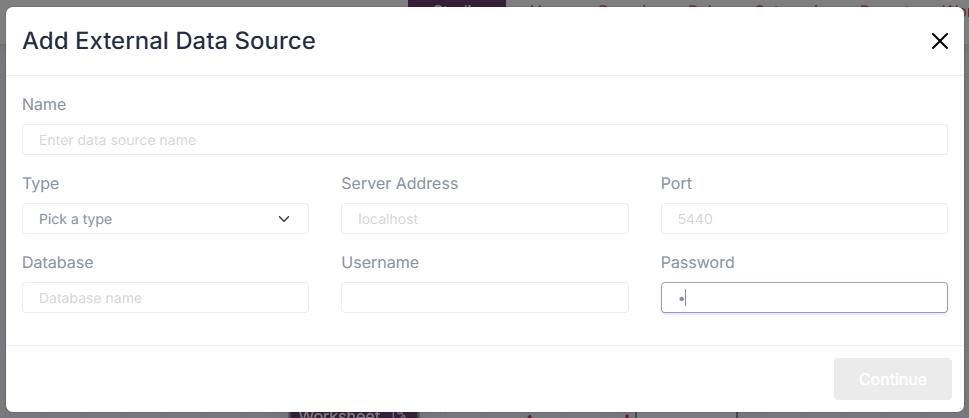
- A modal will open allowing you to create a new external data source.
-
The available options for creating a new external data source are:
- Name: name of the external data source
- Type: type of external data source
- Server Address
- Port
- External (true/false)
- Database
- Username
- Password
-
After completing the fields, click the “Continue” button.
-
If the connection is successful, the modal will close:
- The external data source will be created
- A success message will be displayed
- The external data source and available tables will be shown in the External section
- The available tables will be displayed on the canvas
-
If the connection fails, an error message will be displayed.
How to Edit or Delete an Existing External Data Source
Section titled “How to Edit or Delete an Existing External Data Source”- To edit, in the Entities panel under the External section, find the data source and click on the edit icon.
- To delete, in the Entities panel under the External section, find the data source and click on the delete icon.