

Notifications
The Notifications Module allows users to view all system notifications in one place. Notifications inform users about important events, actions, or system alerts. You can access the notification history by clicking the bell icon in the top navigation bar.
How to Access Notifications
Section titled “How to Access Notifications”To access your notifications:
- Locate the bell icon at the top right corner of the navigation bar.
- Click the bell icon to open the notifications panel.

What users can do here
Section titled “What users can do here”- View all notifications (includes read and unread, most recent first).
- Filter by type (system, workflow, record) and read state.
- Check the total unread count in the bell icon badge.
- Mark one notification as read.
- Dismiss all notifications.
- Delete a single notification.
Notifications Panel Overview
Section titled “Notifications Panel Overview”The notifications panel displays a chronological list of all notifications relevant to your user account (this shows all notifications).
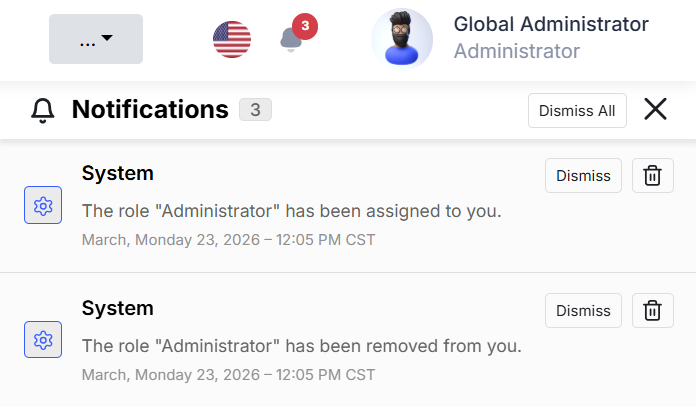
Each notification includes:
- An icon indicating the type of notification
- A title or short description
- A detailed description (when available)
- The date and time of the event
- A link or action button (if applicable)

About notification statuses
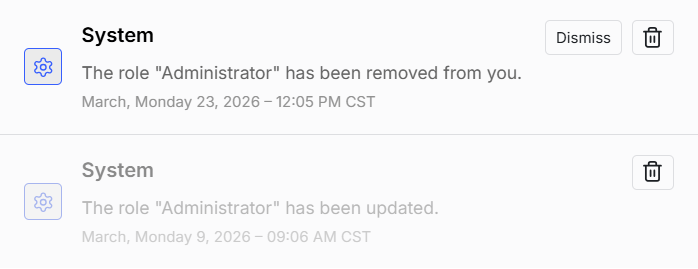
Section titled “About notification statuses”- Unread: bold text or color highlight, active interaction.
- Read: older or dismissed notifications can appear disabled/grayed out to indicate they are no longer active.
- Deleted: removed from the list, not visible anymore; the notification has been removed by the user.
About notification actions
Section titled “About notification actions”- Delete: removes the notification permanently from your list (you can no longer recover it in the UI).
- Dismiss: marks the notification as read without deleting it from history (it may become grayed out).
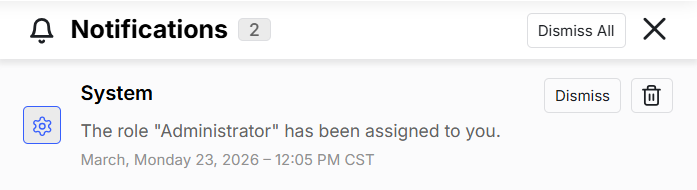
- Dismiss all: a bulk action to mark all notifications as read, clearing the unread badge count.
How notifications sync with your preferences
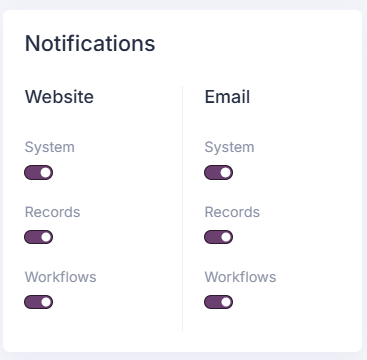
Section titled “How notifications sync with your preferences”- The system saves notifications for you based on your current user settings.
- Notifications are generated for system events, workflow events, or record actions (creation/update/deletion).
- If you have email alerts enabled for a notification type, a matching email is delivered to your registered email address.
- If you have in-app notifications enabled for a type, the notification appears in this panel.
- If both are enabled, you receive both in-app and email notifications.
About email notifications
Section titled “About email notifications”When an email notification is sent, it follows a predictable format for clarity:
- Subject line: includes title and context for the notification (e.g., record name or entity label).
- Header: a friendly greeting with your full name and summary of the notification type.
- Body: the main message describing what happened (system workflow event, record change, etc.).
- Detail section: includes:
- Event timestamp
- Notification type (System / Workflow / Record)
- Entity/record references (if related to a record, shows entity and record label)
- Optional direct link to the record in the application, if applicable and allowed by preferences
- Footer: brand and year information, with a note that this is an automated message.
An example email notification might look like this:
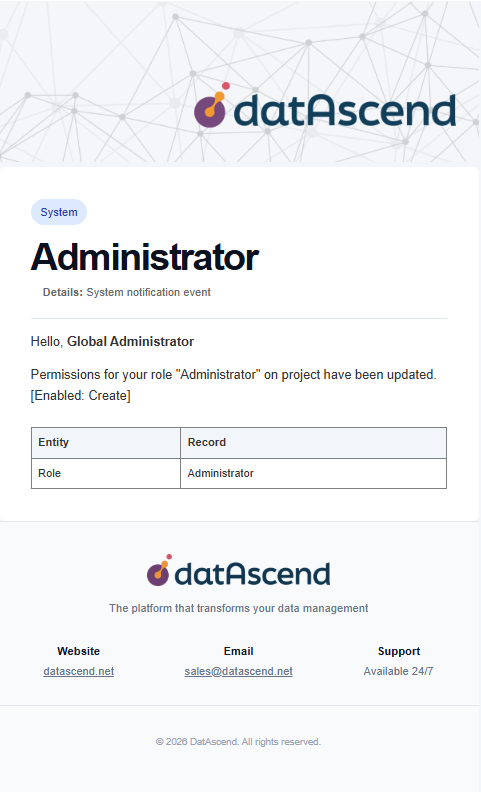
When emails are sent
Section titled “When emails are sent”Email notifications are sent when:
- Your personal notification settings enable email for the given type.
- The system creates a new notification event for your account (not for old history updates).
- A workflow or system process triggers an event relevant to you (e.g., role change, record assignment, failed action, success message).
Note: if you disable email for a type, you still keep the notification record in-app, unless in-app is also disabled.
Tips and Common Mistakes
Section titled “Tips and Common Mistakes”- Regularly check your notifications to stay updated on important events.
- Do not ignore error or warning notifications; they may require immediate action.
- If you miss a notification, you can always review the history from the bell icon.
- Remember that deleting a notification is permanent; use the delete action carefully.