

Roles and Permissions Guide
This guide helps administrators understand the DatAscend Roles and Permissions system, how to establish a baseline role configuration, and how permissions map to both the User Interface (UI) and the underlying API.
Getting Started: Minimum Viable Role (MVR)
Section titled “Getting Started: Minimum Viable Role (MVR)”To prevent users from experiencing an unusable application, you must establish a Minimum Viable Role (MVR). When configuring a new role, certain system schemas are essential to allow basic dashboard layout rendering and navigation.
[!IMPORTANT] The
objectPermission Dependency In DatAscend, Entities are represented under theobjectmodule in the permission matrix. A role MUST have theobject->Getpermission enabled. Without this permission, the client application cannot fetch entity schemas, causing the sidebar navigation to be completely blank and the main user interface to become unusable upon login.
Baseline MVR Configuration
Section titled “Baseline MVR Configuration”To create a functional user role that can successfully log in and navigate the Web UI, you must enable the following baseline toggles:
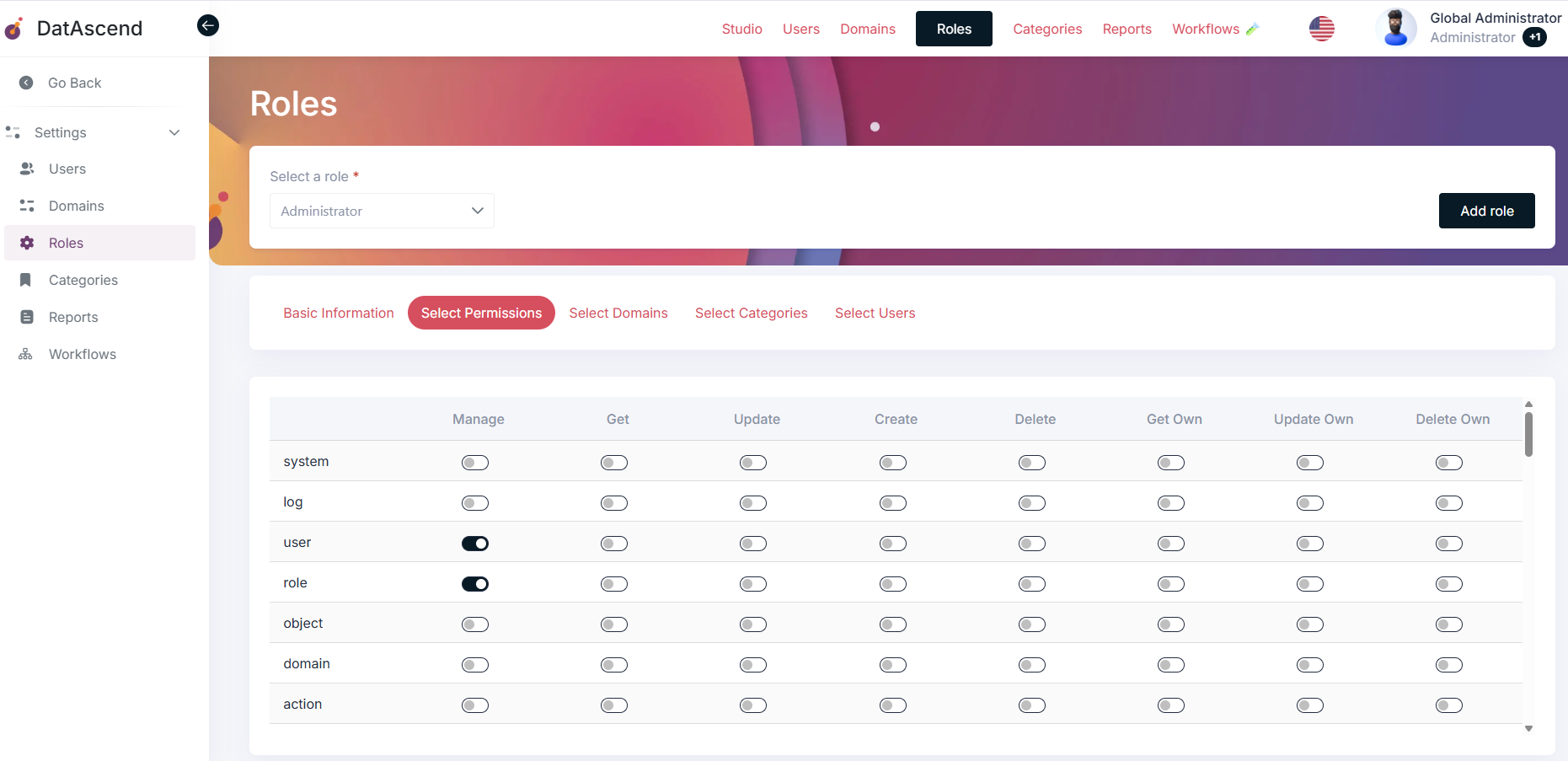
object->Get: Allows the client app to load structural entity metadata and navigation headers.layout->Get: Required to retrieve layout schemas for rendering dashboards, details views, and entity grids.notification->Get Own,Update Own,Delete Own: Essential for handling personal in-app alerts and notifications.user->Get Own: Required for users to fetch their own user profile details upon authentication.- Assign a Domain: You must assign at least one domain to the role under the Select Domains tab. Without a domain context, the application will not display entities or records.
Troubleshooting: Blank Screen / Empty UI after Login
Section titled “Troubleshooting: Blank Screen / Empty UI after Login”If a user successfully logs in but is greeted by a completely blank screen, missing sidebar, or broken layout:
- Symptom: User completes login but is redirected to a dashboard with no menus, sidebar, or interactive controls.
- Root Cause: The user’s assigned role lacks the
object->Getpermission. - Solution:
- Log in as a Global Administrator.
- Navigate to Settings -> Roles.
- Select the affected role from the dropdown.
- Click on the Select Permissions tab.
- Locate the row for
objectand switch the toggle underGetto ON. - Click Update (or Save Changes) to apply the permissions.
- Have the affected user log out and log back in.
Functional Permission Matrix
Section titled “Functional Permission Matrix”The following matrix maps how permissions correspond to what users see in the App UI and the API Responses (returning 403 Forbidden if missing):
| Module | Action | UI Location / Visual Elements | API Endpoints |
|---|---|---|---|
object | Get | Navigation Sidebar, Entity records list tables. | GET /api/v1/entities/:entity |
Create | ”Add Record” button inside an Entity list page. | POST /api/v1/entities/:entity | |
Update | ”Edit” button in record action menus (...). | PUT /api/v1/entities/:entity/:id | |
Delete | ”Delete” option in record action menus (...). | DELETE /api/v1/entities/:entity/:id | |
report | Get | ”Reports” sidebar menu item, embedded report tabs. | GET /api/v1/reports |
Create | ”Add Report” button inside the Reports workspace. | POST /api/v1/reports | |
Update | ”Edit” option on reports, saving report builder configs. | PUT /api/v1/reports/:id | |
Delete | ”Delete” action on report listings. | DELETE /api/v1/reports/:id | |
workflow | Get | ”Workflows” item in Settings navigation. | GET /api/v1/workflows |
Update | Workflow editor canvas, saving workflow rules. | PUT /api/v1/workflows/:id | |
system | Get | Access to the Studio workspace from global navigation. | GET /api/v1/system/config |
role | Get | Access to Settings -> Roles lists. | GET /api/v1/roles |
Update | Changing permissions, categories, or domains inside a role. | PUT /api/v1/roles/:id | |
user | Get | Settings -> Users list table. | GET /api/v1/users |
Update | User modification form and profile updates. | PUT /api/v1/users/:id |
Permission Granularity Definitions
Section titled “Permission Granularity Definitions”Understanding granular actions prevents over-permissioning users. Across all modules, the system differentiates actions as follows:
- Get: Read-only access to view all resources/records within the module.
- Get Own: Restricted read-only access. Users can only view records they created or that are assigned to them.
- Create: Permission to initialize new records.
- Update: Permission to edit any existing records.
- Update Own: Restricted edit access. Users can only modify records they created or own.
- Delete: Permission to permanently delete any record.
- Delete Own: Restricted deletion access. Users can only remove records they created.
Behavior Across Key Modules
Section titled “Behavior Across Key Modules”To configure roles effectively, keep in mind how actions are interpreted in each major functional area:
- Entities (
object): - Reports (
report): - Studio (
system):- Read (
Get): Accessing the Studio canvas workspace to view schemas, relationship graphs, and properties. - Write / Modification (
Update): Designing new entities, adding attributes/fields, defining relationships, or configuring translation labels.
- Read (
- Workflows (
workflow):- Read (
Get): Accessing settings to monitor automation configurations and history logs. - Write / Modification (
Update/Delete): Creating new workflows, configuring triggers, editing logical rules, and updating workflow queues.
- Read (
Pro-tips & Best Practices
Section titled “Pro-tips & Best Practices”[!TIP] Permission Inheritance & Additive Roles
- Additive Behavior: If a user is assigned to multiple roles, their permissions are additive (the union of all granted rights). A block in one role will not override a grant in another.