

Entity Table Filters
The Entity Table Filters feature allows you to narrow down the records displayed in any entity listing by defining one or more conditions based on field values. Filters can be combined using logical operators (AND/OR) and organized into groups to build complex queries.
Accessing the Filter Panel
Section titled “Accessing the Filter Panel”To open the filter panel:
- Navigate to any entity listing from the left sidebar menu.
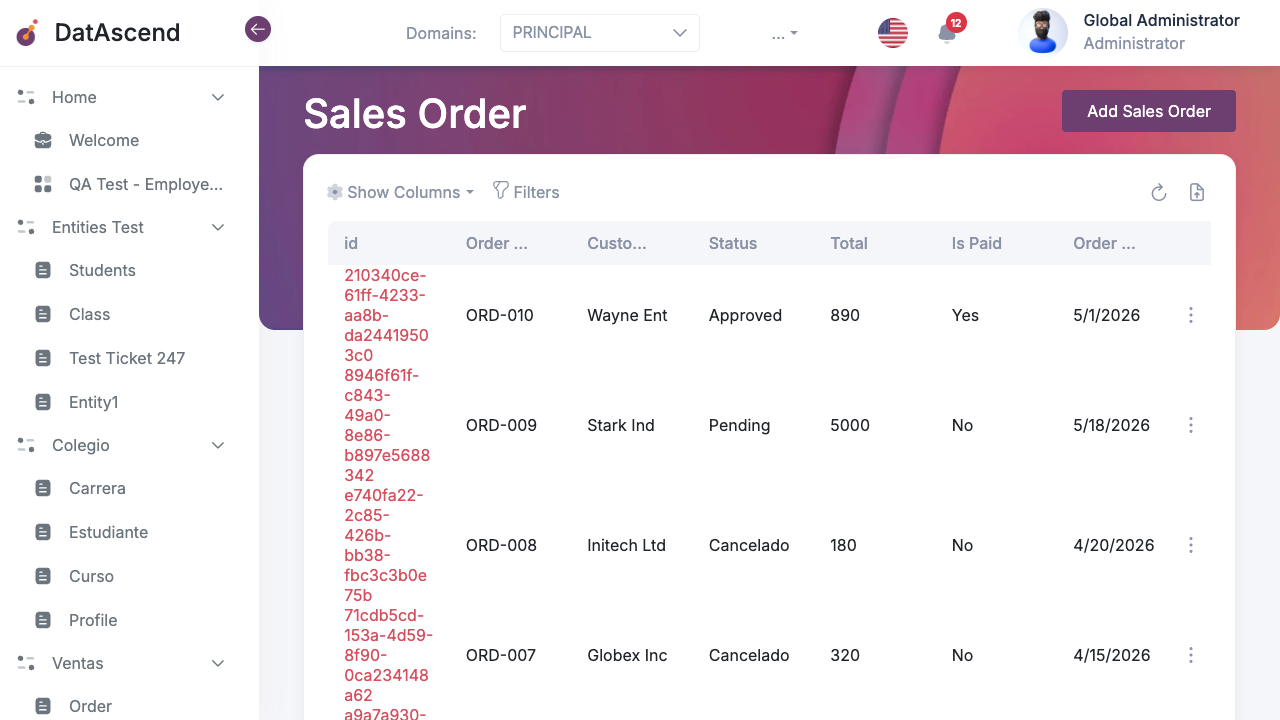
- Click the Filters button in the toolbar above the records table.
The filter drawer will slide open from the right side of the screen.
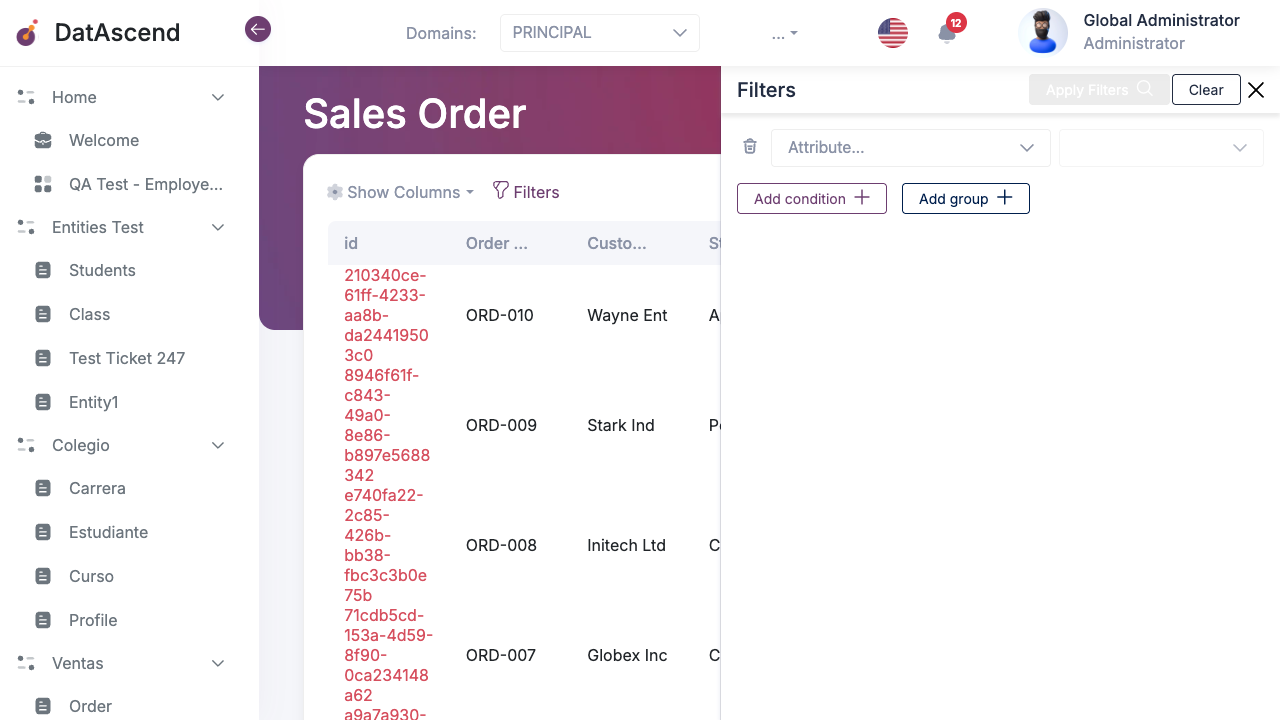
Creating a Filter Condition
Section titled “Creating a Filter Condition”Each condition targets one field (attribute) and applies a comparison operator with an optional value.
Step 1 — Select an Attribute
Section titled “Step 1 — Select an Attribute”Click the Attribute… dropdown to see a list of all available fields for the current entity.
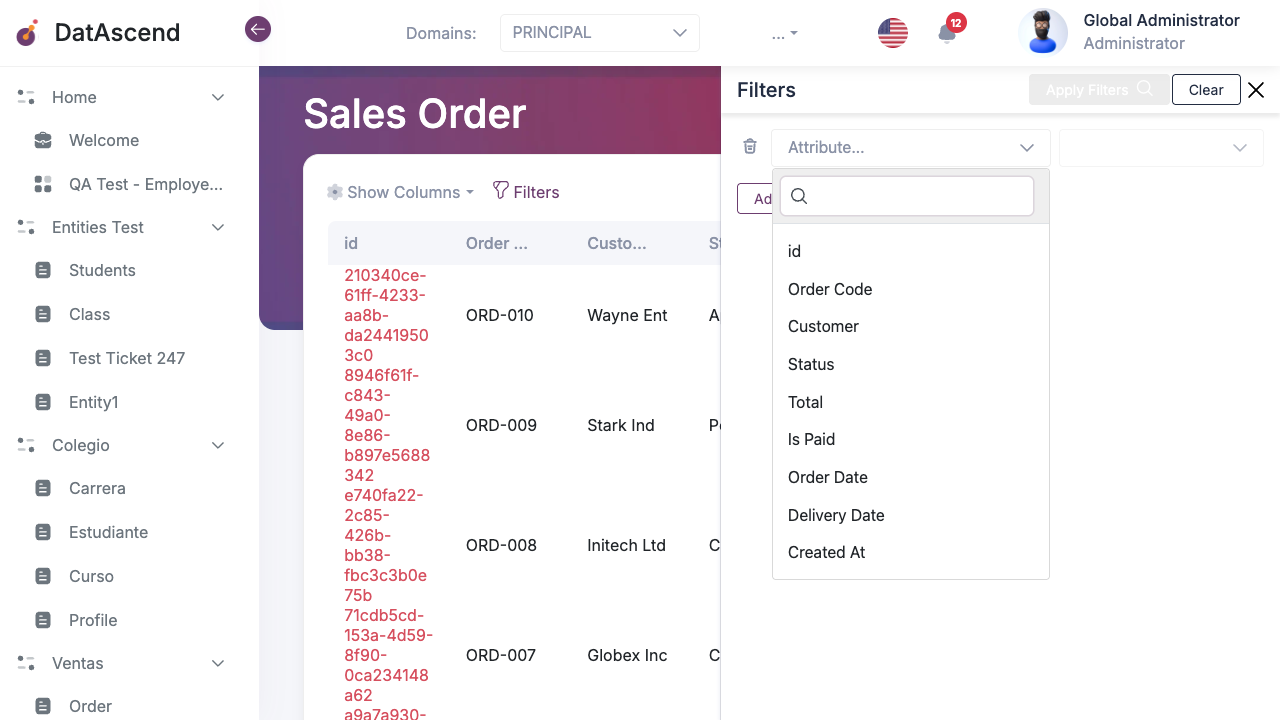
Available fields depend on the entity configuration. Common types include:
| Field Type | Examples |
|---|---|
| String / Text | Order Code, Customer, Status |
| Number | Total, Quantity |
| Boolean (Yes/No) | Is Paid |
| Date / DateTime | Order Date, Delivery Date, Created At |
| Relationship | Customer (linked to another entity) |
Step 2 — Choose an Operator
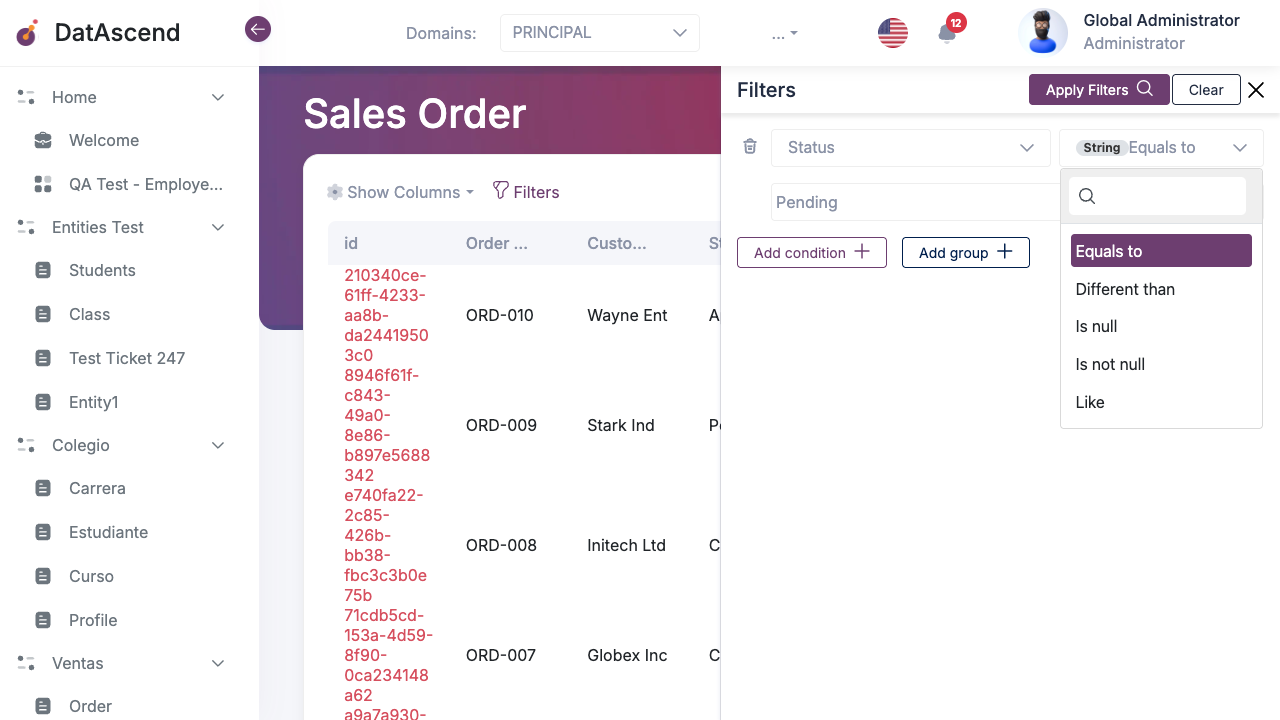
Section titled “Step 2 — Choose an Operator”After selecting the attribute, a second dropdown will appear showing the available comparison operators for that field type.
String operators
Section titled “String operators”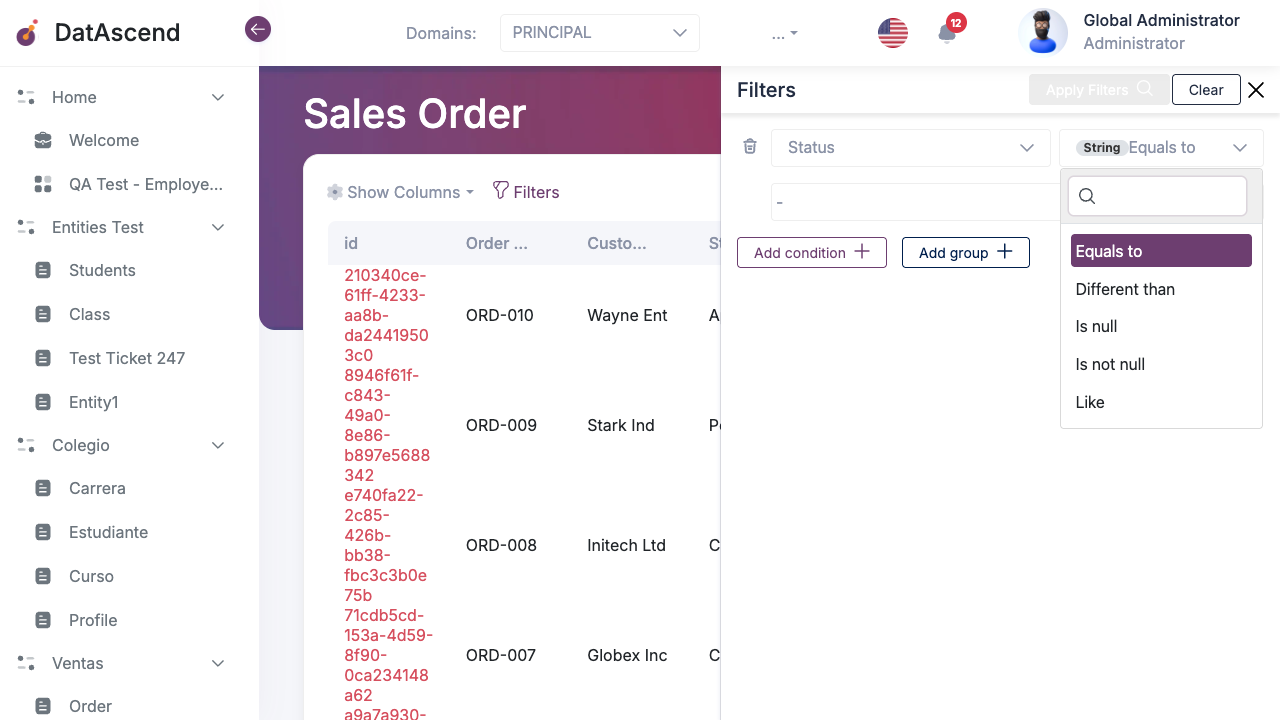
| Operator | Description |
|---|---|
| Equals to | Returns records where the field exactly matches the value |
| Different than | Returns records where the field does not match the value |
| Is null | Returns records where the field has no value |
| Is not null | Returns records where the field has any value |
| Like | Returns records where the field contains the typed text (partial match) |
Number and Date operators
Section titled “Number and Date operators”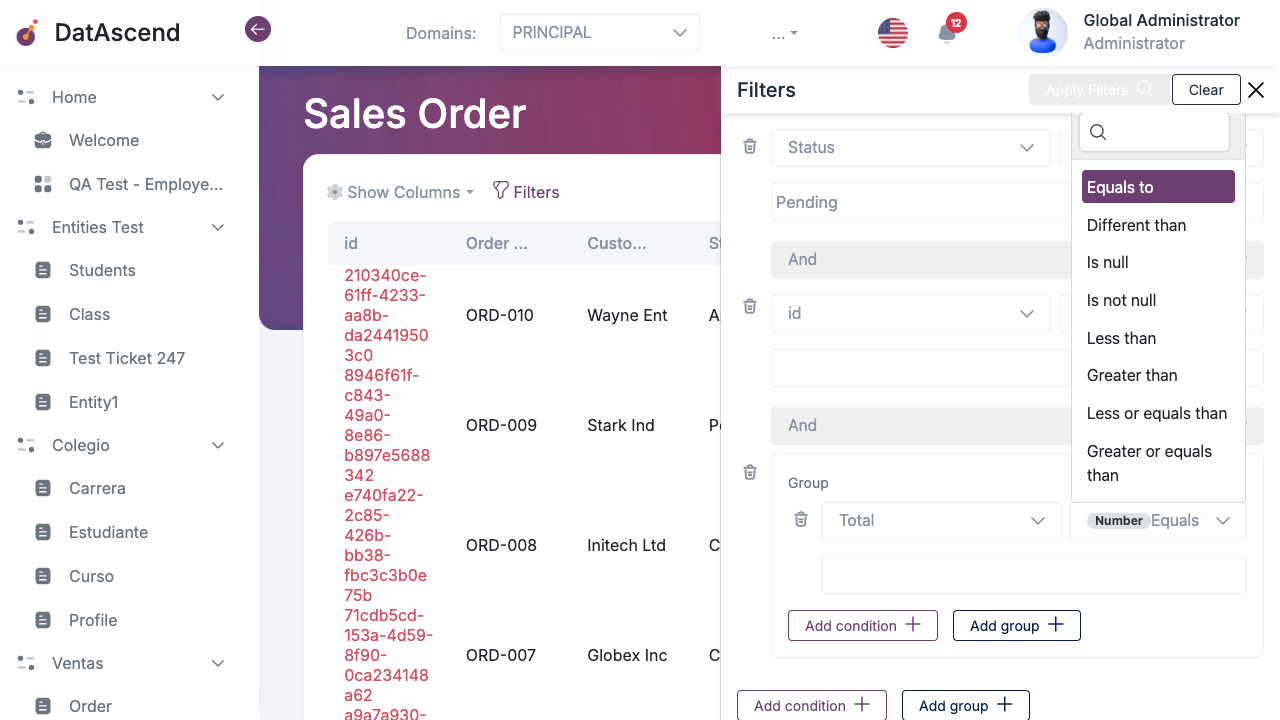
Number and Date fields include all String operators plus:
| Operator | Description |
|---|---|
| Less than | Returns records where the field value is below the given value |
| Greater than | Returns records where the field value is above the given value |
| Less or equals than | Returns records where the field value is below or equal to the given value |
| Greater or equals than | Returns records where the field value is above or equal to the given value |
Boolean (Yes/No) operators
Section titled “Boolean (Yes/No) operators”Boolean fields support: Equals to, Different than, Is null, Is not null.
Step 3 — Enter a Value
Section titled “Step 3 — Enter a Value”After choosing the operator, a value input will appear. Depending on the field type, this can be:
- A text input (String, Relationship)
- A dropdown with predefined options (Enum/Status fields)
- A number input (Number fields)
- A date picker (Date/DateTime fields)
Applying Filters
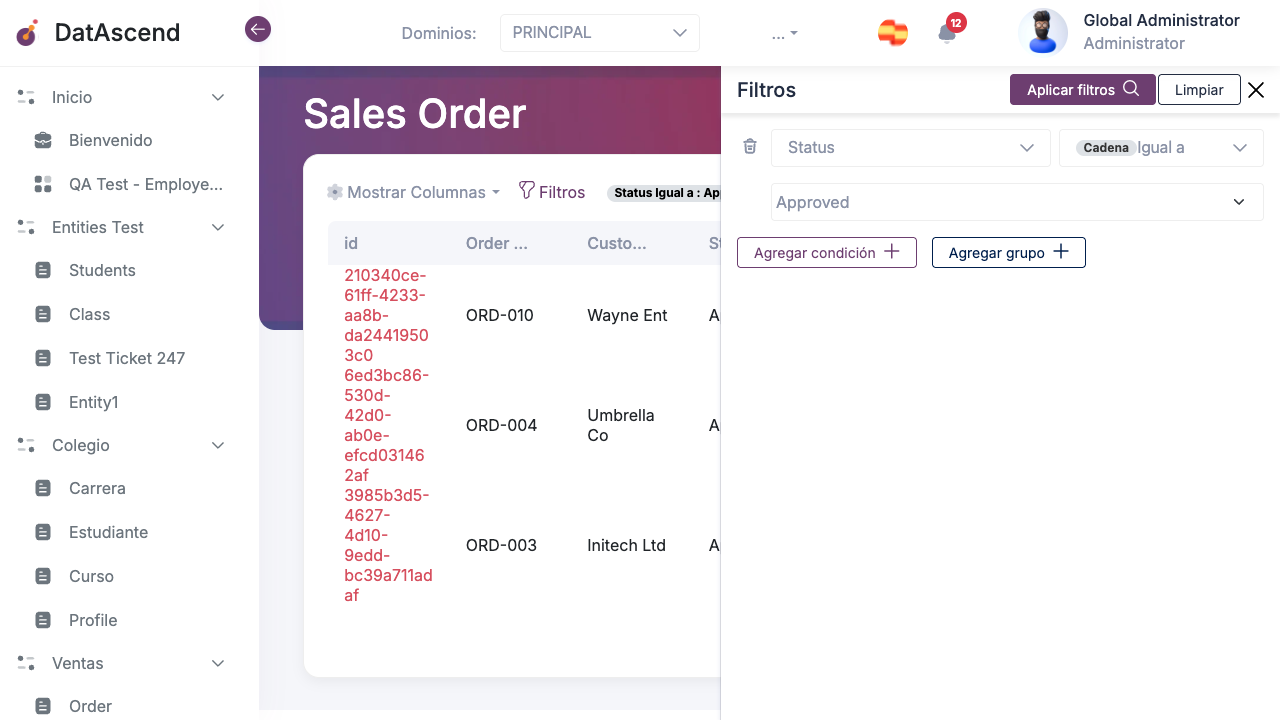
Section titled “Applying Filters”Once at least one complete condition is set, the Apply Filters button becomes active.
- Configure one or more filter conditions.
- Click Apply Filters to reload the table with only the matching records.
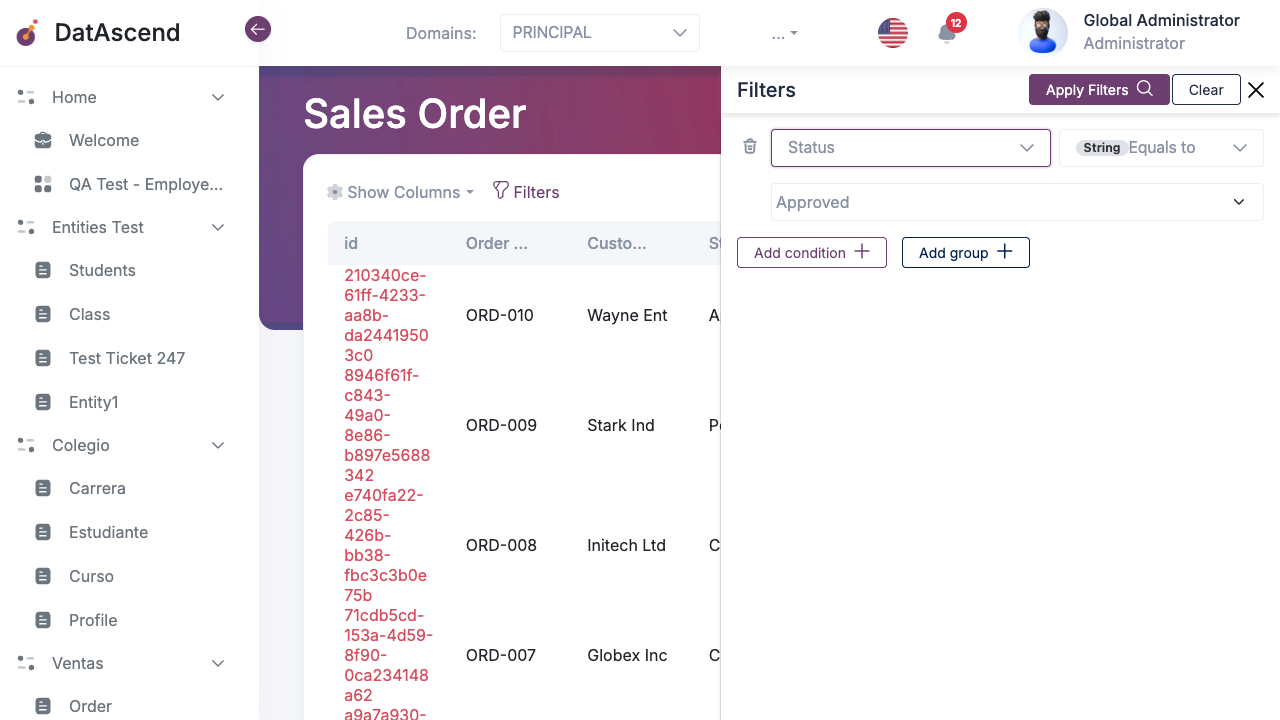
The table refreshes showing only records that match all active conditions.
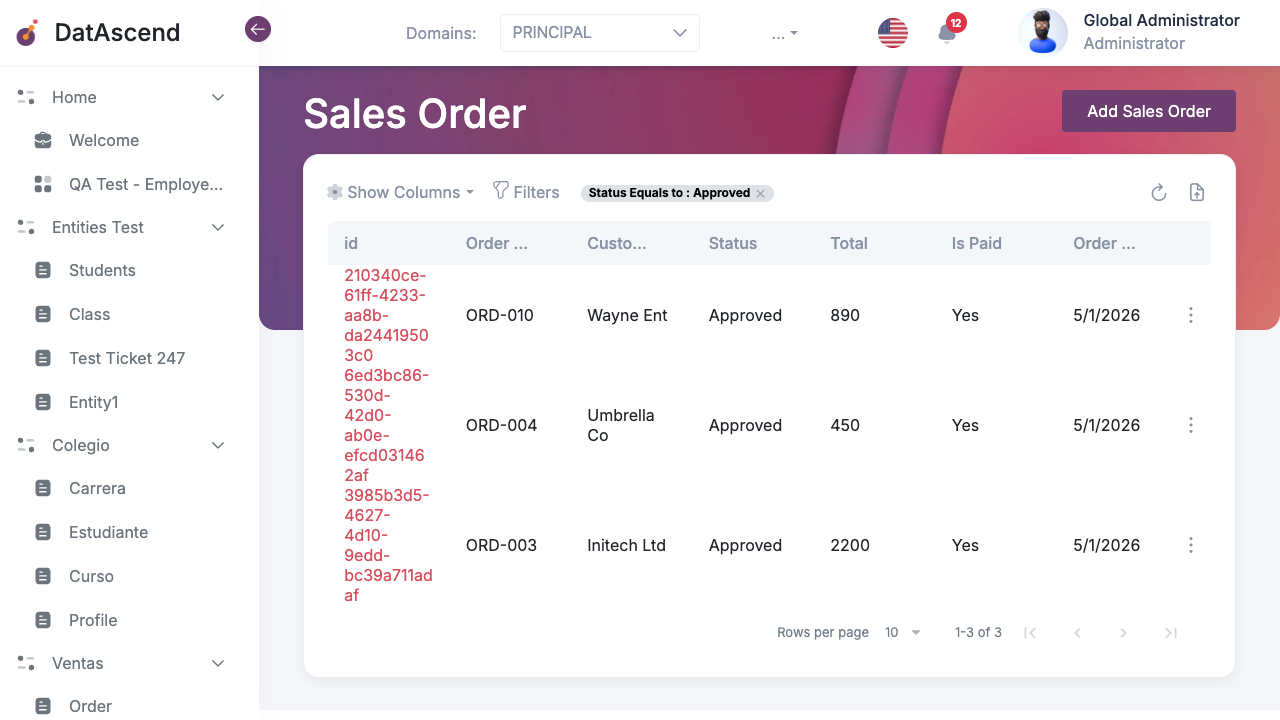
The Filters button in the toolbar turns active (highlighted) to indicate that a filter is currently applied.
Adding Multiple Conditions
Section titled “Adding Multiple Conditions”Click + Add condition at the bottom of the filter drawer to add a second condition row.
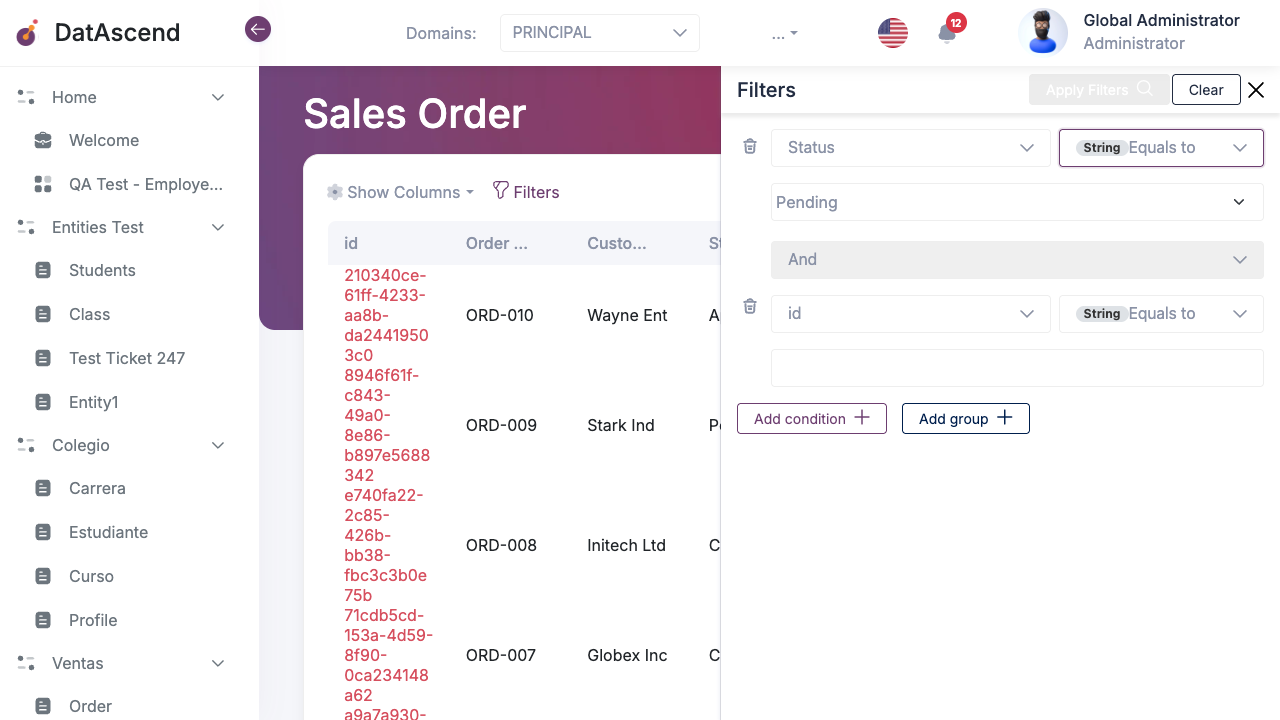
When a second condition is added, a connector appears between them allowing you to choose the logical relationship:
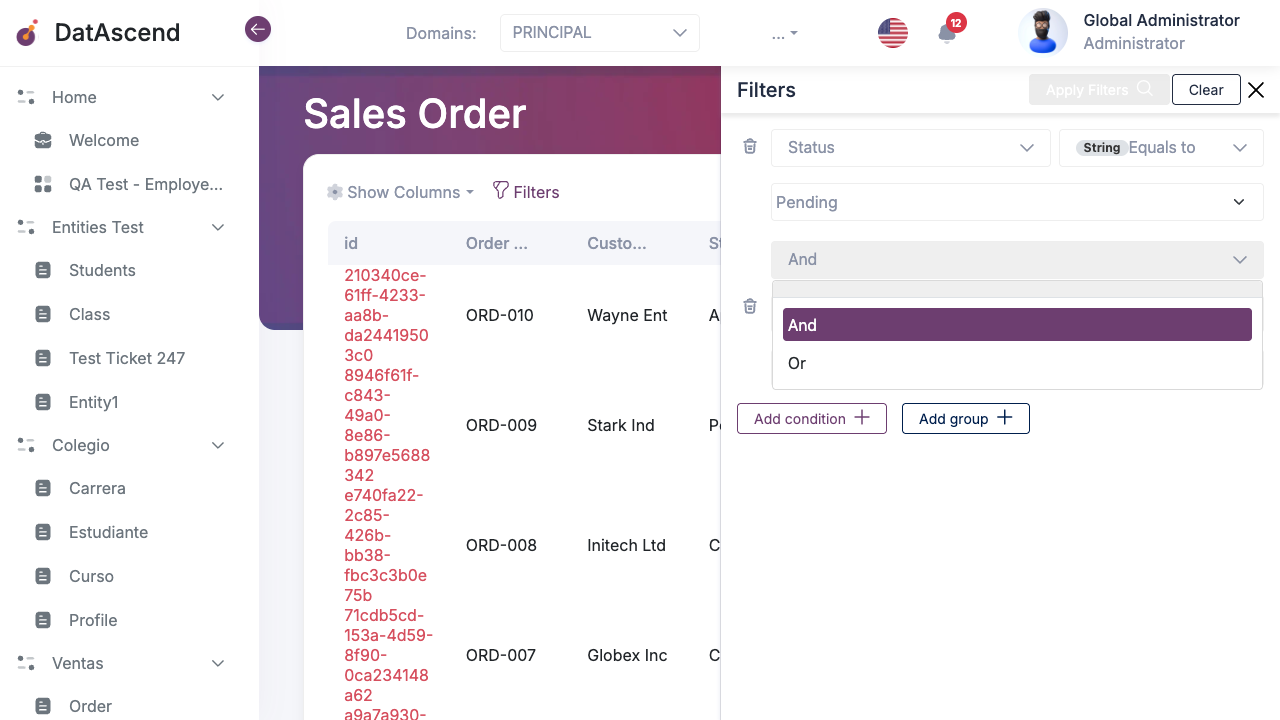
AND vs OR Logic
Section titled “AND vs OR Logic”| Connector | Behavior |
|---|---|
| And | A record must satisfy all conditions to be included in the results |
| Or | A record only needs to satisfy any one of the conditions to be included |
Example — AND:
Status = ApprovedANDTotal > 500→ Returns only approved orders with a total above 500.
Example — OR:
Status = PendingORStatus = Approved→ Returns all orders that are either pending or approved.
Filter Groups
Section titled “Filter Groups”For advanced queries, you can organize conditions into groups. Each group acts as a single logical unit that can be connected to other conditions or groups.
Click + Add group to create a new condition group inside the filter drawer.
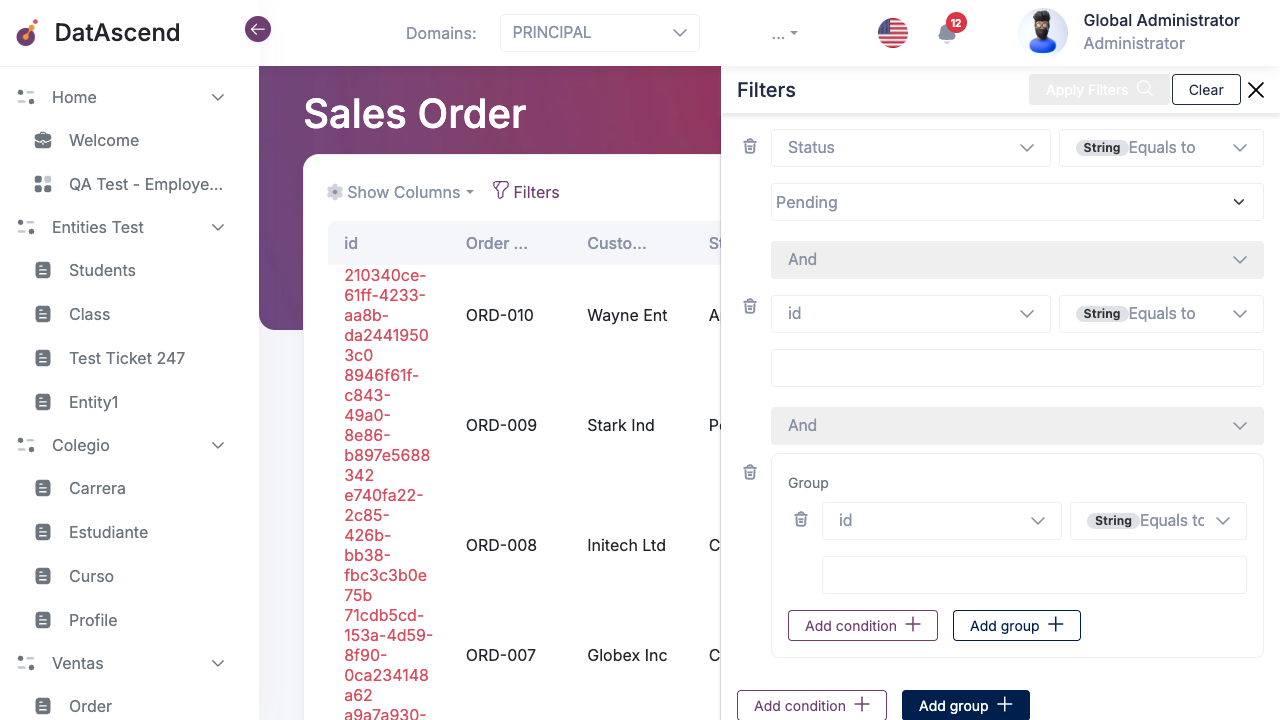
How groups work
Section titled “How groups work”- Conditions inside a group are evaluated together using their own AND/OR connector.
- The group result is then combined with the outer conditions using the group-level connector (AND/OR).
- This allows you to build queries like:
(Status = Approved AND Total > 1000) OR Customer = "Acme Corp"
Removing a condition or group
Section titled “Removing a condition or group”Each condition and group has a delete (trash) button on its left side. Click it to remove that condition or group from the filter.
Clearing Filters
Section titled “Clearing Filters”To remove all active filters:
- Open the filter drawer by clicking Filters.
- Click Clear in the top-right of the drawer.
All conditions are removed and the table reloads showing all records.
Relationship Filters
Section titled “Relationship Filters”When an entity has relationship fields (fields that link to records in another entity), those fields appear in the attribute dropdown just like any other text field.
Filtering by a relationship field performs a text match against the related record’s display label. The available operators are the same as for String fields: Equals to, Different than, Is null, Is not null, Like.
Example: Filtering by
Customerwith operator Like and valueAcmereturns all orders where the linked customer name contains “Acme”.
Tips and Best Practices
Section titled “Tips and Best Practices”- Use Like for partial text matches when you don’t know the exact value.
- Use Is null / Is not null to find records with missing or populated fields.
- Combine AND conditions inside a group and use OR between groups to build precise, readable queries.
- The filter state is preserved in the URL — you can share or bookmark a filtered view.
- Click Clear before applying a completely different filter to avoid combining unintended conditions.