

Reports in Entity Tab
The “Reports in Entity Tab” feature allows you to embed specific reports directly as tabs inside an Entity’s record view. This enables users to see record-specific data visualizations and analytics without leaving the details page of the record.
Step 1: Enable the Report Tab in Entity Settings
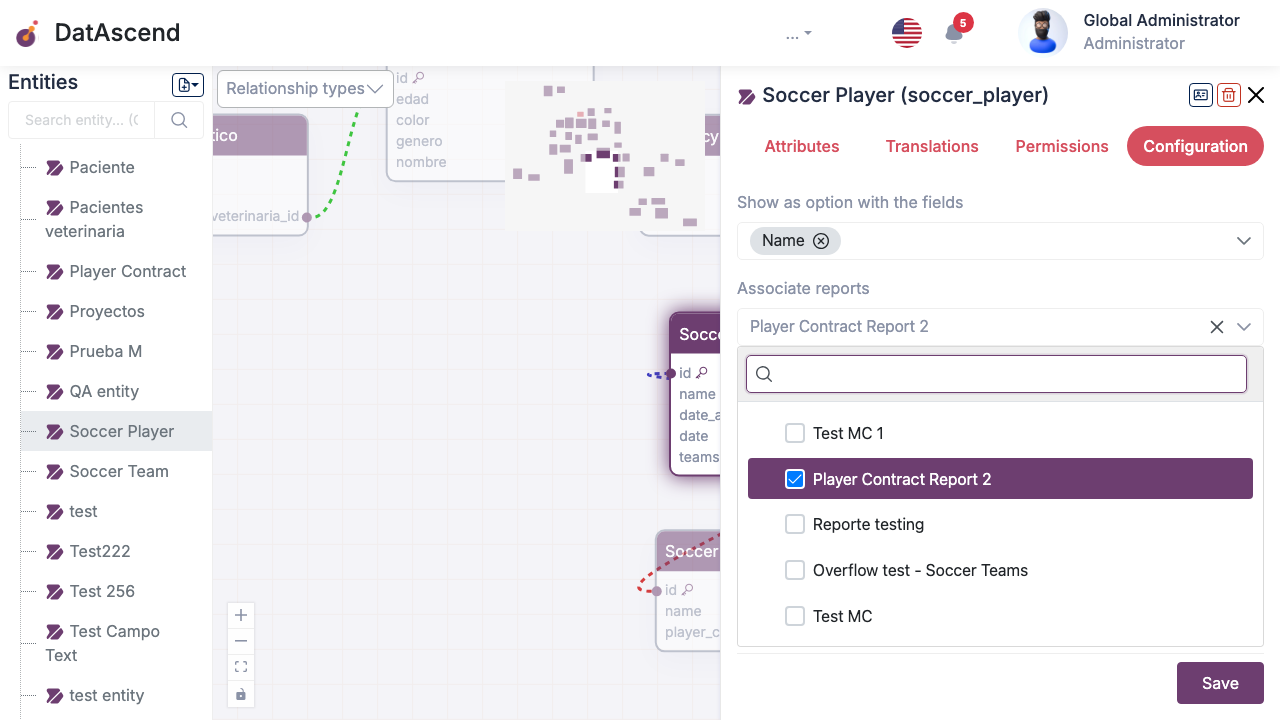
Section titled “Step 1: Enable the Report Tab in Entity Settings”To make a report available as a tab inside an entity’s record, you must associate it with the entity using the Studio workspace:
- Navigate to Studio from the sidebar.
- Select the target entity (e.g., Soccer Player) from the list.
- In the entity details drawer, click on the Configurations (or Configuraciones) tab.
- Locate the Associated Reports select dropdown.
- Search for and select the report you want to embed (e.g., Player Contract Report 2).
- Click Save Changes at the bottom of the drawer.
Step 2: Configure Dynamic Filters in the Report Builder
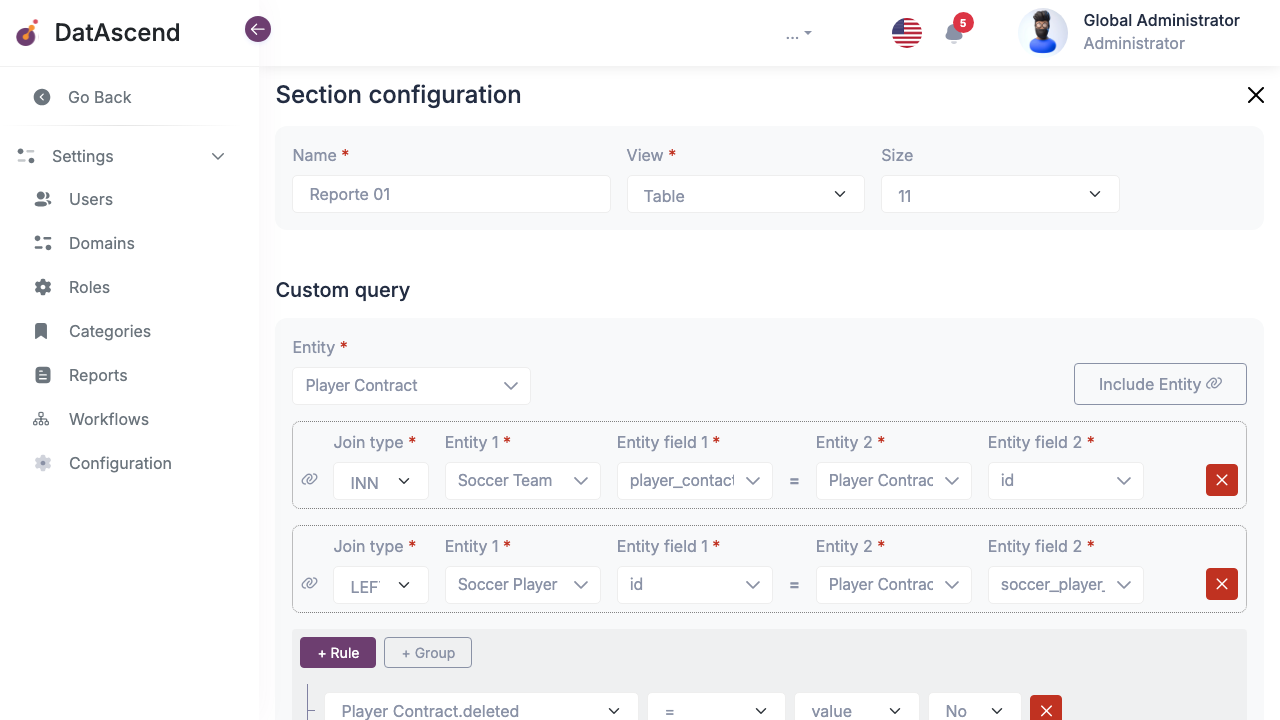
Section titled “Step 2: Configure Dynamic Filters in the Report Builder”To ensure the embedded report only displays data relevant to the current record (e.g., only showing contracts for the selected soccer player), you must configure a dynamic query rule in the Report Builder:
- Go to Settings -> Reports and click Edit on the associated report.
- In the section editor, click the Gear Icon (
pi-cog) in the top right corner of the section header to open the Custom Query config modal. - Add a query rule that filters the report’s records based on the entity’s primary identifier:
- Field: Select the foreign key field that references the parent entity (e.g.,
soccer_player_id). - Operator: Select
equals. - Value: Use the variable
{id}(representing the current record’s ID).
- Field: Select the foreign key field that references the parent entity (e.g.,
- Click Close and then save the report.
Step 3: View the Embedded Report inside the Record Details
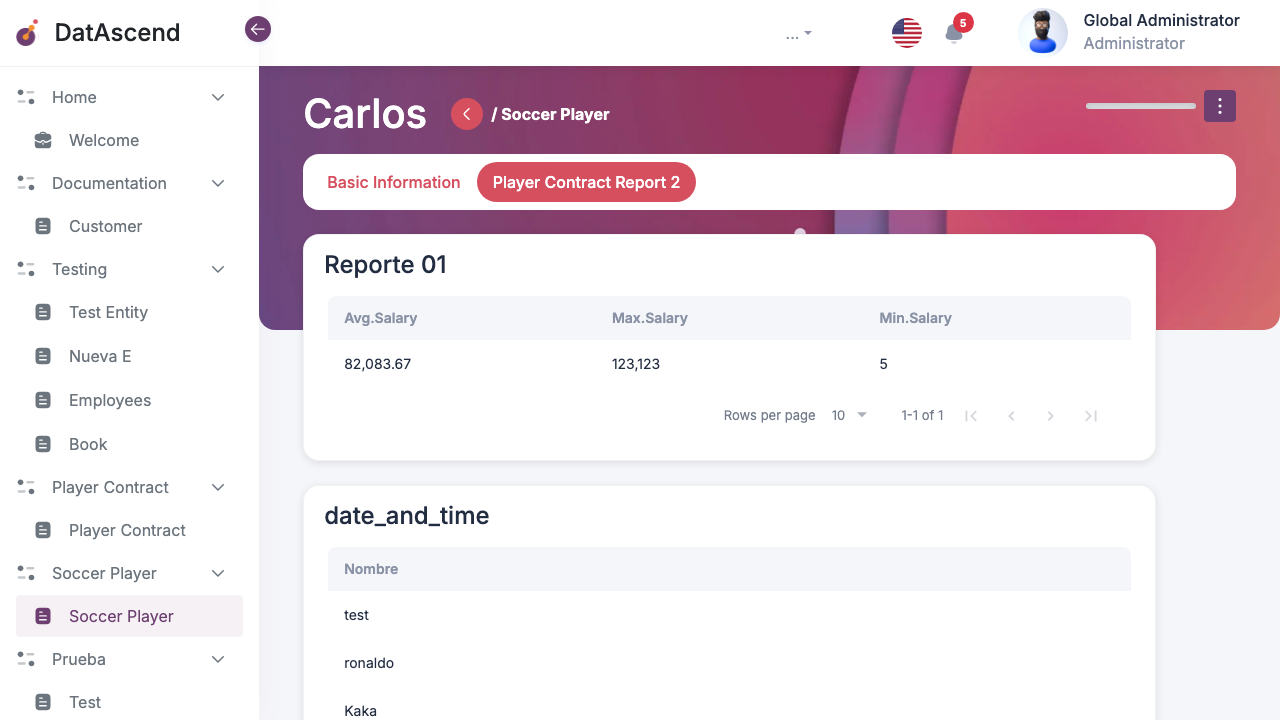
Section titled “Step 3: View the Embedded Report inside the Record Details”Once configured, the report will automatically appear as a dedicated tab inside the record’s details view:
- Navigate to the entity’s records list page (e.g., Soccer Player).
- Find the desired record, open its actions menu (
...), and select View. - In the record details view, click on the new report tab (e.g., Player Contract Report 2).
- The report will load inside the tab, dynamically filtered to show only the information associated with this specific record.
Tips & Troubleshooting
Section titled “Tips & Troubleshooting”Troubleshooting Common Issues
Section titled “Troubleshooting Common Issues”- The report tab is empty or shows incorrect data:
- Double-check that the Custom Query Rule in Step 2 is using
{id}(with curly braces) and not plain textid. - Ensure the filter field matches the exact foreign key field name (e.g.
soccer_player_id) referencing the parent entity. - Verify that there is actually related data associated with the ID of the record you are currently viewing.
- Double-check that the Custom Query Rule in Step 2 is using
- The tab does not appear in the record view: