

Workflows
Workflows are automated flows that help you automate tasks in your system. By connecting different visual nodes (called Nodes) together in a workflow, you can build custom automations that run when records are created, when a button is clicked, or on a scheduled calendar timer.
How Workflows Work
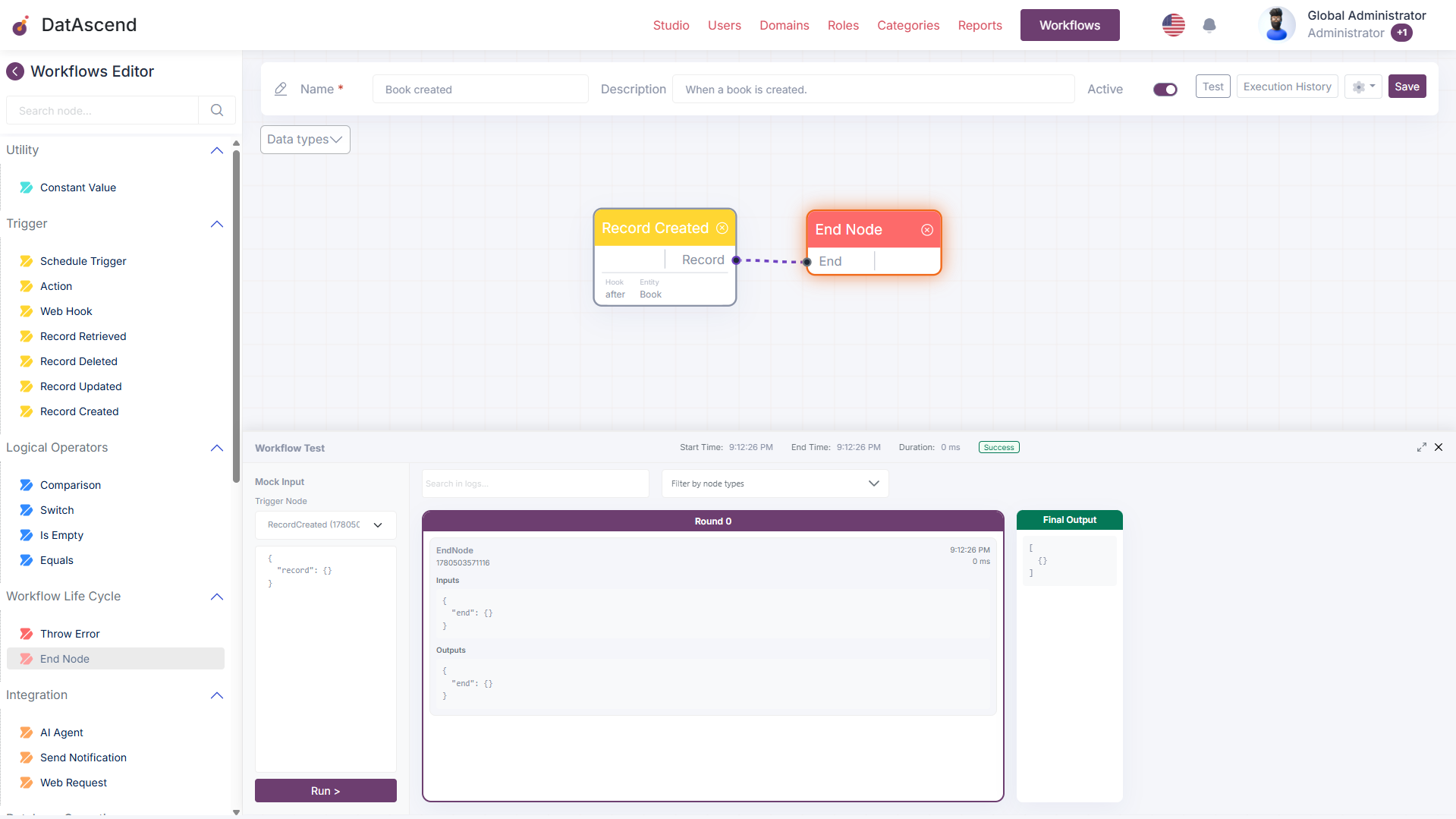
Section titled “How Workflows Work”A Workflow is essentially an interactive workflow. It consists of nodes (each performing a single task, like updating a record or sending an alert) and Connecting Lines (which pass information from one node to another).
Core Concepts
Section titled “Core Concepts”Workflow Steps
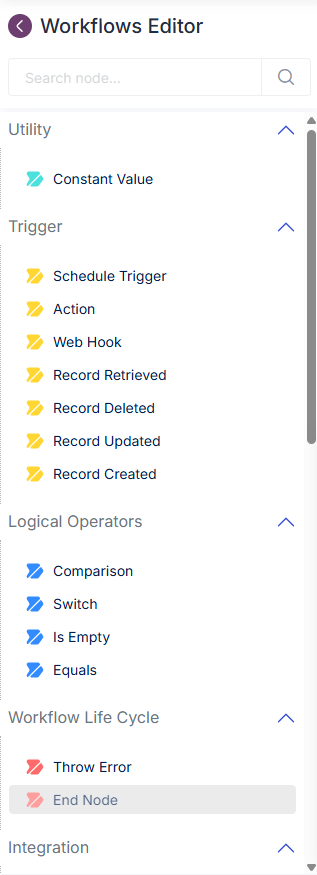
Section titled “Workflow Steps”Each node in your workflow has Input Ports (on the left, where it receives information) and Output Ports (on the right, where it sends completed information). Connecting an output of one node to the input of another tells the system to pass that data along. All of the available nodes can be found in the left sidebar of the workflow editor, organized by category.
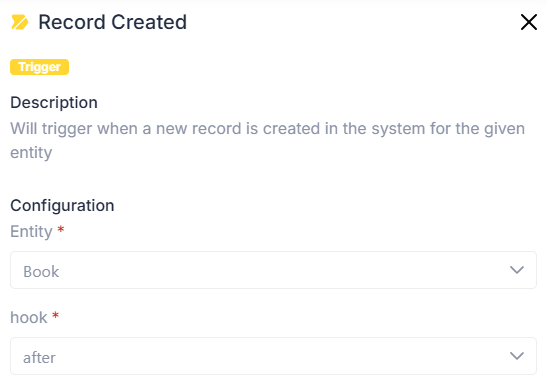
Also, some nodes after placing them can be configured with additional settings. Double-click almost any node to open its configuration panel, where you can set static values or customize how it behaves.
How the Automation Runs (Automatic Waiting)
Section titled “How the Automation Runs (Automatic Waiting)”The automation engine runs your workflow step-by-step:
- The Starting Event: The flow starts when a special Trigger node fires (for example, when a new customer record is added to the system).
- Step-by-step Completion: Each node automatically waits until it has received all the necessary information from the previous steps. As soon as the required information arrives, the node runs and passes its result to the next steps.
- Safety Limits: To prevent flows from getting stuck in an endless loop, the system caps the total number of steps a single run can take. If a flow appears to be looping forever, it will automatically shut down safely.
Conditional Execution (The “Trigger” Input)
Section titled “Conditional Execution (The “Trigger” Input)”Almost every node has a special input at the very top called Trigger. This is a conditional gate that lets you decide whether a step should run:
No Connection: If nothing is connected to the Trigger input, the node runs normally.
If Yes (Truthy): If you connect a Yes/No decision (or any actual information) to the Trigger port, and that decision is “Yes” (or the information is successfully found), the node runs.
If No (Falsy/Empty): If the decision is “No” (or no information is found), this node is skipped. Most importantly, the system will automatically skip all remaining nodes connected after this one, making it easy to create branching paths.
Repeating Actions (Loops)
Section titled “Repeating Actions (Loops)”Some nodes allow you to repeat steps (like Map, Reduce, or ForEach). These nodes act as “containers” for a mini-workflow. For example, if you have a list of 10 items, the loop node will run its internal workflow 10 times—once for each item—and compile the final results automatically.
Creating and Managing Workflows
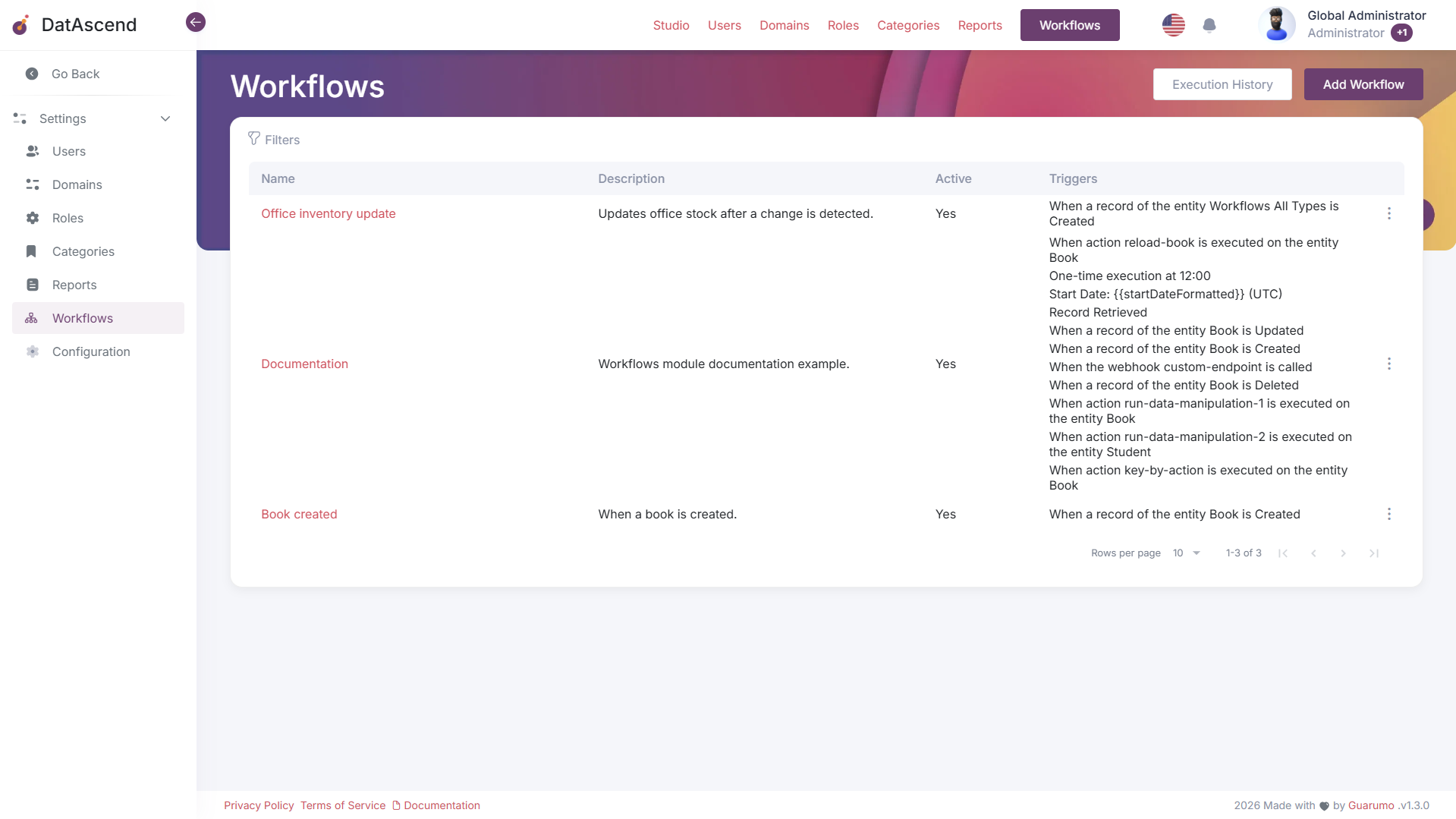
Section titled “Creating and Managing Workflows”The Workflows page is the main entry point for viewing, creating, and managing all workflows in your system.
Header Actions
Section titled “Header Actions”| Action | Description |
|---|---|
| Execution History | Opens the global Execution History page, where you can audit and review past workflow runs across all workflows. |
| Add Workflow | Creates a new, empty workflow and opens the workflow editor so you can start building your automation. |
Workflow Table
Section titled “Workflow Table”The main area displays a paginated table listing every workflow in your system. Each row represents a single workflow and shows the following columns:
| Column | Description |
|---|---|
| Name | The workflow’s name. Click on it to open the workflow editor. |
| Description | A brief summary of what the workflow does. |
| Active | Indicates whether the workflow is currently enabled (Yes) or disabled. Only active workflows will listen for trigger events and run automatically. |
| Triggers | A summary of all trigger nodes configured in the workflow. This shows what events will cause the workflow to run (e.g., When a record of the entity Book is Created, When action reload-book is executed, One-time execution at 12:00). |
Each row also has a ⋮ (three-dot) menu on the right side with additional actions for managing that workflow.
Filters
Section titled “Filters”Click the Filters control at the top of the table to narrow down the displayed results. You can filter by workflow name, active status, or other available criteria to quickly locate specific workflows.
Pagination
Section titled “Pagination”The table is paginated for performance. Use the controls at the bottom of the page to:
Rows per page: Choose how many entries to display per page (default: 10).
Record count: The total number of matching records is displayed (e.g., “1-2 of 2”).
Navigation buttons: Jump between pages using the first, previous, next, and last page controls.
Workflow Editor Toolbar Options
Section titled “Workflow Editor Toolbar Options”The workflow editor toolbar contains the main controls for managing your workflow.

| Option | Description |
|---|---|
| Name | A text input field for the workflow’s name. This is a required field. |
| Description | A text input field for a brief summary of what the workflow does. This is an optional field. |
| Active | Toggle switch that enables or disables the workflow. When Active is turned on, the workflow will listen for its trigger events and run automatically. When turned off, the workflow is paused and will not execute even if triggered. |
| Test | Opens a testing panel that lets you manually run and debug the workflow without needing to trigger it through a real event. Use this to validate your flow logic before activating it. |
| Execution History | Opens a log of all past workflow runs. Use this to review execution statuses, inspect input/output data for each node, and troubleshoot failures. |
| Save | Saves all current changes made to the workflow, including node positions, connections, and settings. |
Dropdown Menu
Section titled “Dropdown Menu”Clicking the gear icon (⚙) in the toolbar opens a dropdown with additional options:
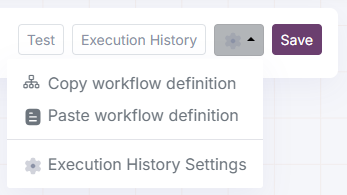
Copy Workflow Definition
Section titled “Copy Workflow Definition”Copies the entire workflow structure — including all nodes, connections, and settings — to your clipboard. This is useful for:
Duplicating workflows: Paste the definition into a new workflow to quickly replicate an existing automation.
Backup and versioning: Save a copy of the workflow definition externally before making major changes.
Sharing with others: Send the workflow definition to a colleague who can paste it into their own environment.
Paste Workflow Definition
Section titled “Paste Workflow Definition”Loads a workflow definition from your clipboard into the current workflow editor. When used, it replaces the existing canvas content with the pasted definition. This is useful for:
Restoring from backup: Paste a previously copied definition to revert changes.
Importing workflows: Receive a workflow definition from another user and load it directly into your editor.
Migrating between environments: Move a workflow from one DatAscend instance to another by copying and pasting the definition.
Execution History Settings
Section titled “Execution History Settings”Opens the configuration dialog for managing how execution history is stored. See the Execution History Settings section below for details on each available setting.
Execution History Settings
Section titled “Execution History Settings”You can configure how your workflow’s execution history is stored and managed by opening the Execution History Settings dialog from the workflow editor toolbar.
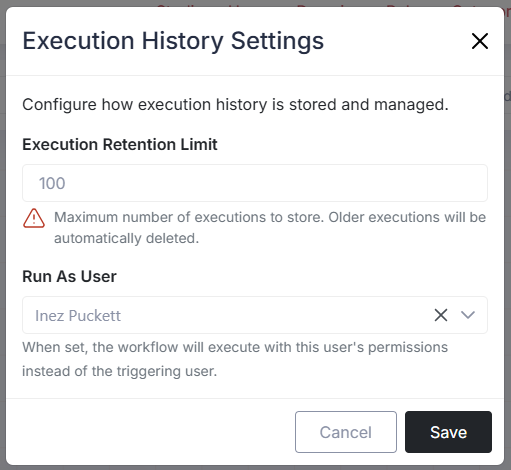
Execution Retention Limit
Section titled “Execution Retention Limit”| Setting | Description |
|---|---|
| Execution Retention Limit | Maximum number of past executions the system will keep in history for this workflow. Once the limit is reached, the oldest executions are automatically deleted to make room for new ones. |
For example, if you set the limit to 100, the system will only store the last 100 runs. The 101st oldest execution will be removed automatically when a new one is recorded.
Tip: Set a reasonable limit based on your auditing and debugging needs. A higher limit preserves more history but uses more storage.
Run As User
Section titled “Run As User”| Setting | Description |
|---|---|
| Run As User | When a specific user is selected, the workflow will execute with that user’s permissions instead of the permissions of the user who triggered the workflow. |
This is useful when you need the workflow to perform actions (such as creating or editing records) that the triggering user may not have access to. For example, if a regular user triggers a workflow that needs to create records in a restricted domain, you can set the “Run As User” to an admin account so the workflow runs with elevated permissions.
Tip: If the Run As User field is left empty (no user selected), the workflow runs under the triggering user’s own permissions by default.
Testing Your Workflow
Section titled “Testing Your Workflow”The Workflow Test panel lets you manually run and debug your workflow without needing to trigger it through a real event. Open it by clicking the Test button in the workflow editor toolbar.
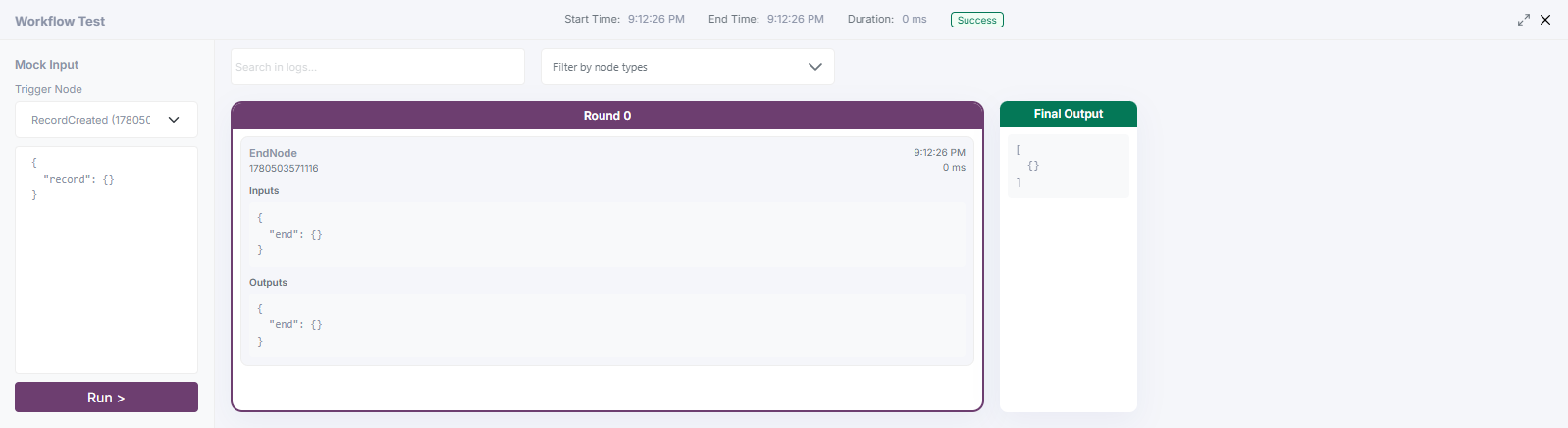
Mock Input
Section titled “Mock Input”Before running the test, you need to define the input data that the workflow will receive.
| Component | Description |
|---|---|
| Trigger Node | A dropdown selector that lets you choose which trigger node to simulate. The dropdown lists all trigger nodes present in your workflow (e.g., a Custom Action Button or Record Created trigger). |
| JSON Editor | A text area where you provide the mock input payload as a JSON object. This simulates the data that a real trigger would send. For example, to test a workflow triggered by a record, you might write {"record": {"id": "123", "name": "Sample"}}. |
| Run > | Starts the test execution using the provided mock input and trigger node selection. |
Execution Status Bar
Section titled “Execution Status Bar”Once a test is executed, a status bar appears at the top of the panel displaying summary information about the run:
| Field | Description |
|---|---|
| Start Time | The timestamp when the test execution began. |
| End Time | The timestamp when the test execution finished. |
| Duration | The total time the execution took, displayed in milliseconds (ms). |
| Status | The outcome of the test run. Shows Success (green badge) if the workflow completed without errors, or Failed (red badge) if an error was encountered. |
Log Search & Filtering
Section titled “Log Search & Filtering”| Control | Description |
|---|---|
| Search in logs | A text input field that lets you search across all execution logs for specific node names, values, or keywords. Useful for quickly locating a particular node in complex workflows. |
| Filter by node types | A dropdown that filters the visible rounds to only show specific node types (e.g., only show loop nodes, only show record operations). This helps isolate the behavior of certain node categories. |
Execution Rounds
Section titled “Execution Rounds”The test results are organized into Rounds, displayed as horizontal cards. Each round represents a logical step or parallel execution phase in the workflow.
| Round | Description |
|---|---|
| Round 0 | The initial round. Contains the first nodes that execute immediately after the trigger fires (e.g., a ConstantValue node or the first data transformation). |
| Round 1+ | Subsequent rounds contain nodes that depend on the output of previous rounds. Each round may contain one or more nodes that ran in parallel. |
Each round card displays:
Node Name: The type of node that executed (e.g., ConstantValue, Compare, StringTemplate, PushItem).
Node ID: A unique identifier for that specific node instance.
Timestamp: When the node executed (e.g., 9:04:14 AM).
Duration: How long the node took to complete (e.g., 1 ms, 0 ms, 3 ms).
Node Execution Details
Section titled “Node Execution Details”Clicking on a node card within a round expands its details, showing the full execution context:
| Section | Description |
|---|---|
| Inputs | The data the node received from previous nodes or the trigger, displayed as a JSON object. |
| Configuration | The static settings configured on the node (e.g., field paths, operation types, template strings). |
| Outputs | The data the node produced after execution, displayed as a JSON object. This is what gets passed to the next connected nodes. |
Tip: Use the execution details to verify that each node is receiving the expected input and producing the correct output. If a node fails or produces unexpected data, check its configuration and the outputs of the nodes connected before it.
Execution History
Section titled “Execution History”The Execution History page lets you audit and review all past workflow runs. Access it by clicking the Execution History button in the workflow editor toolbar.
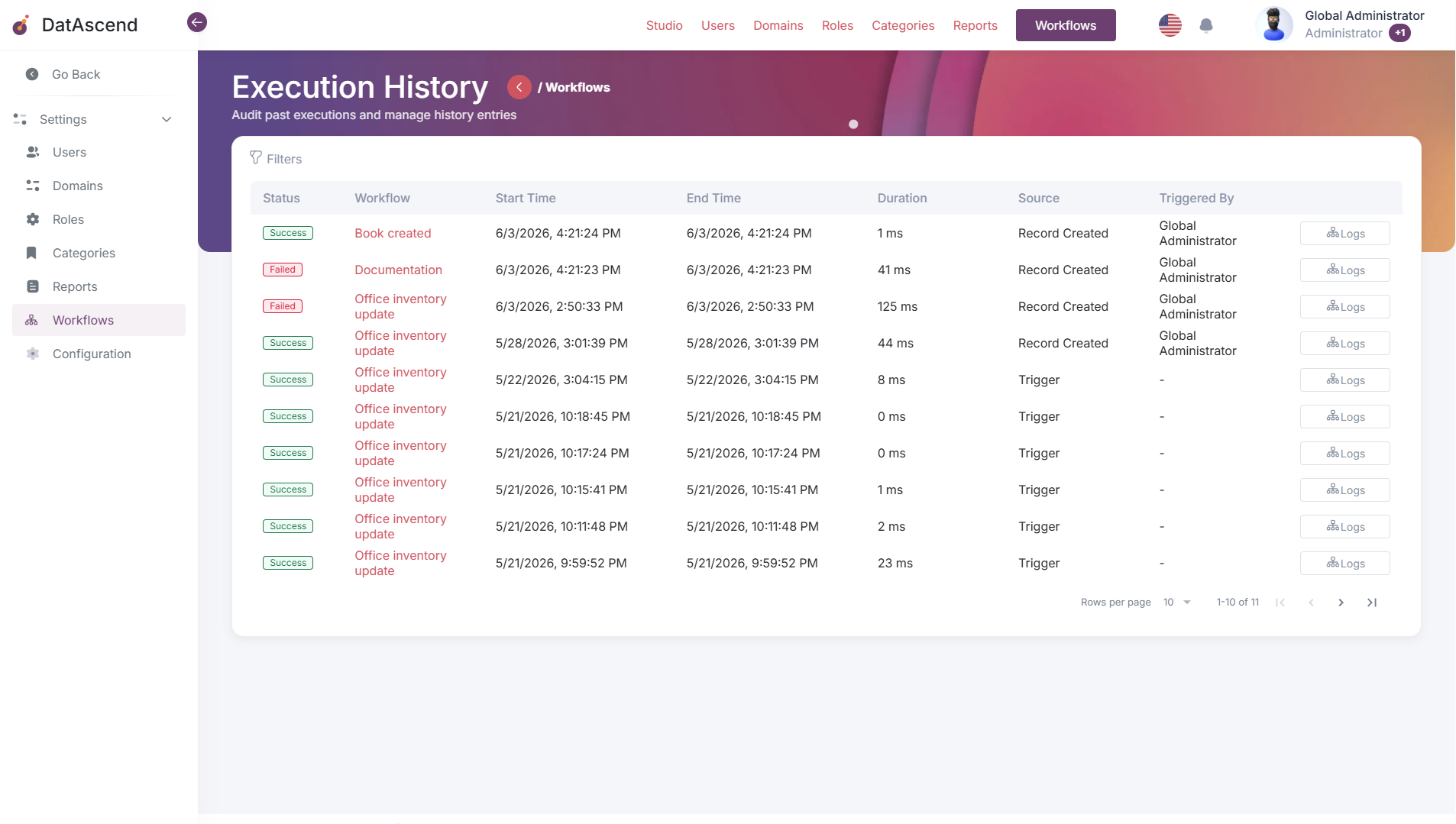
Page Overview
Section titled “Page Overview”The page displays a paginated table containing every recorded execution of your workflow. Each row represents a single run and shows summary information at a glance.
| Column | Description |
|---|---|
| Status | The outcome of the execution. Shows Success (green badge) if the workflow completed without errors, or Failed (red badge) if an error was encountered during the run. |
| Workflow | The name of the workflow that was executed. |
| Start Time | The date and time when the execution began. |
| End Time | The date and time when the execution finished. |
| Duration | The total time the execution took to complete, displayed in milliseconds (ms). |
| Source | What triggered the execution. Common values include Record Created, Record Updated, Trigger (manual or scheduled), Custom Action Button, or Webhook. |
| Triggered By | The user who initiated the workflow run, or the role that triggered it. Displays a dash (-) when the workflow was triggered automatically by the system (e.g., via a scheduled timer). |
| Logs | A button that opens the detailed execution log for that specific run, allowing you to inspect the input and output of each individual node. |
Filters
Section titled “Filters”Click the Filters control at the top of the table to narrow down the displayed results. You can filter by status, workflow name, start/end time ranges, duration, source type, and triggering user. This makes it easier to quickly locate specific executions.
Pagination
Section titled “Pagination”The table is paginated for performance. Use the controls at the bottom of the page to:
Rows per page: Choose how many entries to display per page (default: 10).
Record count: The total number of matching records is displayed (e.g., “1-9 of 9”).
Navigation buttons: Jump between pages using the first, previous, next, and last page controls.
Execution Logs
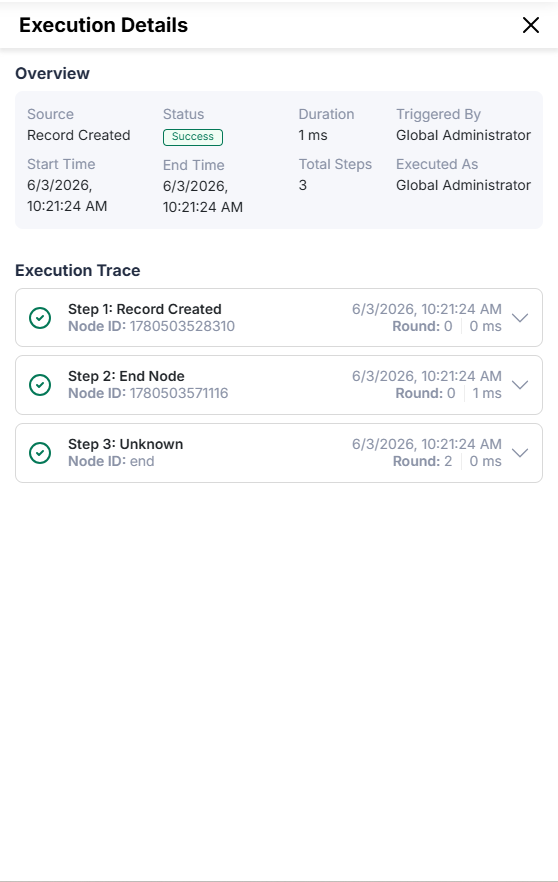
Section titled “Execution Logs”Clicking the Logs button for a specific execution opens a detailed log of that run, showing every node that executed, along with its inputs, configuration, outputs, and any errors encountered.
Node Directory
Section titled “Node Directory”Starting Events (Triggers)
Section titled “Starting Events (Triggers)”Starting Event nodes are the entry points of your workflow. They do not have inputs; they fire when an event occurs and produce the initial details.
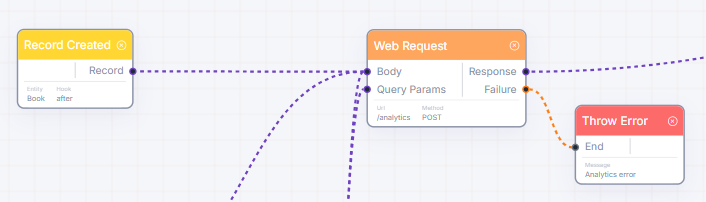
Record Created
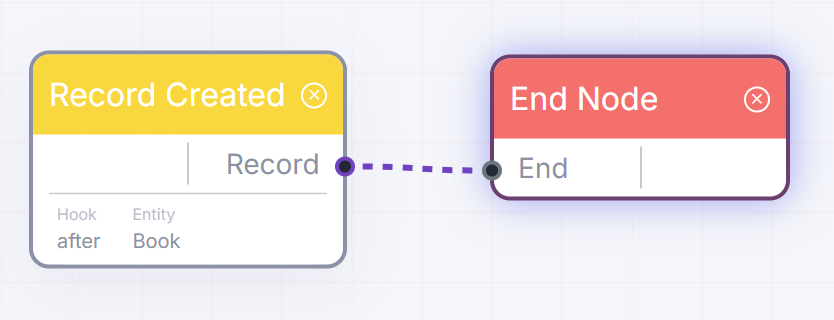
Section titled “Record Created”Description & Use Case: Runs the workflow automatically when a new record is added to your app. Use this to auto-assign a task when a lead is added, or to send a welcome email the second a user registers.
Details Table:
| Name | Type | Required | Description | Default |
|---|---|---|---|---|
Entity | Settings | Text (List) | The database category to monitor (e.g. Customers, Invoices). | Required |
Run Stage | Settings | Text (Enum) | Choose "before" (to check fields before saving) or "after" (to trigger actions post-save). | "after" |
Record Details | Output | Record Details | Complete field values of the newly added record. | - |
Node usage example scenario:
Record Updated
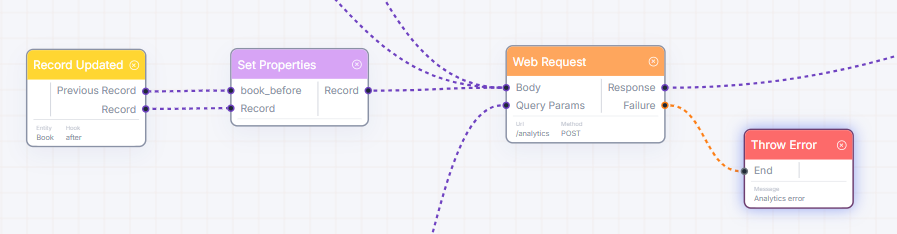
Section titled “Record Updated”Description & Use Case: Fires when an existing record is edited. Use this to notify supervisors when a project status changes to “Completed”, or to recalculate scores when test answers are updated.
Details Table:
| Name | Type | Required | Description | Default |
|---|---|---|---|---|
Entity | Settings | Text (List) | The database category to monitor. | Required |
Run Stage | Settings | Text (Enum) | Choose whether to run "before" or "after" edits are saved. | "after" |
Record Details | Output | Record Details | The record fields with the newly saved updates. | - |
Previous Details | Output | Record Details | The record fields before the updates were applied. | - |
Node usage example scenario:
Record Deleted
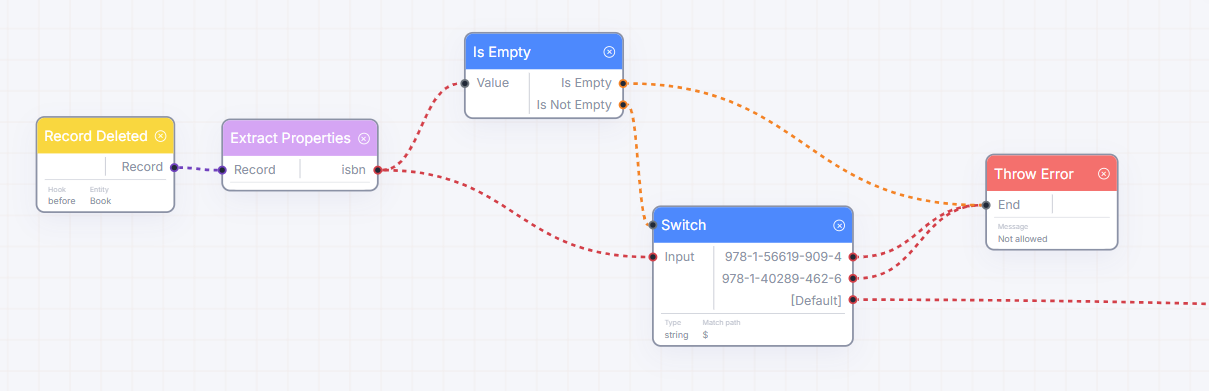
Section titled “Record Deleted”Description & Use Case: Fires when a database record is removed. Use this to notify managers of deletion audits, or to clean up files linked to a removed project.
Details Table:
| Name | Type | Required | Description | Default |
|---|---|---|---|---|
Entity | Settings | Text (List) | The database category to monitor. | Required |
Run Stage | Settings | Text (Enum) | Runs "before" or "after" the record is removed. | "after" |
Record Details | Output | Record Details | The details of the deleted record. | - |
Node usage example scenario:
Record Viewed/Queried
Section titled “Record Viewed/Queried”Description & Use Case: Runs when a user views or queries a record. Use this to log access history for sensitive records, or to increment views counters in real time.
Details Table:
| Name | Type | Required | Description | Default |
|---|---|---|---|---|
Entity | Settings | Text (List) | The database category to monitor. | Required |
Run Stage | Settings | Text (Enum) | Runs "before" or "after" access completes. | "after" |
Record Details | Output | Record Details | The details of the viewed record. | - |
Node usage example scenario:
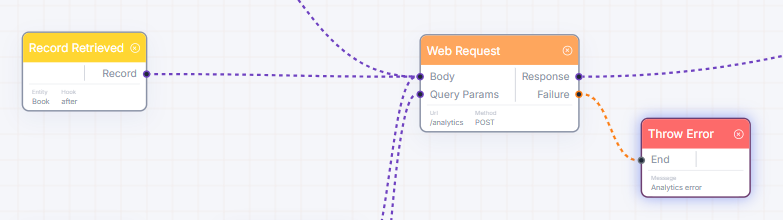
Webhook
Section titled “Webhook”Description & Use Case: Creates a custom web address. When external software sends data to this address, your workflow triggers instantly. Use this to receive order notifications from Shopify or forms submitted from an external site.
Details Table:
| Name | Type | Required | Description | Default |
|---|---|---|---|---|
Webhook Path | Settings | Text | Unique URL path name (e.g., shopify-orders). Letters and numbers only. | "my-custom-endpoint" |
Allowed Roles | Settings | List of Text | User roles permitted to trigger this webhook. | Required |
Request Data | Output | Any | The incoming information payload sent by the external system. | - |
Node usage example scenario:
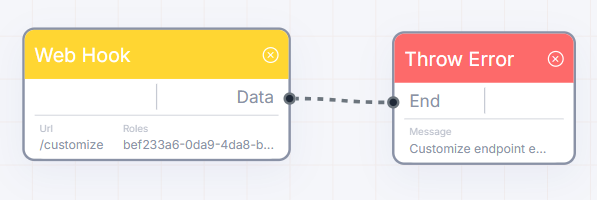
Custom Action Button
Section titled “Custom Action Button”Description & Use Case: Displays a custom action button on a record screen. When a user clicks it, this workflow starts. Use this to add a custom “Approve Request” button or an “Export to PDF” button to invoices.
Details Table:
| Name | Type | Required | Description | Default |
|---|---|---|---|---|
Entity | Settings | Text (List) | The record page where this button will appear. | Required |
Action Path | Settings | Text | A unique slug ID for the button. | "my-custom-action" |
Button Label | Settings | Text | The text displayed on the button screen (e.g. “Approve Order”). | "My Custom Action" |
Allowed Roles | Settings | List of Text | User roles authorized to see and click the button. | Required |
Record Details | Output | Record Details | Complete details of the record where the button was clicked. | - |
Node usage example scenario:
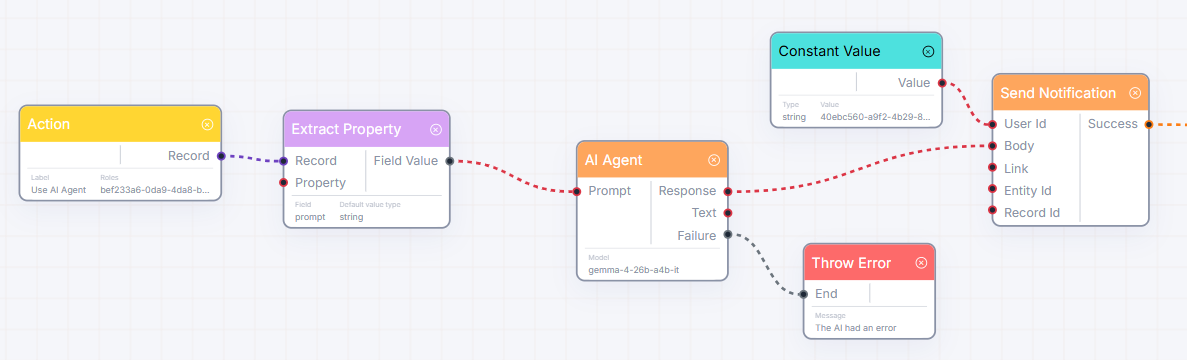
Scheduled Timer
Section titled “Scheduled Timer”Description & Use Case: Runs the workflow automatically at designated times. Use this to send weekly sales summaries every Friday at 5:00 PM, or to sync currency exchange rates hourly.
Details Table:
| Name | Type | Required | Description | Default |
|---|---|---|---|---|
Timer Mode | Settings | Text (Enum) | Run mode: "once", "interval" (periodic), "intervalBetweenTimes", "atSpecificTime", or "cron". | "interval" |
Timezone | Settings | Text | Timezone context for schedules. | "UTC" |
Start Date | Settings | Date | The date when the scheduler becomes active. | Required |
Time | Settings | Text | The daily run time (e.g. "12:00"). Required for "once" and "atSpecificTime". | "12:00" |
Interval Value | Settings | Number | Periodic gap size. Required for "interval" modes. | 1 |
Interval Unit | Settings | Text (Enum) | Unit of gap size ("seconds", "minutes", "hours", "days"). | "minutes" |
Start Time | Settings | Text | Start of daily active window (e.g. "09:00"). | "00:00" |
End Time | Settings | Text | End of daily active window (e.g. "23:59"). | "23:59" |
Days | Settings | List of Text | Days of the week to run (e.g. Monday, Tuesday). | All weekdays |
Cron Pattern | Settings | Text | Standard 5-field cron string for custom timing. | - |
Trigger Time | Output | Text | The date and time when the flow was executed. | - |
Node usage example scenario:
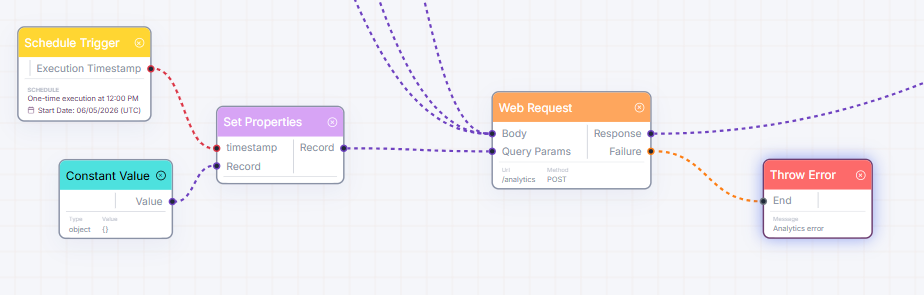
Working with Records (Database Operations)
Section titled “Working with Records (Database Operations)”These nodes let you create, find, edit, or delete records in your system.
Create New Record
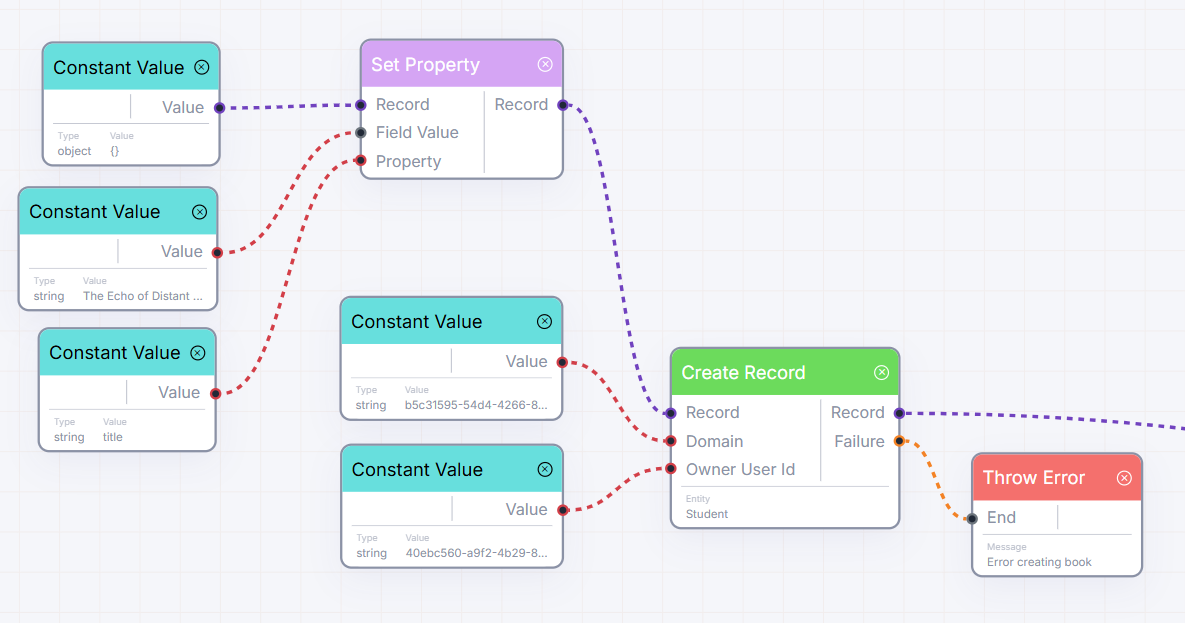
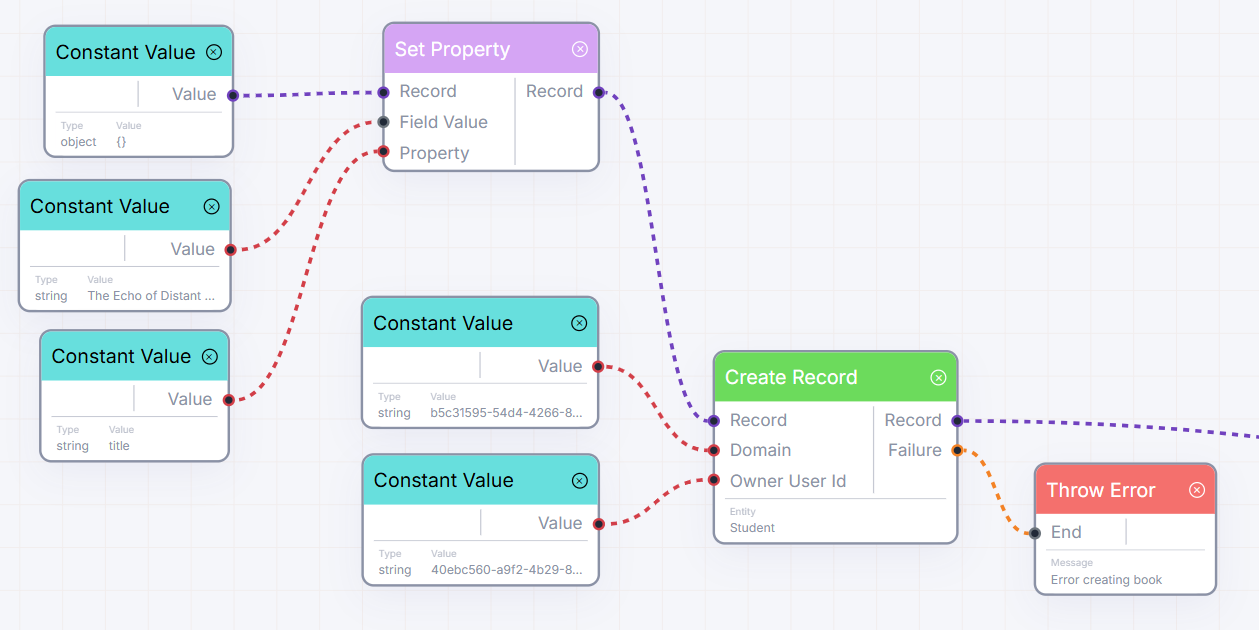
Section titled “Create New Record”Description & Use Case: Adds a new record to your database. Use this to automatically create a “Task” record when a new customer complains, or to log audit trials.
Details Table:
| Name | Type | Required | Description | Default |
|---|---|---|---|---|
Trigger | Input | Any | Conditional execution gate. Skips step if connected and decision is “No”. | Optional |
Record Details | Input | Record Details | Form values to save in the new record. | Required |
Domain | Input | Text | Administrative domain code for organization access. | Required |
User ID | Input | Text | Owner user ID to assign to the new record. | Optional |
Entity | Settings | Text (List) | Target database category where the record will be saved. | Required |
Record Details | Output | Record Details | The newly created record including its database ID. | - |
Failed? | Output | Yes/No | Returns “Yes” if the save operation fails. | - |
Node usage example scenario:
Get Single Record
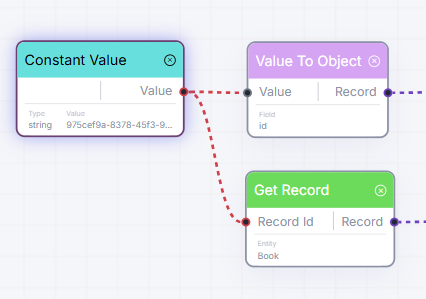
Section titled “Get Single Record”Description & Use Case: Finds a single record in your database using its ID. Use this to pull details about a specific manager when you only have their user ID.
Details Table:
| Name | Type | Required | Description | Default |
|---|---|---|---|---|
Trigger | Input | Any | Conditional gate. Skips step if connected and decision is “No”. | Optional |
Record ID | Input | Text | The unique ID code of the record to locate. | Required |
Entity | Settings | Text (List) | Target category to search in. | Required |
Record Details | Output | Record Details | The complete record details found. | - |
Node usage example scenario:
Find Multiple Records
Section titled “Find Multiple Records”Description & Use Case: Searches the database for a list of records matching specific criteria. Use this to get a list of all products with low stock, or find all active users.
Details Table:
| Name | Type | Required | Description | Default |
|---|---|---|---|---|
Trigger | Input | Any | Conditional gate. | Optional |
Filter Rules | Input | Record Details | Search criteria (rules for filtering). | Optional |
Max Items | Input | Number | Maximum number of items to return. | Optional |
Page Number | Input | Number | Page index for paginated search. | Optional |
Sort Field | Input | Text | Record field name to sort by. | Optional |
Sort Direction | Input | Text | Ascending ("ASC") or Descending ("DESC"). | Optional |
Entity | Settings | Text (List) | Database category to search. | Required |
Found Records | Output | List | List of records matching filters. | - |
Total Count | Output | Number | Total count of all matching records in the system. | - |
Node usage example scenario:
Edit Record
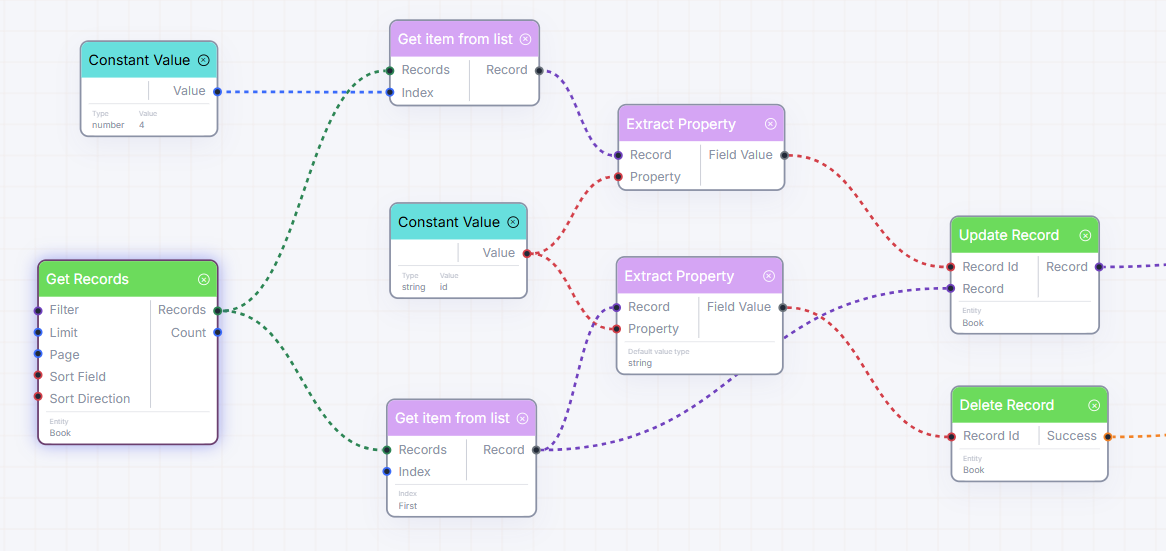
Section titled “Edit Record”Description & Use Case: Modifies fields on an existing database record. Use this to mark an invoice as “Overdue” when payment times expire.
Details Table:
| Name | Type | Required | Description | Default |
|---|---|---|---|---|
Trigger | Input | Any | Conditional gate. | Optional |
Record ID | Input | Text | The ID code of the record you want to edit. | Required |
Updated Details | Input | Record Details | Form containing fields you want to update. | Required |
Entity | Settings | Text (List) | Database category to update. | Required |
Record Details | Output | Record Details | The record details after changes are saved. | - |
Node usage example scenario:
Delete Record
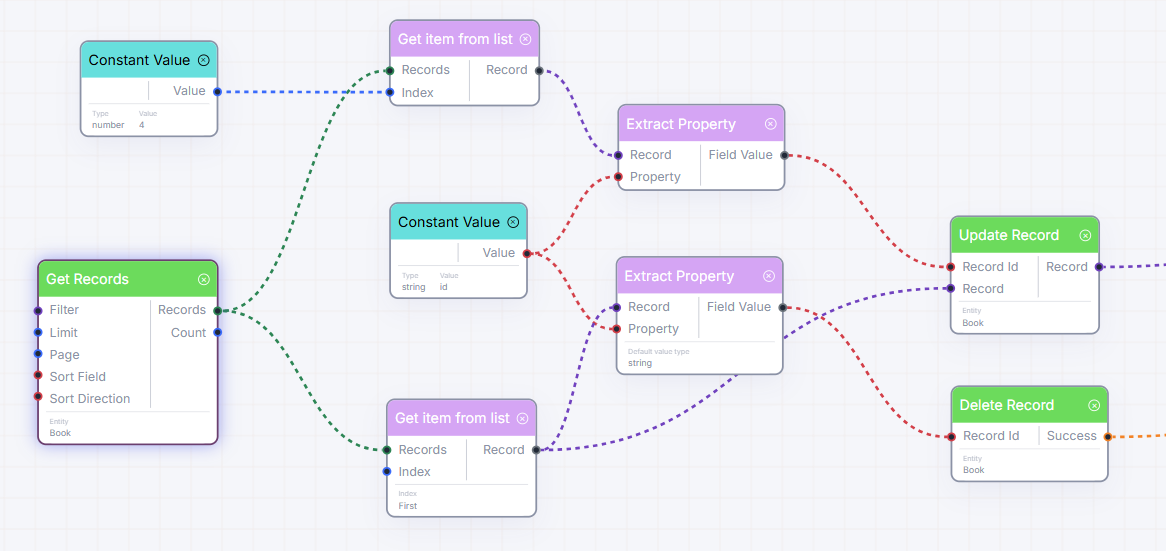
Section titled “Delete Record”Description & Use Case: Permanently deletes a record. Use this to clear test leads or old logs automatically.
Details Table:
| Name | Type | Required | Description | Default |
|---|---|---|---|---|
Trigger | Input | Any | Conditional gate. | Optional |
Record ID | Input | Text | The ID of the record to delete. | Required |
Entity | Settings | Text (List) | Database category to delete from. | Required |
Success? | Output | Yes/No | Returns “Yes” if deletion completed successfully. | - |
Node usage example scenario:
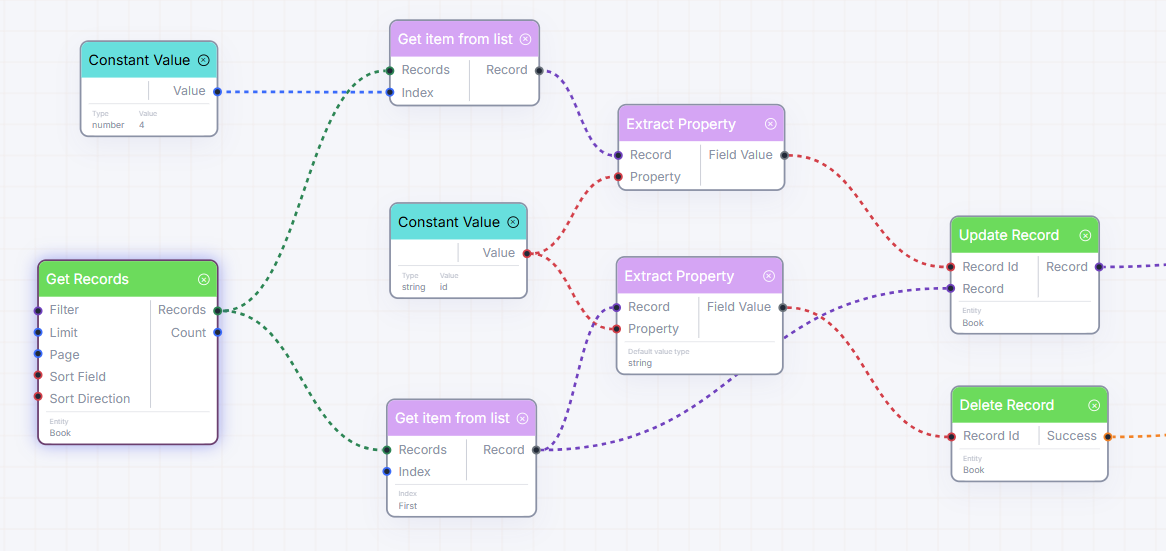
Handling Information (Data Manipulation)
Section titled “Handling Information (Data Manipulation)”These nodes help you pull fields out of records, merge text, calculate math, organize lists, and link items.
Extract Field
Section titled “Extract Field”Description & Use Case: Pulls out a specific value from a record group (e.g. extracting a customer’s Name from a User Account record).
Details Table:
| Name | Type | Required | Description | Default |
|---|---|---|---|---|
Trigger | Input | Any | Conditional gate. | Optional |
Record Details | Input | Record Details | The source record group. | Required |
Field Path | Input | Text | Path to extract (e.g. billing.city). Overrides settings. | Optional |
Field Path | Settings | Text | Static target field path. | - |
Fallback Type | Settings | Text (Enum) | Data type to return if empty (Text, Number, Date, Yes/No, List, Record). | "string" |
Fallback Value | Settings | Text | Backup value to use if field is empty. | - |
Extracted Value | Output | Any | The extracted field value. | - |
Node usage example scenario:
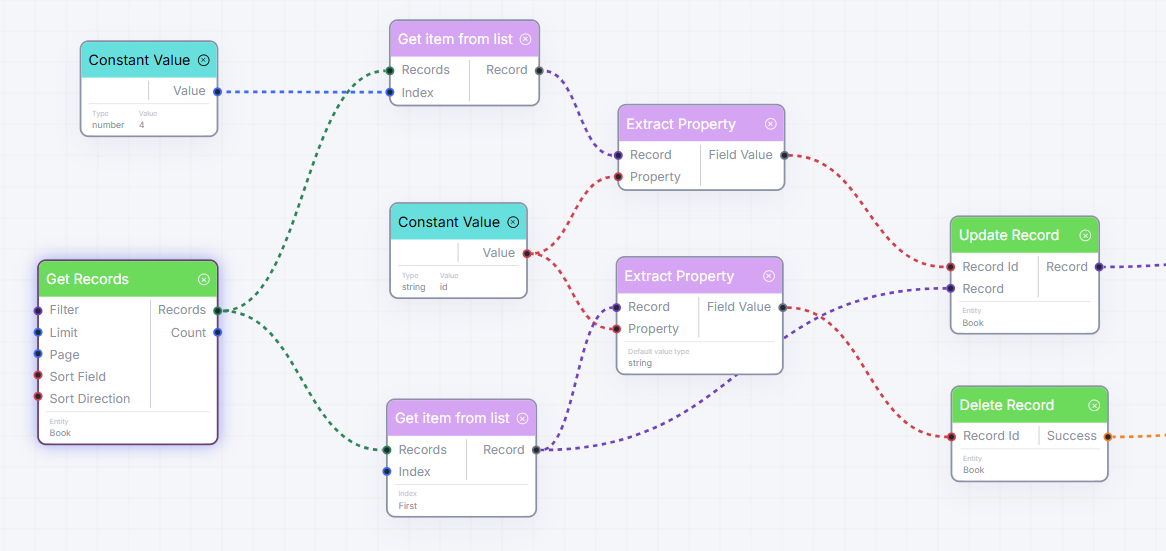
Extract Multiple Fields
Section titled “Extract Multiple Fields”Description & Use Case: Pulls out several field values from a single record simultaneously. Use this to split a customer record into separate “Email”, “Phone”, and “Name” outputs.
Details Table:
| Name | Type | Required | Description | Default |
|---|---|---|---|---|
Trigger | Input | Any | Conditional gate. | Optional |
Record Details | Input | Record Details | The source record group. | Required |
Fields | Settings | List of Text | The list of field names and data types to extract. | Required |
| Dynamic Outputs | Output | Any | Generates one output port for each field path configured. | - |
Node usage example scenario:
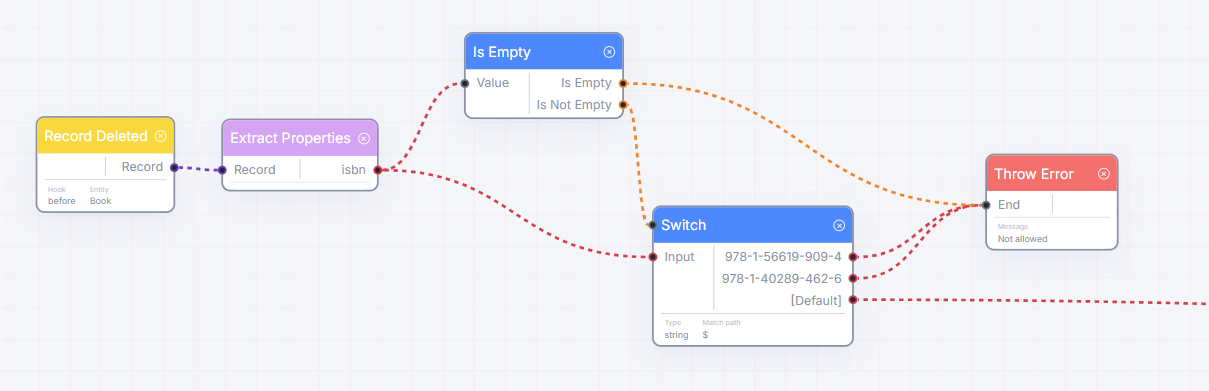
Set Single Field
Section titled “Set Single Field”Description & Use Case: Writes a new value into a specific field on a record details node. Use this to update a temporary status field inside your flow before passing it to subsequent nodes.
Details Table:
| Name | Type | Required | Description | Default |
|---|---|---|---|---|
Trigger | Input | Any | Conditional gate. | Optional |
Record Details | Input | Record Details | The record node to modify. | Required |
Value | Input | Any | The new data to write in the field. | Required |
Field Path | Input | Text | Target field path. Overrides settings. | Optional |
Field Path | Settings | Text | Target field path. | - |
Record Details | Output | Record Details | The updated record node. | - |
Node usage example scenario:
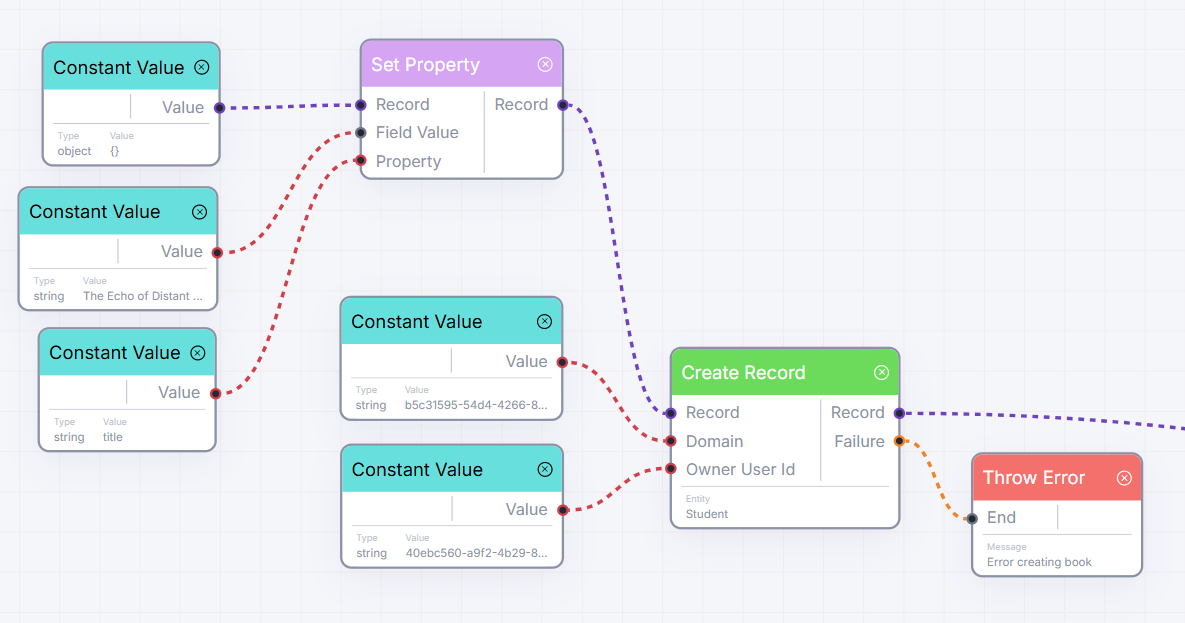
Set Multiple Fields
Section titled “Set Multiple Fields”Description & Use Case: Writes values into multiple fields on a record at once. Use this to stamp creation times and creator user IDs on custom records simultaneously.
Details Table:
| Name | Type | Required | Description | Default |
|---|---|---|---|---|
Trigger | Input | Any | Conditional gate. | Optional |
Record Details | Input | Record Details | The record node to update. | Required |
Properties | Settings | List of Text | List of field keys and types to create. | Required |
| Dynamic Inputs | Input | Any | Generates one input port for each property key defined in Settings. | - |
Record Details | Output | Record Details | The updated record node. | - |
Node usage example scenario:
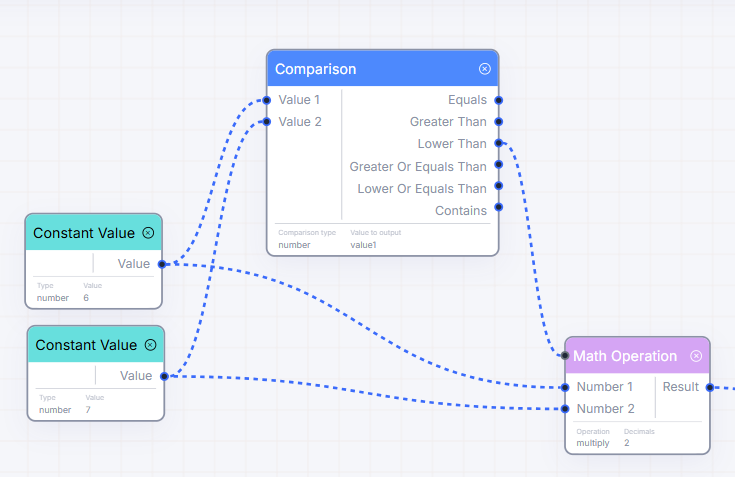
Math Operation
Section titled “Math Operation”Description & Use Case: Performs basic math (adding, subtracting, dividing, multiplying) on two numbers. Use this to calculate tax totals or multiply quantities by prices.
Details Table:
| Name | Type | Required | Description | Default |
|---|---|---|---|---|
Trigger | Input | Any | Conditional gate. | Optional |
Number 1 | Input | Number | First number. | Required |
Number 2 | Input | Number | Second number. | Required |
Operation | Settings | Text (Enum) | Choose: "add", "substract", "divide", or "multiply". | Required |
Decimals | Settings | Number | Number of decimal places to round results to. | - |
Result | Output | Number | Calculated result. | - |
Node usage example scenario:
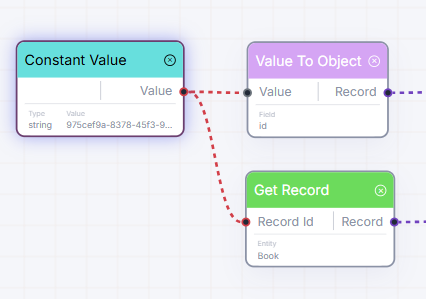
Wrap Value in Record
Section titled “Wrap Value in Record”Description & Use Case: Wraps a single value inside a new record node under a custom field name (e.g. converting the number 100 into { score: 100 }).
Details Table:
| Name | Type | Required | Description | Default |
|---|---|---|---|---|
Trigger | Input | Any | Conditional gate. | Optional |
Value | Input | Any | Value to wrap. | Required |
Field Name | Settings | Text | Field name key for the new record. | Required |
Record Details | Output | Record Details | { [field]: value }. | - |
Node usage example scenario:
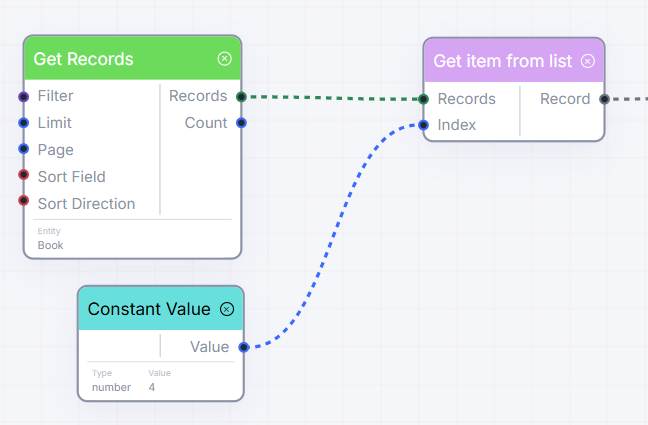
Get List Item
Section titled “Get List Item”Description & Use Case: Grabs a single item from a list (array) of things. Use this to find the first items in search results or get the latest entry in a collection.
Details Table:
| Name | Type | Required | Description | Default |
|---|---|---|---|---|
Trigger | Input | Any | Conditional gate. | Optional |
List | Input | List | The list containing the items. | Required |
Position Index | Input | Number | The index position (0 = first, 1 = second). Overrides settings. | Optional |
Quick Option | Settings | Text (Enum) | Shortcut: "First" or "Last". | - |
Extracted Item | Output | Any | The item retrieved from the list. | - |
Node usage example scenario:
Concat / Join Text
Section titled “Concat / Join Text”Description & Use Case: Glues two pieces of text together. Use this to combine a prefix (e.g., "REF-") with a number to generate invoice reference codes.
Details Table:
| Name | Type | Required | Description | Default |
|---|---|---|---|---|
Trigger | Input | Any | Conditional gate. | Optional |
Text 1 | Input | Text | First piece of text. | Required |
Text 2 | Input | Text | Second piece of text. | Required |
Combined Text | Output | Text | The combined text. | - |
Node usage example scenario:
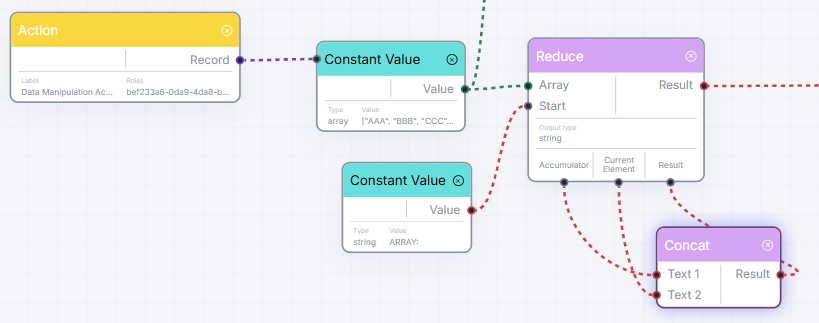
Reduce / Combine List — Loop Container
Section titled “Reduce / Combine List — Loop Container”Description & Use Case: Loops over a list and combines all items into a single final value. Use this to calculate the grand total sum of a list of invoice items.
Details Table:
| Name | Type | Required | Description | Default |
|---|---|---|---|---|
Trigger | Input | Any | Conditional gate. | Optional |
List | Input | List | List of items to loop over. | Required |
Initial Value | Input | Any | Starting total value. | Required |
Output Type | Settings | Text (Enum) | The type of final result (Number, Text, Yes/No, Record, List). | Required |
Accumulator | Loop Out | Any | The running total inside the loop step. | - |
Current Element | Loop Out | Any | The active item inside the loop step. | - |
Iteration Result | Loop In | Any | Pass the updated total back from the loop step here. | - |
Result | Output | Any | The final combined value. | - |
Node usage example scenario:
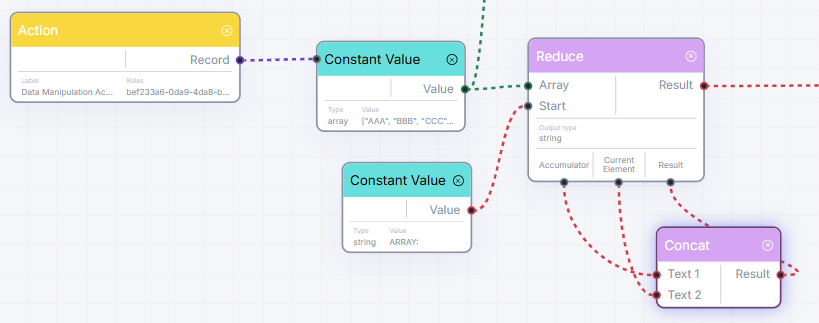
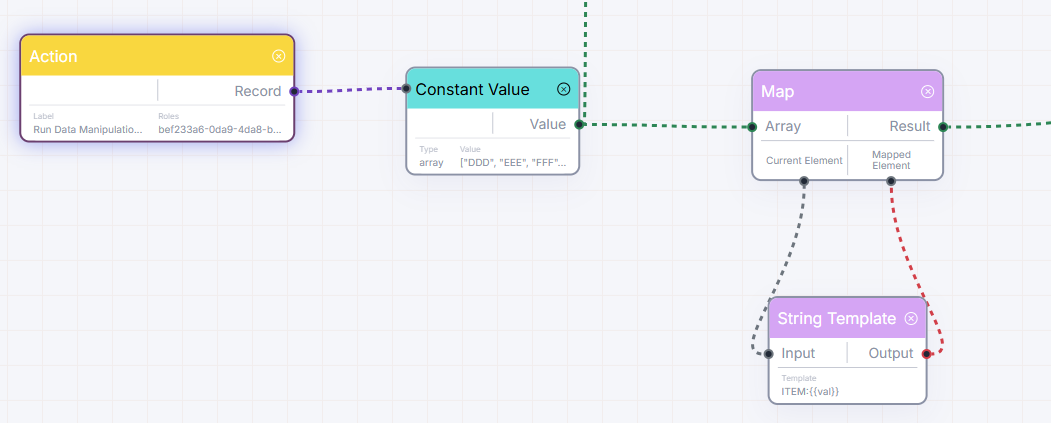
Map / Transform List — Loop Container
Section titled “Map / Transform List — Loop Container”Description & Use Case: Loops over a list, transforms each item using a mini workflow, and builds a brand-new list. Use this to take a list of orders and format them all into clean billing lines.
Details Table:
| Name | Type | Required | Description | Default |
|---|---|---|---|---|
Trigger | Input | Any | Conditional gate. | Optional |
List | Input | List | Source list of items. | Required |
Current Element | Loop Out | Any | The active item inside the loop. | - |
Mapped Element | Loop In | Any | Pass the transformed item back from the loop here. | - |
Result | Output | List | The newly compiled list of transformed items. | - |
Node usage example scenario:
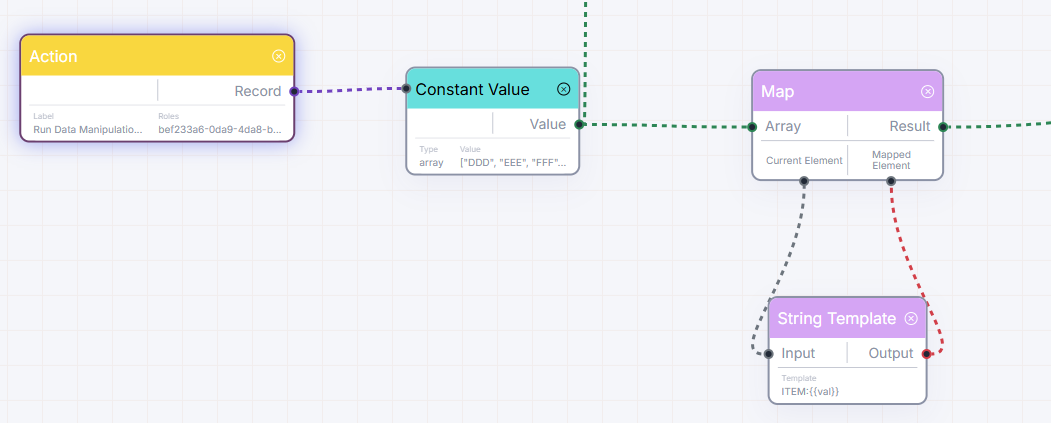
For Each / Run For Each — Loop Container
Section titled “For Each / Run For Each — Loop Container”Description & Use Case: Loops sequentially over a list to perform an action for each item. Use this to send a custom notification to a list of users, or delete a list of expired items.
Details Table:
| Name | Type | Required | Description | Default |
|---|---|---|---|---|
Trigger | Input | Any | Conditional gate. | Optional |
List | Input | List | The list to loop over. | Required |
Item | Loop Out | Any | The active list item. | - |
Position Index | Loop Out | Number | The zero-based index of the active item in the list. | - |
Next Step | Loop In | Any | Required. Connect this to the final step in your loop to tell the system to proceed. | - |
Completed | Output | List | Fires the original list once the loop completely finishes. | - |
Node usage example scenario:
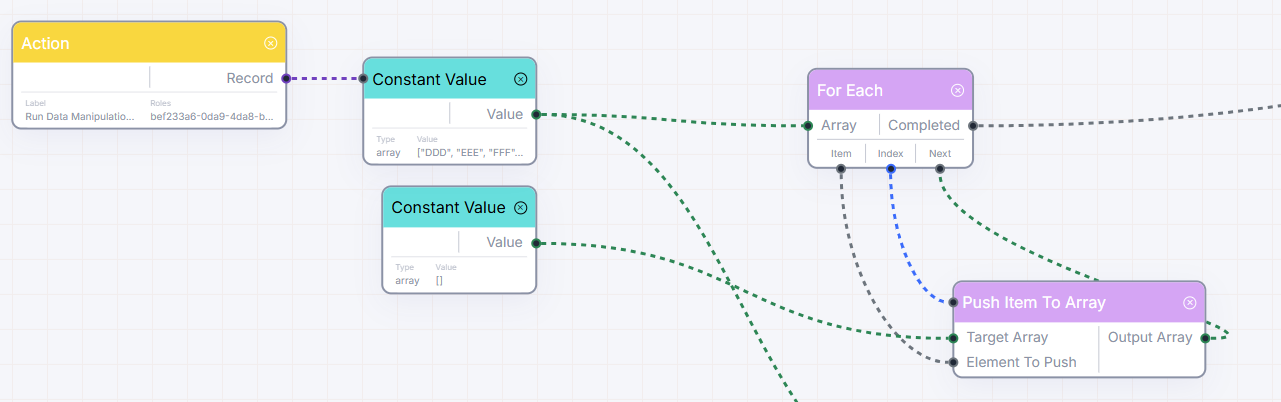
Add Item to List
Section titled “Add Item to List”Description & Use Case: Appends a new item to the end of a list. Use this to add a new item to a shopping cart list.
Details Table:
| Name | Type | Required | Description | Default |
|---|---|---|---|---|
Trigger | Input | Any | Conditional gate. | Optional |
List | Input | List | The base list. | Required |
Item | Input | Any | Item to add. | Required |
Result List | Output | List | The updated list containing the new item. | - |
Node usage example scenario:
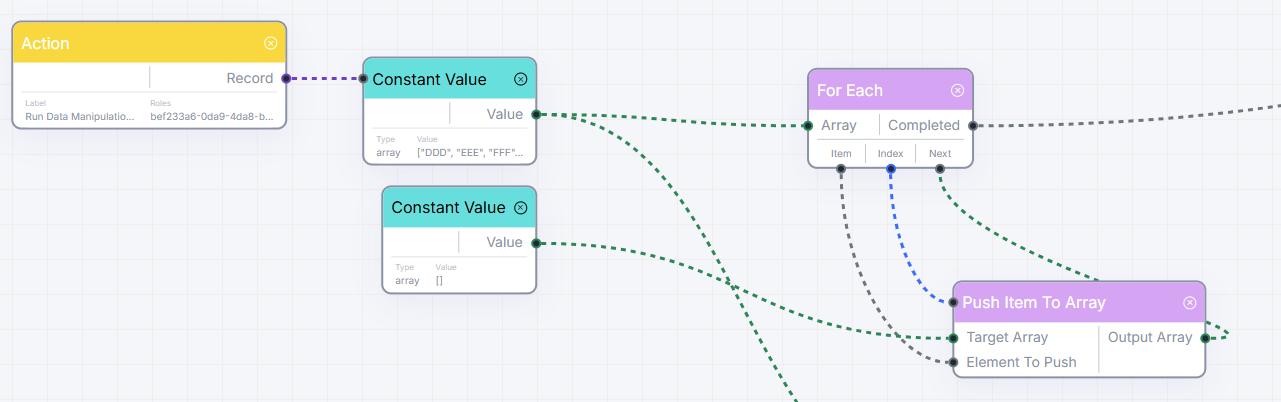
Text Template
Section titled “Text Template”Description & Use Case: Inserts variables into a message template. Use this to draft personalized SMS notifications (e.g. "Hi {{val.name}}, your code is {{val.code}}").
Details Table:
| Name | Type | Required | Description | Default |
|---|---|---|---|---|
Trigger | Input | Any | Conditional gate. | Optional |
Source Info | Input | Any | The record or value to pull data from. | Required |
Template | Settings | Text | Text template containing bracket tokens (e.g., {{val.name}}). | "{{val}}" |
Result Text | Output | Text | The finished text with all placeholders filled in. | - |
Node usage example scenario:
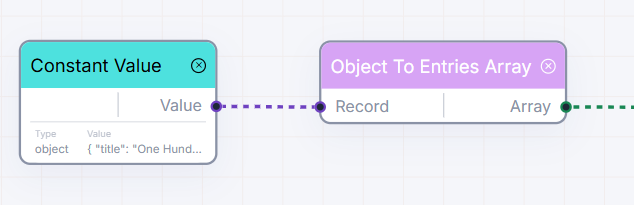
Record to Key-Value List
Section titled “Record to Key-Value List”Description & Use Case: Converts a record group into a list of key-value pairs (e.g. converting { a: 1 } into [{ key: 'a', value: 1 }]). Use this to loop through all fields of a record dynamically.
Details Table:
| Name | Type | Required | Description | Default |
|---|---|---|---|---|
Trigger | Input | Any | Conditional gate. | Optional |
Record Details | Input | Record Details | Object to decompose. | Required |
Key-Value List | Output | List | List of key-value structure items. | - |
Node usage example scenario:
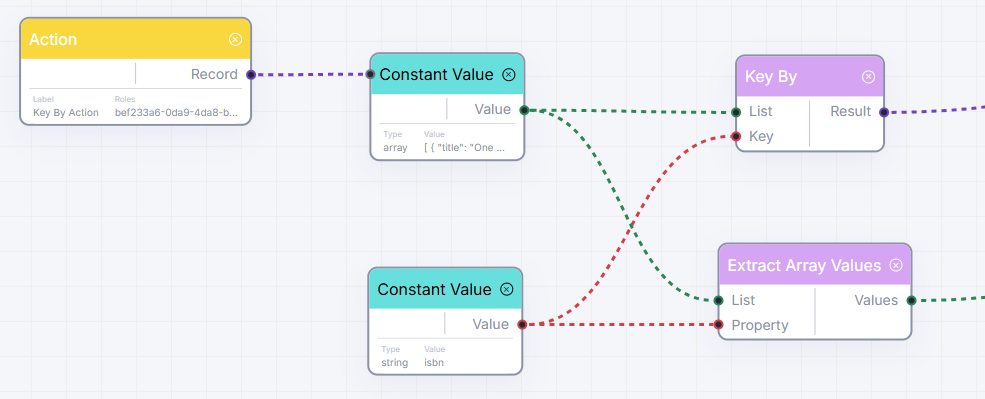
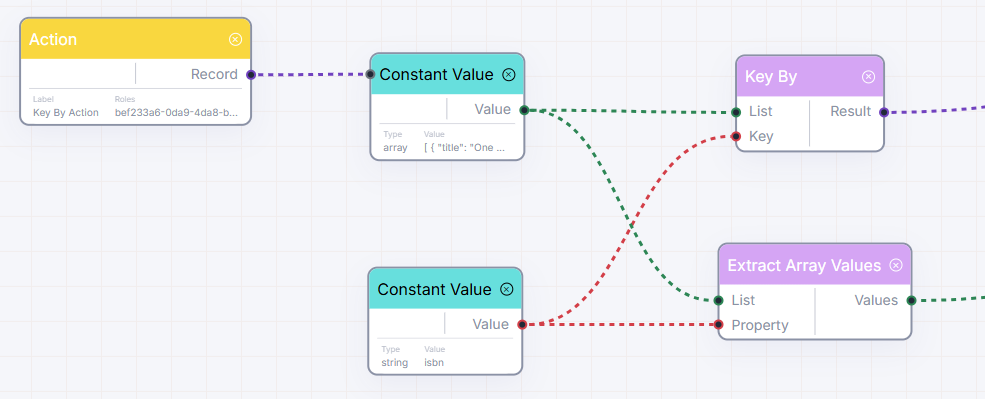
Extract array values
Section titled “Extract array values”Description & Use Case: Pulls a specific field from every item inside a list of records (e.g. pulling a list of email addresses from a list of user records).
Details Table:
| Name | Type | Required | Description | Default |
|---|---|---|---|---|
Trigger | Input | Any | Conditional gate. | Optional |
List | Input | List | List of record details. | Required |
Field Path | Input | Text | The field name to pull. Overrides settings. | Optional |
Field Path | Settings | Text | The field name to pull from each record. | - |
Result List | Output | List | A simple list containing only the extracted values. | - |
Node usage example scenario:
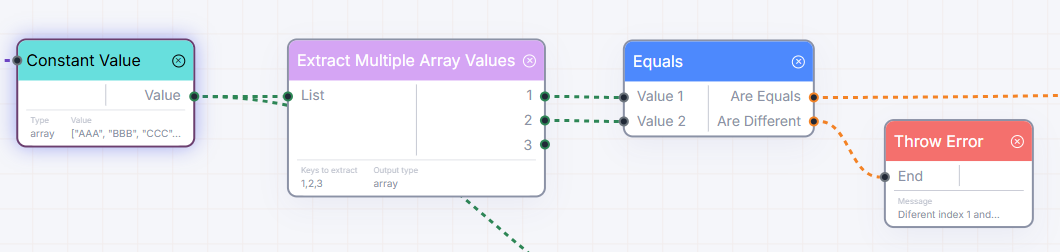
Extract multiple array values
Section titled “Extract multiple array values”Description & Use Case: Pulls several fields from every item in a list of records simultaneously, returning them as separate lists.
Details Table:
| Name | Type | Required | Description | Default |
|---|---|---|---|---|
Trigger | Input | Any | Conditional gate. | Optional |
List | Input | List | List of record details. | Required |
Fields | Settings | List of Text | The list of field names to extract. | Required |
Output Structure | Settings | Text | Format setting. | "array" |
| Dynamic Outputs | Output | List | Generates one output port for each field name configured. | - |
Node usage example scenario:

Key By / Organize List by Key
Section titled “Key By / Organize List by Key”Description & Use Case: Reorganizes a list of records into a dictionary record organized by a chosen field value. Use this to quickly index users by their email addresses.
Details Table:
| Name | Type | Required | Description | Default |
|---|---|---|---|---|
Trigger | Input | Any | Conditional gate. | Optional |
List | Input | List | The list of records to group. | Required |
Key Field | Input | Text | The field to group by. Overrides settings. | Optional |
Key Field | Settings | Text | The field to group by. | - |
Value Field | Settings | Text | Optionally choose a field to serve as the value. | - |
Organized Record | Output | Record Details | The resulting organized dictionary record. | - |
Node usage example scenario:
Manage Relationships
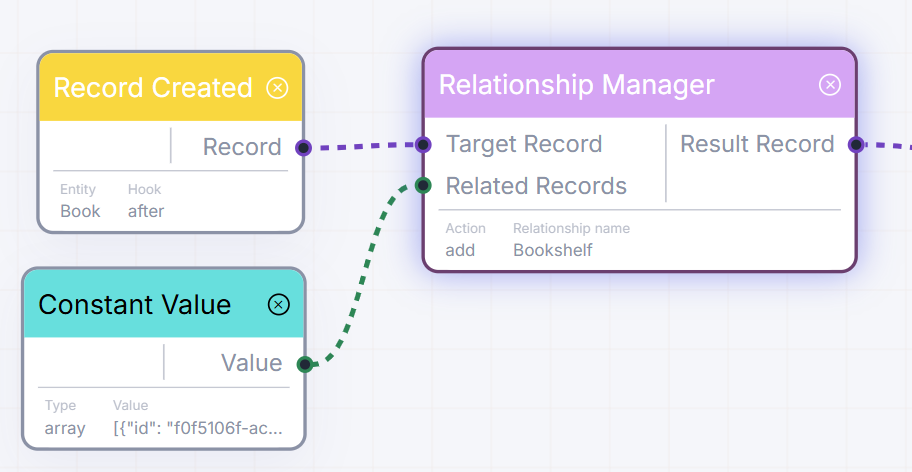
Section titled “Manage Relationships”Description & Use Case: Links or unlinks related items (e.g. linking several products to a specific store category).
Details Table:
| Name | Type | Required | Description | Default |
|---|---|---|---|---|
Trigger | Input | Any | Conditional gate. | Optional |
Main Record | Input | Record Details | The parent record to update. | Required |
Related Records | Input | List | List of child records to link/unlink. | Required |
Action | Settings | Text (Enum) | Choose: "add" (Link) or "remove" (Unlink). | Required |
Relationship | Settings | Text | The name of the relationship category. | Required |
Updated Record | Output | Record Details | The parent record details after link changes. | - |
Node usage example scenario:
Decisions & Routing (Logical Operators)
Section titled “Decisions & Routing (Logical Operators)”Use these nodes to split flows, check parameters, or route runs along different paths.
Equal / Check Equality
Section titled “Equal / Check Equality”Description & Use Case: Compares two values and splits the flow depending on whether they match. Use this to check if a user inputted a correct answer, or if two codes match.
Details Table:
| Name | Type | Required | Description | Default |
|---|---|---|---|---|
Trigger | Input | Any | Conditional gate. | Optional |
Value 1 | Input | Any | First value. | Required |
Value 2 | Input | Any | Second value. | Required |
Match Mode | Settings | Text (Enum) | Choose "valueAndType" (Strict) or "OnlyValue" (Loose). | "OnlyValue" |
If Equal | Output | Yes/No | Fires and routes flow if both inputs match. | - |
If Not Equal | Output | Yes/No | Fires and routes flow if inputs do not match. | - |
Node usage example scenario:
Empty / Check If Empty
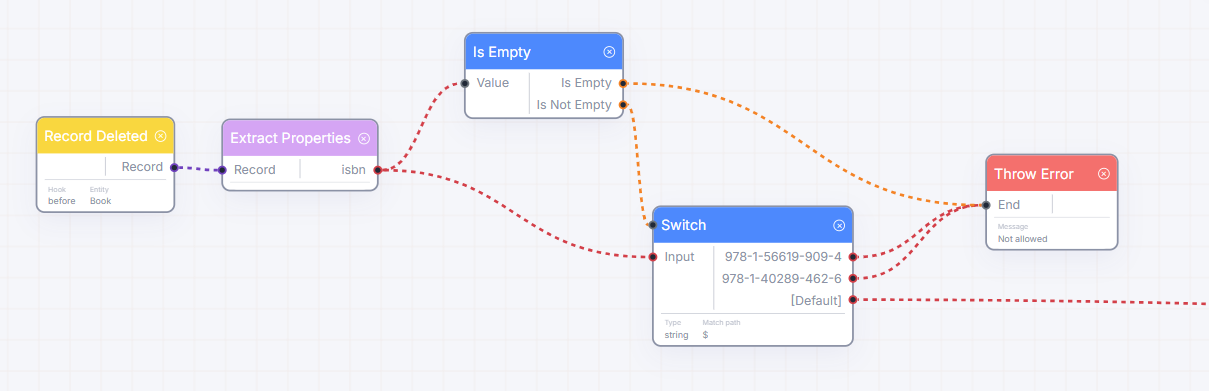
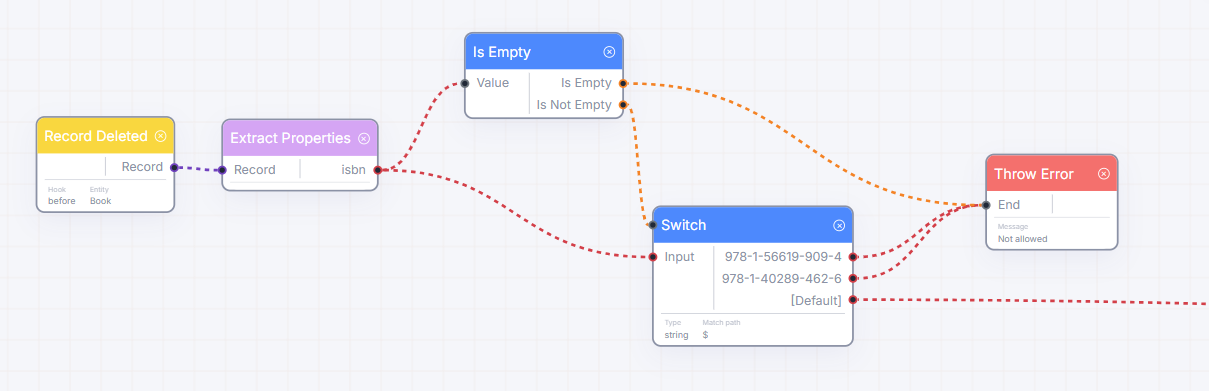
Section titled “Empty / Check If Empty”Description & Use Case: Checks if an input is missing or empty (e.g. blank text). Use this to check if a customer failed to supply a phone number, routing the flow to an alert.
Details Table:
| Name | Type | Required | Description | Default |
|---|---|---|---|---|
Trigger | Input | Any | Conditional gate. | Optional |
Value | Input | Any | The value to check. | Required |
If Empty | Output | Yes/No | Fires if empty. | - |
If Not Empty | Output | Yes/No | Fires if contains data. | - |
Node usage example scenario:
Switch / Multi-Path Switch
Section titled “Switch / Multi-Path Switch”Description & Use Case: Evaluates an input and routes the flow through the matching path out of several choices. Use this to route support tickets down different departments depending on priority (High -> Manager, Low -> Queue).
Details Table:
| Name | Type | Required | Description | Default |
|---|---|---|---|---|
Trigger | Input | Any | Conditional gate. | Optional |
Input | Input | Any | The value to match. | Required |
Data Type | Settings | Text (Enum) | Expected data type (Text, Number, Date, Record, Yes/No). | "string" |
Match Field | Settings | Text | Optional field to pull if input is a record. | - |
Cases | Settings | List | List of cases to match (e.g. “Low”, “Medium”, “High”). | Required |
Default | Output | Yes/No | Runs if the input matches none of the cases. | - |
| Dynamic Outputs | Output | Yes/No | A separate output port appears for each case. Only the matching case fires. | - |
Node usage example scenario:
Comparison / Value Comparison
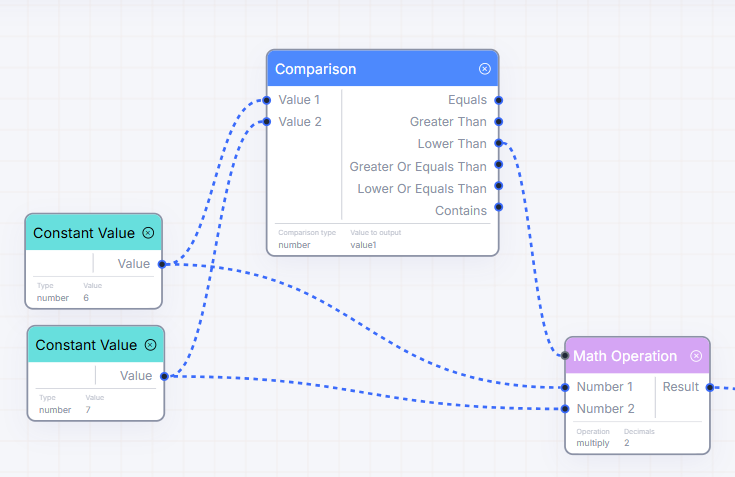
Section titled “Comparison / Value Comparison”Description & Use Case: Compares two values (numbers, dates, or alphabetical text) and splits the flow. Use this to check if a customer is over 18 years old, or if a date is older than today.
Details Table:
| Name | Type | Required | Description | Default |
|---|---|---|---|---|
Trigger | Input | Any | Conditional gate. | Optional |
Value 1 | Input | Any | First comparator. | Required |
Value 2 | Input | Any | Second comparator. | Required |
Data Type | Settings | Text (Enum) | Compare as: "number", "date", or "string". | Required |
Forward Option | Settings | Text (Enum) | Choose which value to send forward: "value1" or "value2". | Required |
Equals | Output | Any | Fires if equal. | - |
Greater Than | Output | Any | Fires if Value 1 > Value 2. | - |
Lower Than | Output | Any | Fires if Value 1 < Value 2. | - |
Greater/Equal | Output | Any | Fires if Value 1 >= Value 2. | - |
Lower/Equal | Output | Any | Fires if Value 1 <= Value 2. | - |
Contains | Output | Any | Fires if Value 1 contains Value 2. | - |
Node usage example scenario:
Stopping the Flow (Life Cycle)
Section titled “Stopping the Flow (Life Cycle)”These nodes control how a workflow pathway ends.
End / Finish Success
Section titled “End / Finish Success”Description & Use Case: Marks the successful completion of a pathway in your workflow. Any value linked here is collected as the final output of the entire run.
Details Table:
| Name | Type | Required | Description | Default |
|---|---|---|---|---|
Result | Input | Any | Value to return as the final result of the workflow. | Required |
Node usage example scenario:
Throw / Finish Error
Section titled “Throw / Finish Error”Description & Use Case: Halts the workflow immediately, reporting an error and canceling/rolling back any database changes made in this run. Use this to block a process if security checks fail.
Details Table:
| Name | Type | Required | Description | Default |
|---|---|---|---|---|
Stop Trigger | Input | Any | Pathway connection to end the flow. | Required |
Error Message | Settings | Text | Custom message describing the failure. | Required |
Node usage example scenario:
Notifications, HTTP Requests, & AI Helpers
Section titled “Notifications, HTTP Requests, & AI Helpers”These nodes handle communications, integrations with external software, and artificial intelligence queries.
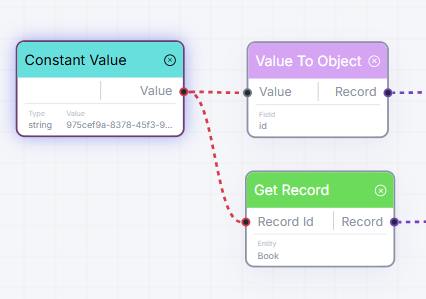
Constant Value
Section titled “Constant Value”Description & Use Case: Outputs a fixed, pre-set value that never changes (like a default sales tax multiplier or a default support email address).
Details Table:
| Name | Type | Required | Description | Default |
|---|---|---|---|---|
Trigger | Input | Any | Conditional gate. | Optional |
Type | Settings | Text (Enum) | Data type to cast to (Text, Number, Date, Record, Yes/No, List). | "string" |
Value | Settings | Any | The raw value. | Required |
Constant Value | Output | Any | The configured constant value. | - |
Node usage example scenario:
Outbound Web Request
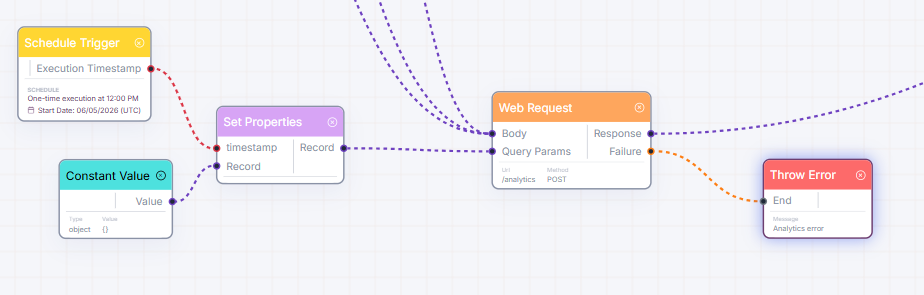
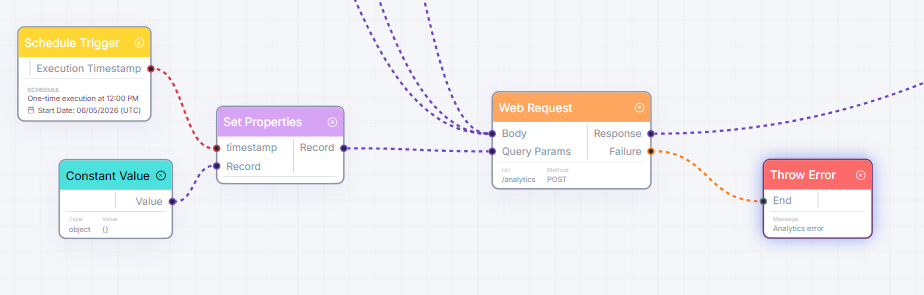
Section titled “Outbound Web Request”Description & Use Case: Sends an HTTP API request to external servers or online web services. Use this to send order receipts to Slack, or retrieve stock updates from a vendor’s inventory API.
Details Table:
| Name | Type | Required | Description | Default |
|---|---|---|---|---|
Trigger | Input | Any | Conditional gate. | Optional |
JSON Body | Input | Record Details | Data payload to send. | Optional |
Query Params | Input | Record Details | URL query parameters. | Optional |
URL | Settings | Text | Target web API address. | "/some-external-url" |
HTTP Method | Settings | Text (Enum) | Choose: "GET", "POST", "PUT", "DELETE", or "PATCH". | "POST" |
Headers | Settings | List | Custom header key-value items. | - |
Response | Output | Record Details | The parsed response data returned by the server. | - |
Failed? | Output | Yes/No | Outputs “Yes” if the request timed out or returned an error. | - |
Node usage example scenario:
Send In-App Notification
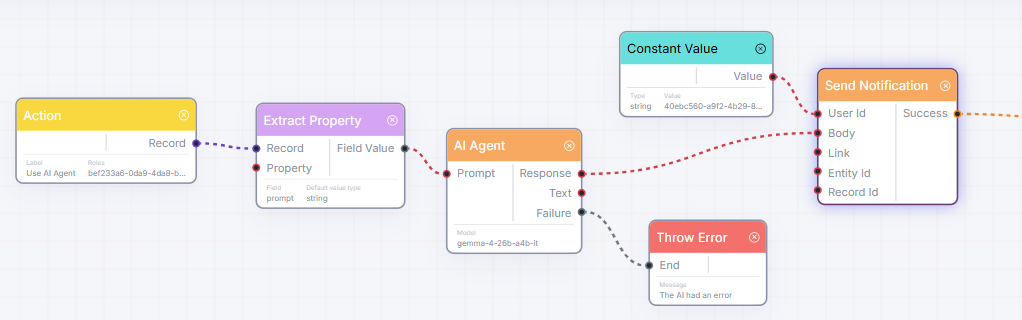
Section titled “Send In-App Notification”Description & Use Case: Sends an alert directly to a user in their application notification center. Use this to notify a clerk that their request was approved.
Details Table:
| Name | Type | Required | Description | Default |
|---|---|---|---|---|
Trigger | Input | Any | Conditional gate. | Optional |
User ID | Input | Text | The user to notify. Defaults to the flow runner. | Optional |
Message Body | Input | Text | The text message content. | Required |
Target Link | Input | Text | Optional screen path to open when clicked. | Optional |
Entity ID | Input | Text | Related database category ID. | Optional |
Record ID | Input | Text | Related database record ID. | Optional |
Sent Success? | Output | Yes/No | Returns “Yes” if the notification was queued successfully. | - |
Node usage example scenario:
AI Agent
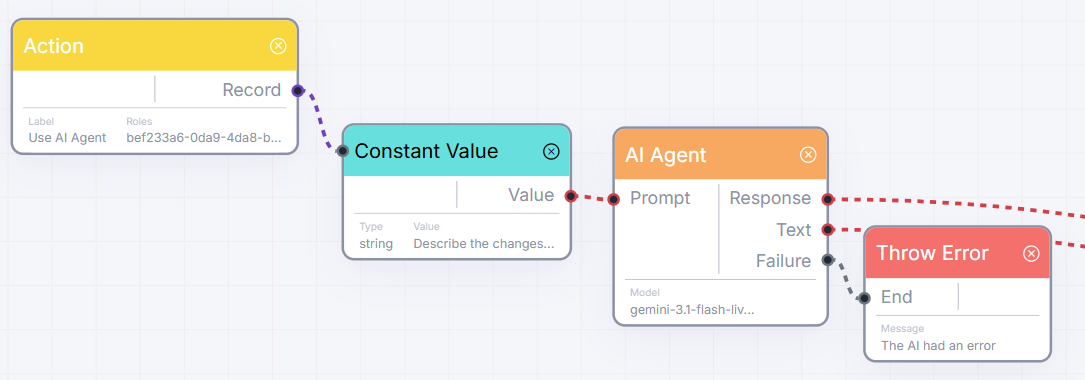
Section titled “AI Agent”Description & Use Case: Sends a prompt to an AI model (like Google Gemini) and retrieves a structured or plain text response. Use this to automatically summarize customer logs, categorize support tickets, or extract dates from text.
Details Table:
| Name | Type | Required | Description | Default |
|---|---|---|---|---|
Trigger | Input | Any | Conditional gate. | Optional |
Prompt | Input | Text | The prompt instruction. | Required |
System Rules | Settings | Text | AI persona constraints (e.g. “Draft short answers”). | Required |
Stop on Failure | Settings | Yes/No | Halts entire flow if AI call fails. | false |
AI Outputs | Settings | List | Define fields you want the AI to extract and output. | - |
Advanced | Settings | Yes/No | Enables detailed model tuning settings. | false |
Provider | Settings | Text (Enum) | Choose: "google" or "nvidia". | "google" |
Model ID | Settings | Text | Specific model version to use. | - |
API Token | Settings | Text | Custom authorization API key. | - |
Max Tokens | Settings | Number | Maximum response size. | 1024 |
Temperature | Settings | Number | Creativity slider (0.0 to 2.0). | 0.15 |
Max Retries | Settings | Number | Retries on API rate limits. | 2 |
Retry Delay | Settings | Number | Delay between retries in milliseconds. | 50 |
Enforce Schema | Settings | Yes/No | Force output validation with JSON Schema. | false |
JSON Schema | Settings | Text | Custom response schema structure. | - |
Plain Text | Output | Text | The raw text response. | - |
Failed? | Output | Any | Error details if the call fails. | - |
| Dynamic Outputs | Output | Any | Generates one output port for each defined field in AI Outputs. | - |
Node usage example scenario:
Best Practices & Tips
Section titled “Best Practices & Tips”- Use the Conditional “Trigger” Port: Instead of adding multiple branching decision nodes, connect decisions directly to the
Triggerport at the top of your nodes. If the connected decision is blank or “No”, the node is safely skipped along with all steps following it. - Database Transactions (Safety Rollbacks): If your workflow hits an
Errornode or encounters a serious issue midway, the system automatically rolls back all database changes made during that run, keeping your data clean. - Always Connect Loop Iterators: When using
ForEachto loop, always make sure to connect the final node of your internal flow back to the loop’sNext Stepinput. This tells the loop that it is safe to proceed to the next item.